
This article is written for: Zello Work Zello Friends & Family.
Admins can establish operating system-specific settings from the Management Console, ensuring the end user's Zello experience remains optimized for your network's needs and environment. This article describes the network-wide settings that can be established for users operating on Android devices; for assistance configuring iOS settings, see this article. For assistance with in-app Android settings (i.e. settings configurable by end users), see this article.
To access these settings:
1. Sign in to the Management Console at (yournetworkname).zellowork.com.
2. Open the Settings page.
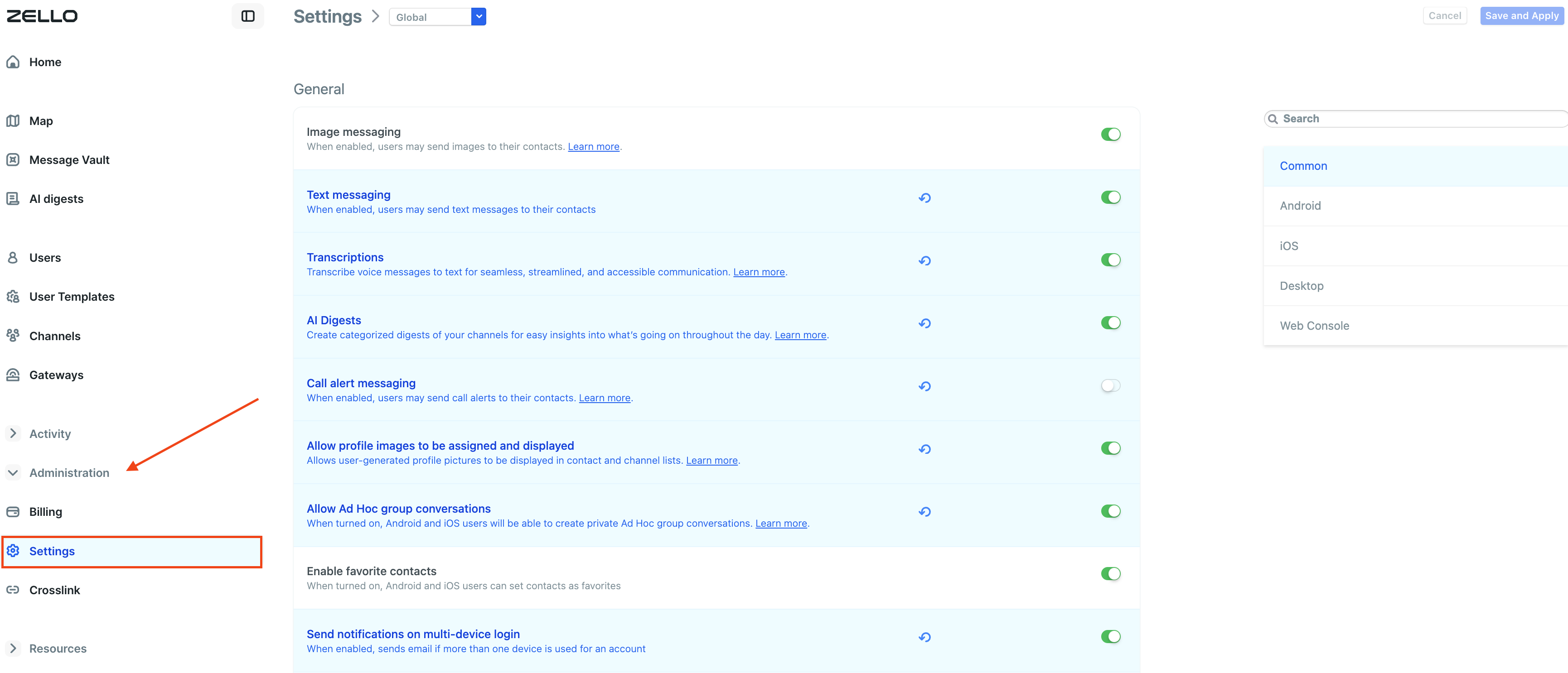
- If utilizing the updated interface, go to Administration > Settings.
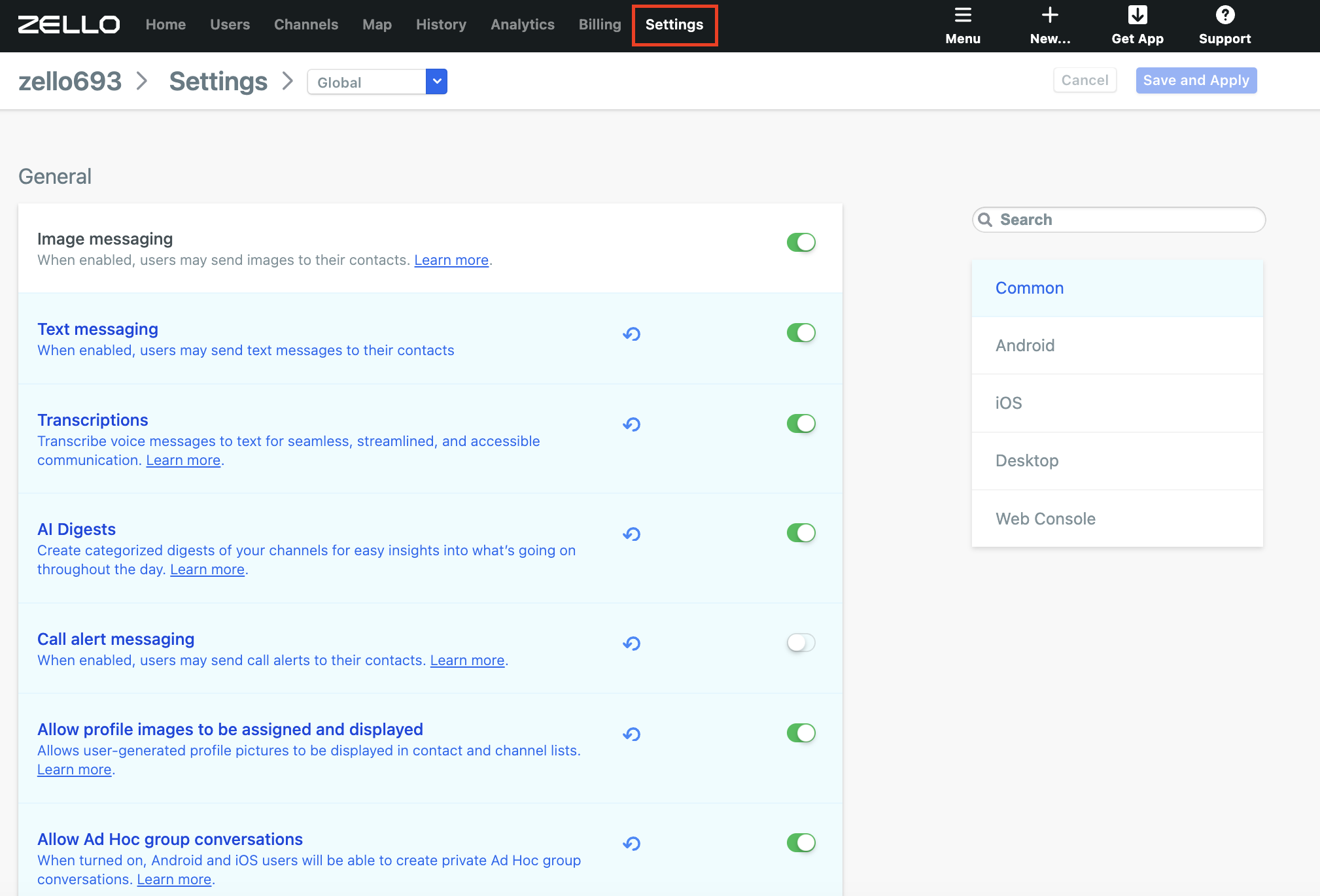
- If utilizing the legacy interface, select Settings from the taskbar.
3. Select Android from the side menu. 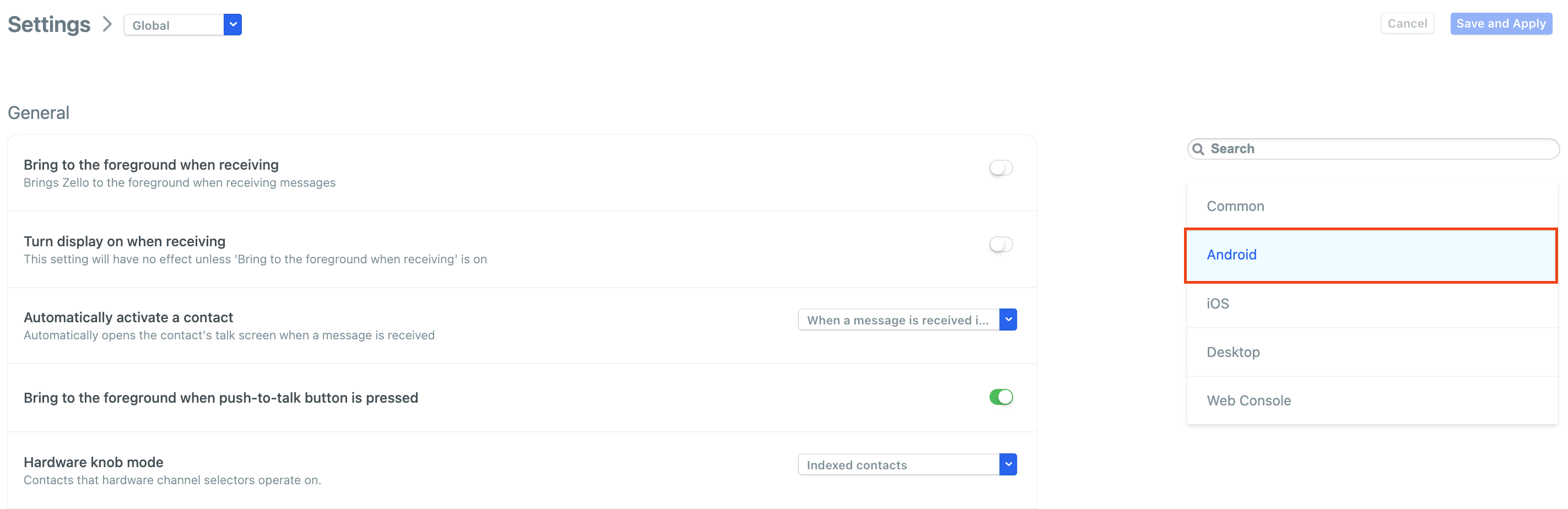
NOTE: Settings noted with an asterisk * below can be set as the default using the Management Console. Users can change the default setting on their device and it will stay in effect until the user logs off. Once the user logs back in, the setting reverts back to the default on the Management Console.
General Settings
Tables can't be imported directly. Please insert an image of your table which can be found here.
Setting ExplanationIf enabled, Zello will launch to the foreground when you receive a message. The talk screen will be brought into immediate view—even if you're currently using another app—and the message will be played aloud.
This setting is only applicable if "bring to the foreground when receiving" is enabled.
If both this setting and "bring to the foreground when receiving" are enabled, your device's screen will turn on when you receive a message—even if previously dormant.
When enabled, the talk screen for a contact you've received a message from will be brought to the foreground. Configuration options include: Never, When a message is received in the background, or when a message is received (generally).
When enabled, users will be automatically signed out—and therefore appear as offline to others—upon device connection to a charger.
Note that users can always cancel sign out if desired.
This setting prevents sign in credentials from being saved on a device once a user exits Zello. Consider enabling it if one device is used for many different accounts.
Note that this differs from Shared Device functionality, which allows multiple shift workers to utilize the same Zello Work account.
Recording amplifier*
This setting forces a particular hardware button to act as a PTT button. Key codes are often standardized across devices, but its recommended users consult the documentation associated with their particular device to confirm available configurations.
This setting forces an override of a 3.5mm audio connector's PTT button, ensuring that when a piece of wired hardware is connected to an Android device, its PTT button is properly mapped to Zello’s PTT function.
This setting forces an override of a USB-C device's PTT button, ensuring that when a piece of wired hardware is connected to an Android device, its PTT button is properly mapped to Zello’s PTT function.
This setting is for specialized, purpose-built, wired PTT accessories. Enable if you're using one to ensure optimized PTT functionality.
Enablement prevents your Android device from entering sleep mode when Zello is operating in the background, helping users stay reliably connected to their team.
The keep alive interval is the polling time between the app and the service. A longer time polling time uses less bandwidth and improves battery life; a shorter polling time keeps the user status display current and may improve connectivity.
For most users, the default value should work fine. Options are s for seconds and m for minutes.
Disables use of UDP for communication. Reduces data consumption but may cause higher latency.
The polling time between Zello and your Wi-Fi. A longer time polling time uses less bandwidth and improves battery life; a shorter polling time keeps the user status display current and may improve connectivity.
For most users, the default value should work fine. Options are s for seconds and m for minutes.
Speeds sign-in and improves Wi-Fi connection reliability. However, it may delay receiving messages in real-time. The alternative is TCP and UDP connectivity. Learn more here.
Minimizes app when inactive for the configured timeframe. Note that this doesn't close Zello—just pushes it to the background—so you'll still receive messages.
This feature enables users to send their current, static location to a contact, group conversation, or channel. Learn more.
When enabled, the Zello app will automatically start when a user turns on their device.
Enablement means a user's status will automatically change to Busy when their phone's notifications are silenced. This prevents new messages from playing aloud. Learn more.
When enabled, Zello messages received while you're on a phone call will play aloud. Learn more.
The playback buffer controls the amount of audio that's preloaded before playback begins. If you've noticed a delay in your communications, consider decreasing the playback buffer. If you've noticed your message includes audio gaps or cutoffs, consider increasing it.
When enabled, users can create overlay buttons—talk buttons that layer on top of other apps, ensuring your conversations continue with ease when Zello is running in the background. Learn more.
When enabled, an overlay of the most recently-contacted contact will appear—allowing seamless, targeted communication even when Zello is in the background.
Car mode ensures users don't have to handle a mobile device while driving. Learn more.
When enabled, Zello's notification bar will display a user's last contact and allow them to send a message directly from the pull-down notifications menu.
Allows faster setup for repeated calls to the same contact. Uses more data.
Queues missed messages while in 'Standby' status. Messages will autoplay once internet connection is restored and status becomes 'Available'.
Adjusts the amount of memory reserved for the application's debug log. Set to Large to store 10 times as many log messages. Note that you will not need to change this setting unless requested by the Zello team during troubleshooting.
Local History
Settings related to location history control how you Android locally stores messages. If you're concerned about storage capacity, consider lowering these parameters so that Zello requires less storage space. Note that once your device reaches its storage limit, your oldest Zello messages will be deleted.
Tables can't be imported directly. Please insert an image of your table which can be found here.
Setting ExplanationAll Zello messages will be deleted upon reaching the configured timeframe. Note that this exclusively applies to local message history that's stored on on users' devices; it's not applicable to Message Vault storage.
Alerts
Configuring alert settings in the management console prevents users from configuring them on their individual devices. Note that alert tone can be configured from the Zello app on an individual user's device.
Tables can't be imported directly. Please insert an image of your table which can be found here.
Setting ExplanationNew Conversation Notifications
Tables can't be imported directly. Please insert an image of your table which can be found here.
Setting ExplanationVoice quality
Tables can't be imported directly. Please insert an image of your table which can be found here.
Setting ExplanationThe setting controls the dynamic buffer size algorithm. Higher values reduce the chances of breaks in communication. Lower values reduce latency at the expense of increased probability of breaks in incoming messages.