
This article is written for: Zello Work Zello Friends & Family.
Appearance
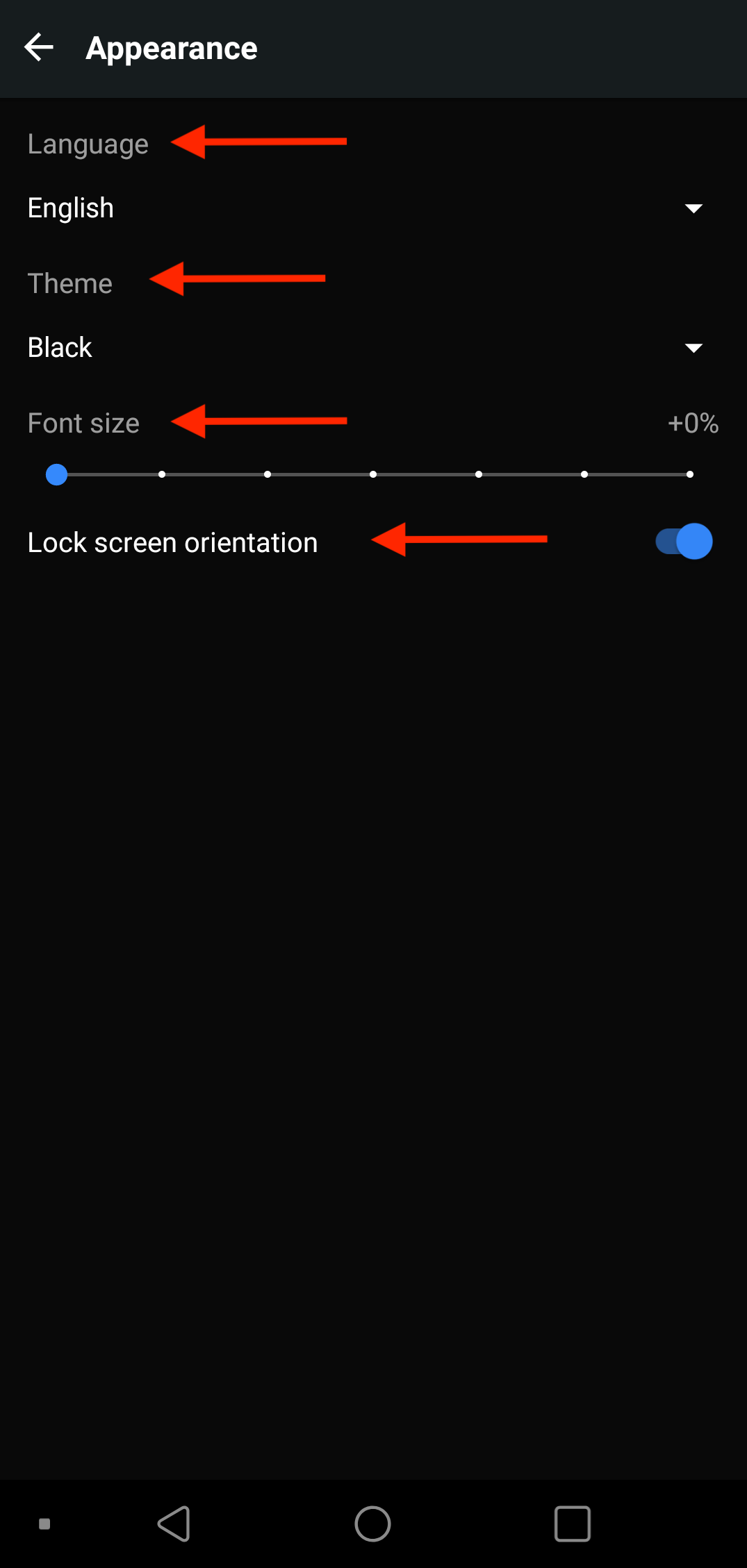
From the Appearance section, users can change the look and feel of their Zello app’s interface. Appearance options include the following:
Tables can't be imported directly. Please insert an image of your table which can be found here.
Language
Configure your app’s interface language from this section. Please note that Zello will inherit your device’s language by default; configure this setting if you’d like to exclusively change the language of the Zello app.
Theme
Theme–i.e. the backdrop color of your device–options include either black, white, or “system,” which inherits the theme configured on your device. In the screenshot to the right, the theme is set to "Black."
Font Size
Increase or decrease the size of Zello’s display font. This will affect all text in the Zello app, including the size of any text messages stored in History.
Lock Screen Orientation
Turn this setting on if you’d like to prevent your Zello screen from toggling between landscape and portrait mode when you rotate your device.
Audio
From the Audio section, configure playback and recording parameters that optimize Zello’s audio on your device. Learn more about audio amplification settings.
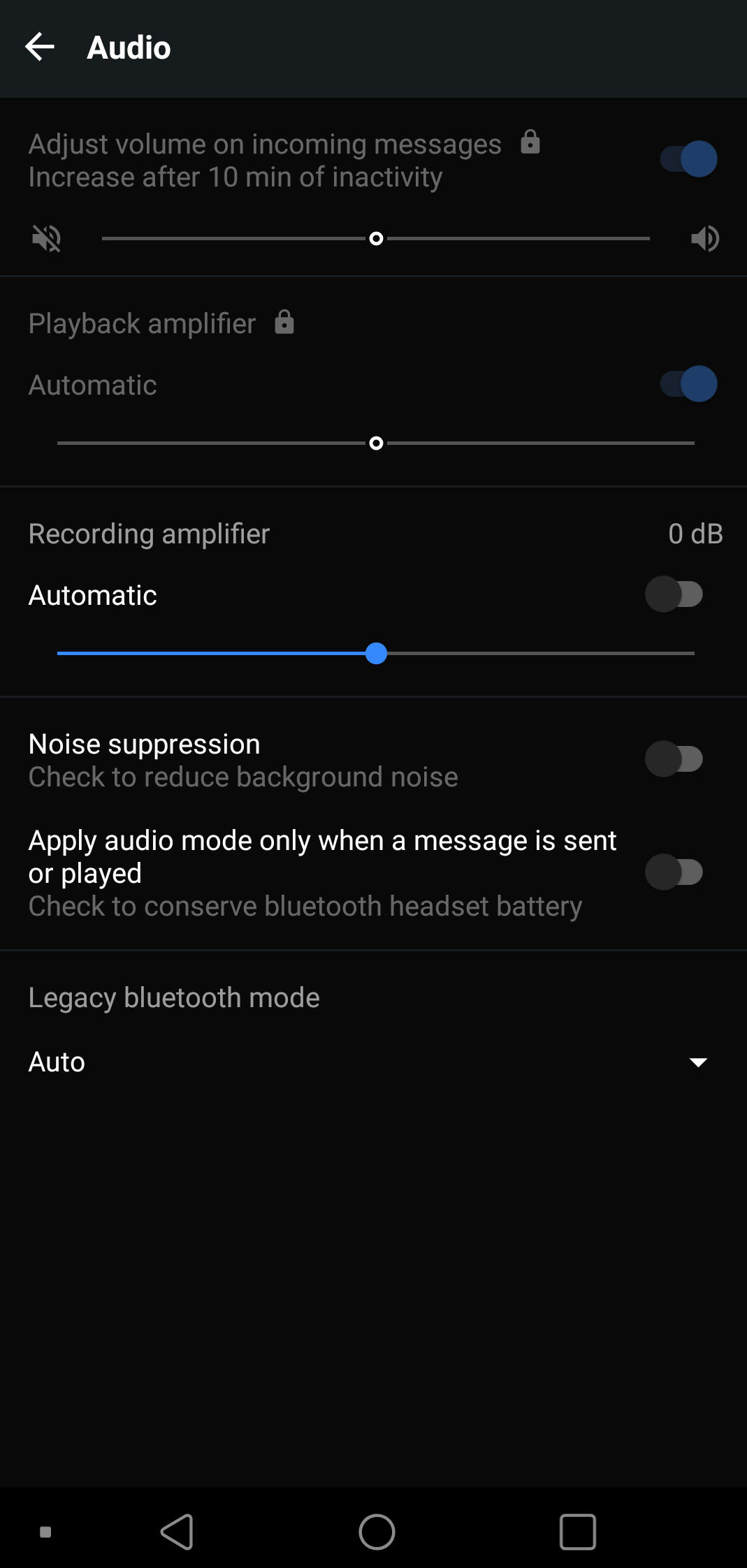
Please note: if any of the below settings appear grayed out with a lock icon, they’ve been administered on a network-wide basis by your admin. They accordingly can’t be configured from your device.
Tables can't be imported directly. Please insert an image of your table which can be found here.
When this setting is toggled on, incoming messages will be delivered at a higher volume after 10 minutes of inactivity. This helps ensure users don’t inadvertently miss messages that are sent while inactive. Learn more.
Legacy Bluetooth mode affects the call setup sequence. We recommend keeping this setting configured to “auto”—this will ensure the app automatically checks against a list of known devices and responds appropriately.
Please note: This setting is only applicable to networks operating on legacy Bluetooth devices utilizing an older Bluetooth Android API than the current supported API. Most networks will not need to alter the default “auto” configuration.
Push-to-talk buttons
Zello’s PTT button can be configured to best suit your communications environment and needs. Configuration options include: screen button settings, PTT headset settings, VOX button, and recent contact overlays. Learn more about mapping a device's PTT button.
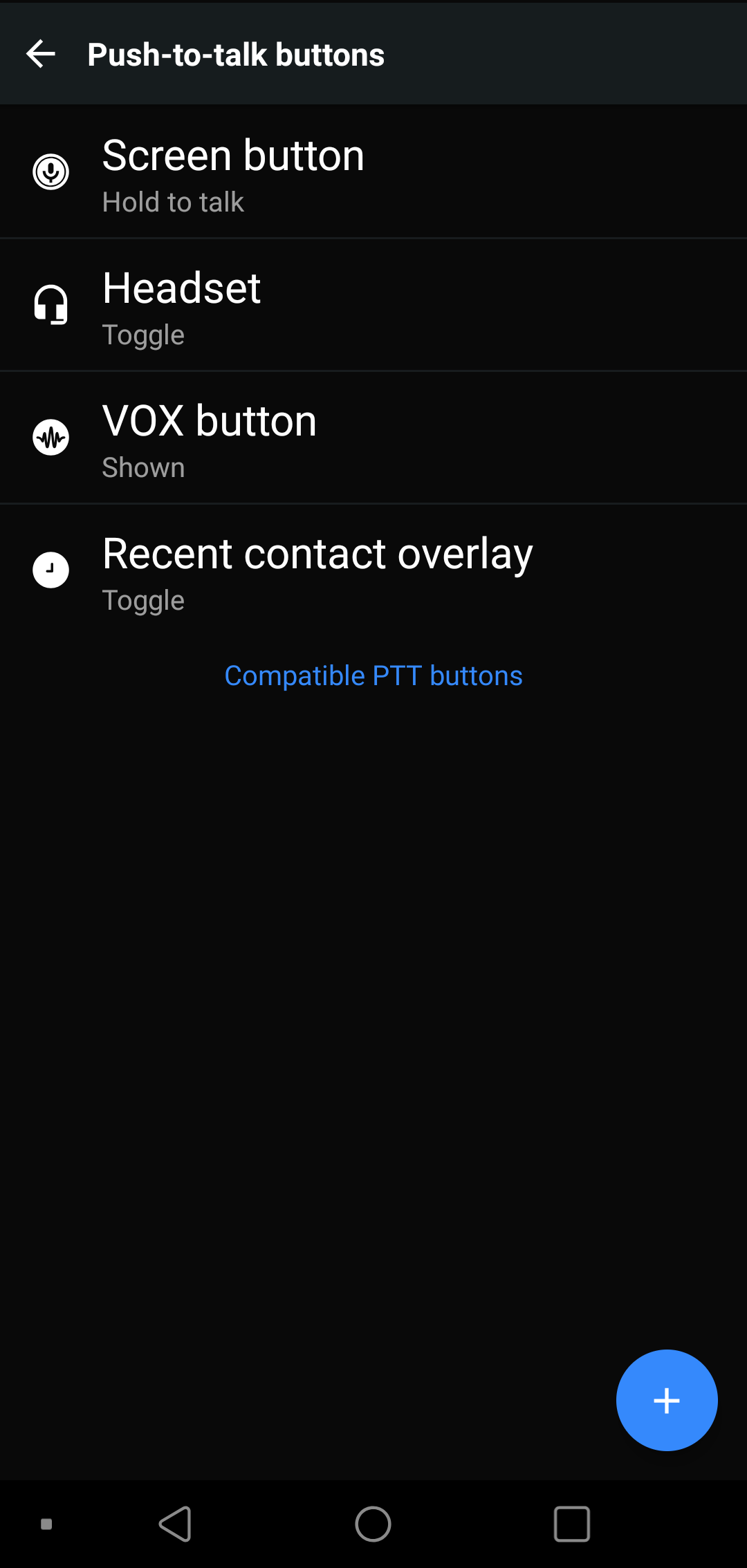
Tip: Tap the blue + button to quickly map a new headset/device PTT button.
Screen Button
Tables can't be imported directly. Please insert an image of your table which can be found here.
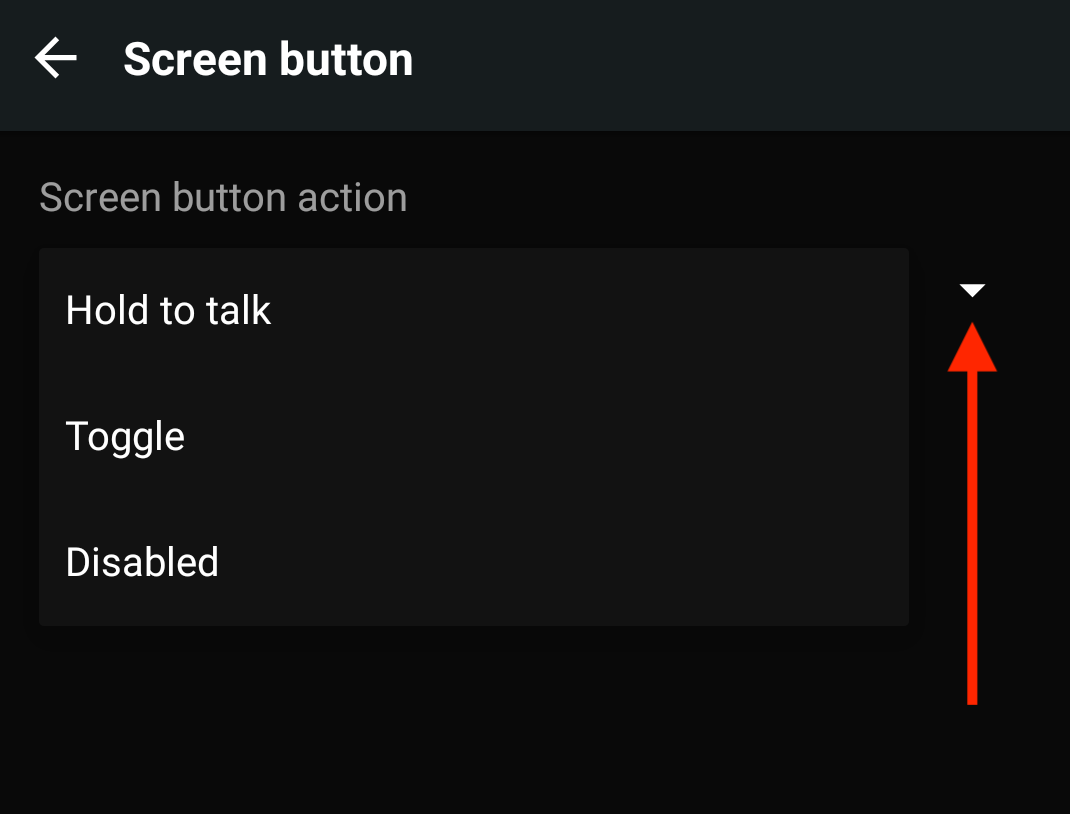
Screen button settings configure the PTT button that appears on a channel or contact’s talk screen. Tap the arrow associated with Screen button action to administer your preferred configuration.
Optional configurations include:
- Hold-to-Talk: Press and hold the PTT button to record and transmit your message.
- Toggle: tap the PTT button once to begin recording your message; tap it again to end your message’s recording and send.
- Disabled : When disabled, the screen’s PTT button cannot be used
Headset
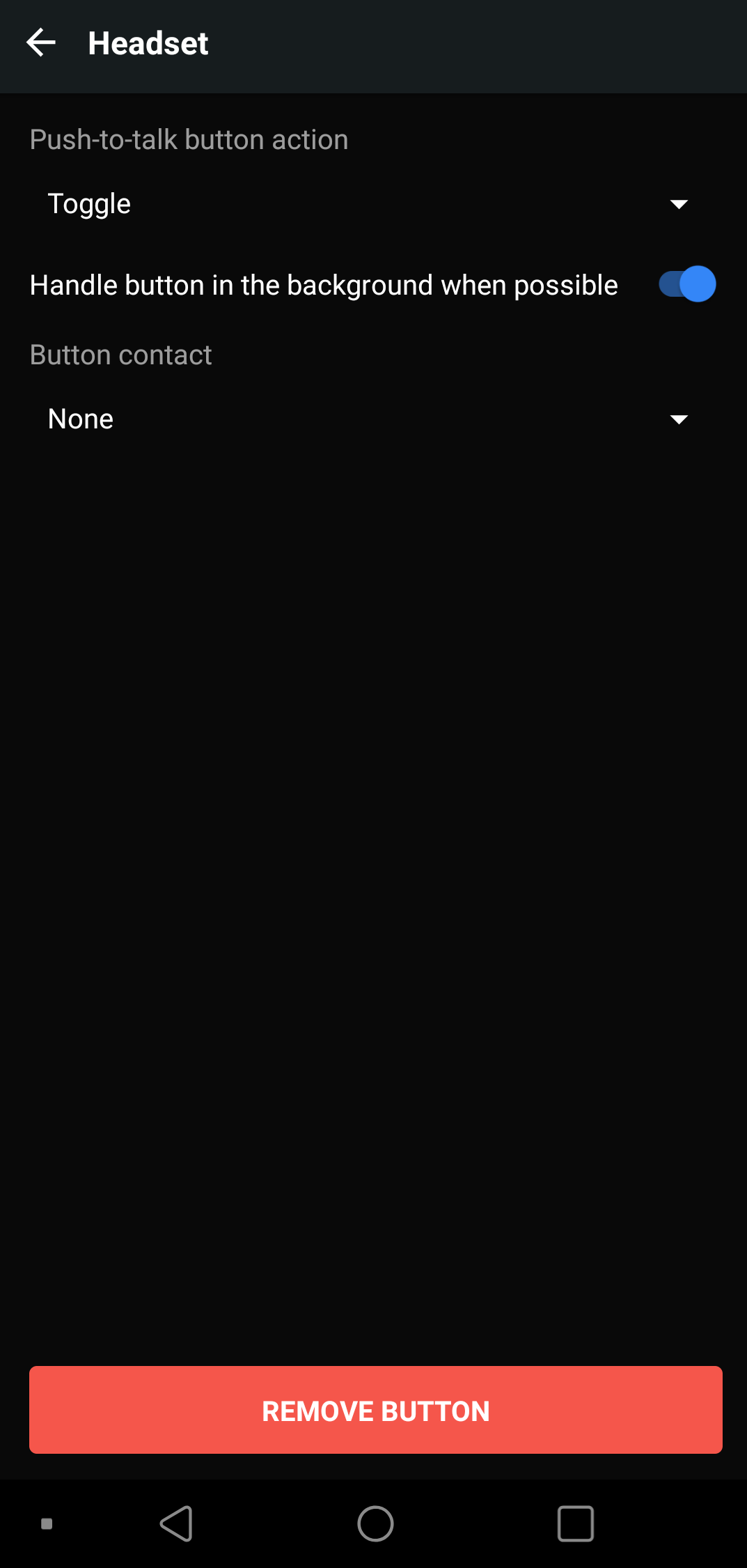
Configure settings for your headset, including the PTT button’s foreground behavior, mapped contact, and background behavior.
Tables can't be imported directly. Please insert an image of your table which can be found here.
- Push-to-talk button action
Select if you’d like your headset’s PTT button to operate in either toggle mode (press once to start recording a message, and once to end the recording) or hold-to-talk mode (press and hold the PTT button for the duration of your message).
- Handle button in the background when possible
When enabled, this setting allows you to utilize headset keys in your interactions with Zello, even if Zello is running in the background or your device’s screen is locked. Learn more about compatible devices.
- Button Contact
Map a specific contact or channel to your device’s PTT button. Learn more.
- Remove Button
Tap "Remove Button" if you'd like to un-map a headset's PTT button.
VOX Button
Tables can't be imported directly. Please insert an image of your table which can be found here.
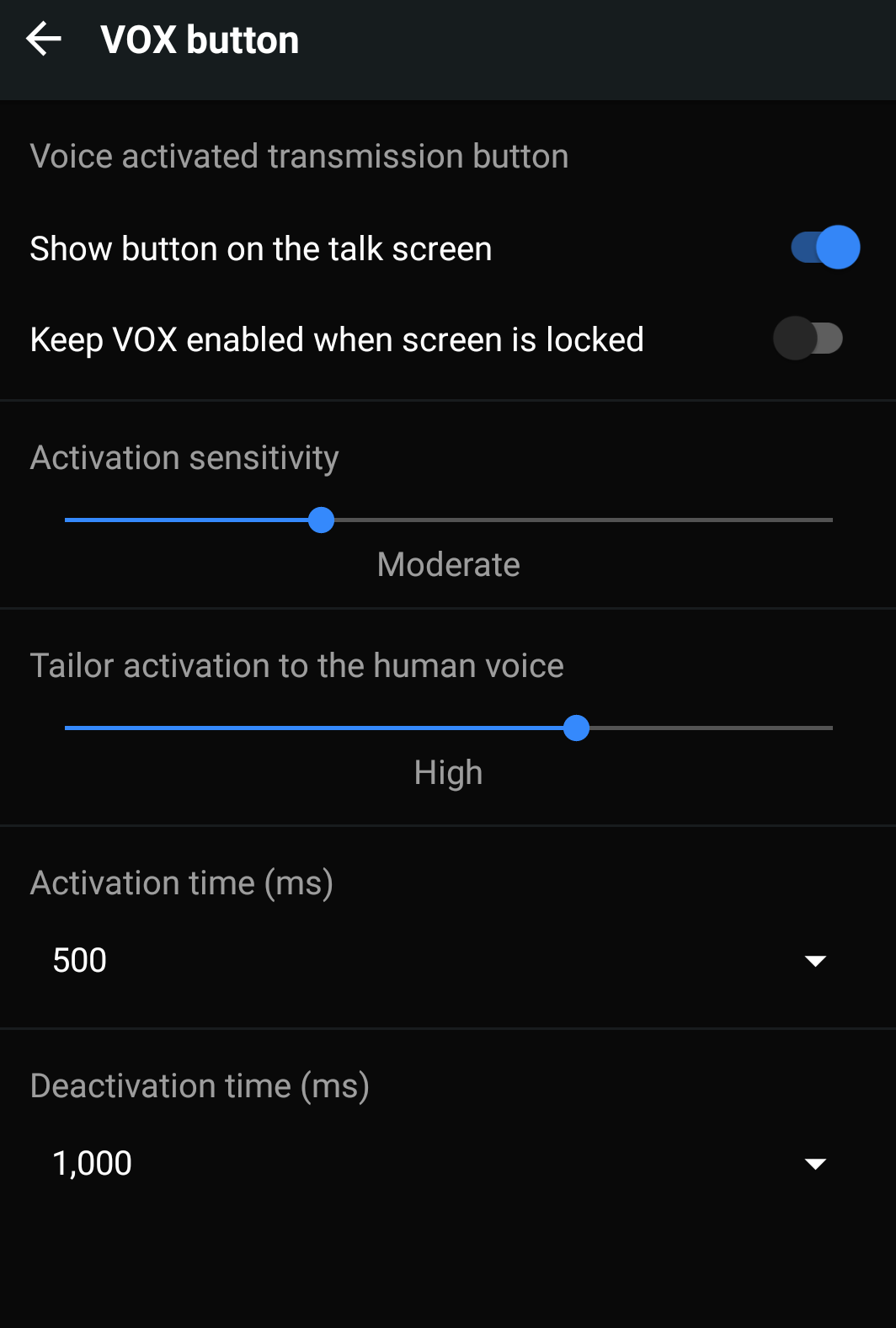
VOX allows you to use Zello hands-free through voice-activated message transmission. Use this menu to configure the expected behavior of VOX mode on your device. Learn more.
Please note: Admins can disable VOX mode from the console. If you're unable to configure VOX for your device, contact your network admin.
Tables can't be imported directly. Please insert an image of your table which can be found here.
Use the slider to establish the sensitivity level (low, moderate, high, extreme) required to activate transmissions.
Low extremeThis setting is used to distinguish a human voice from other noises (e.g. a mouse click, wind, a cat’s meow, etc.), adding a layer of protection to ensure VOX mode is intentionally activated.
Use the slider to establish the sensitivity level (low, moderate, high, extreme) required to activate the algorithm that distinguishes other noises from the human voice.
Activation time is the period after which VOX will begin transmitting a message once an activating noise is picked up. It is measured in milliseconds (ms).
Please note that reducing the threshold increases the chance of picking up random noises.
*reminder that 1 second = 1000 milliseconds
Behavior
This section allows users to customize the behavior of their Zello app. 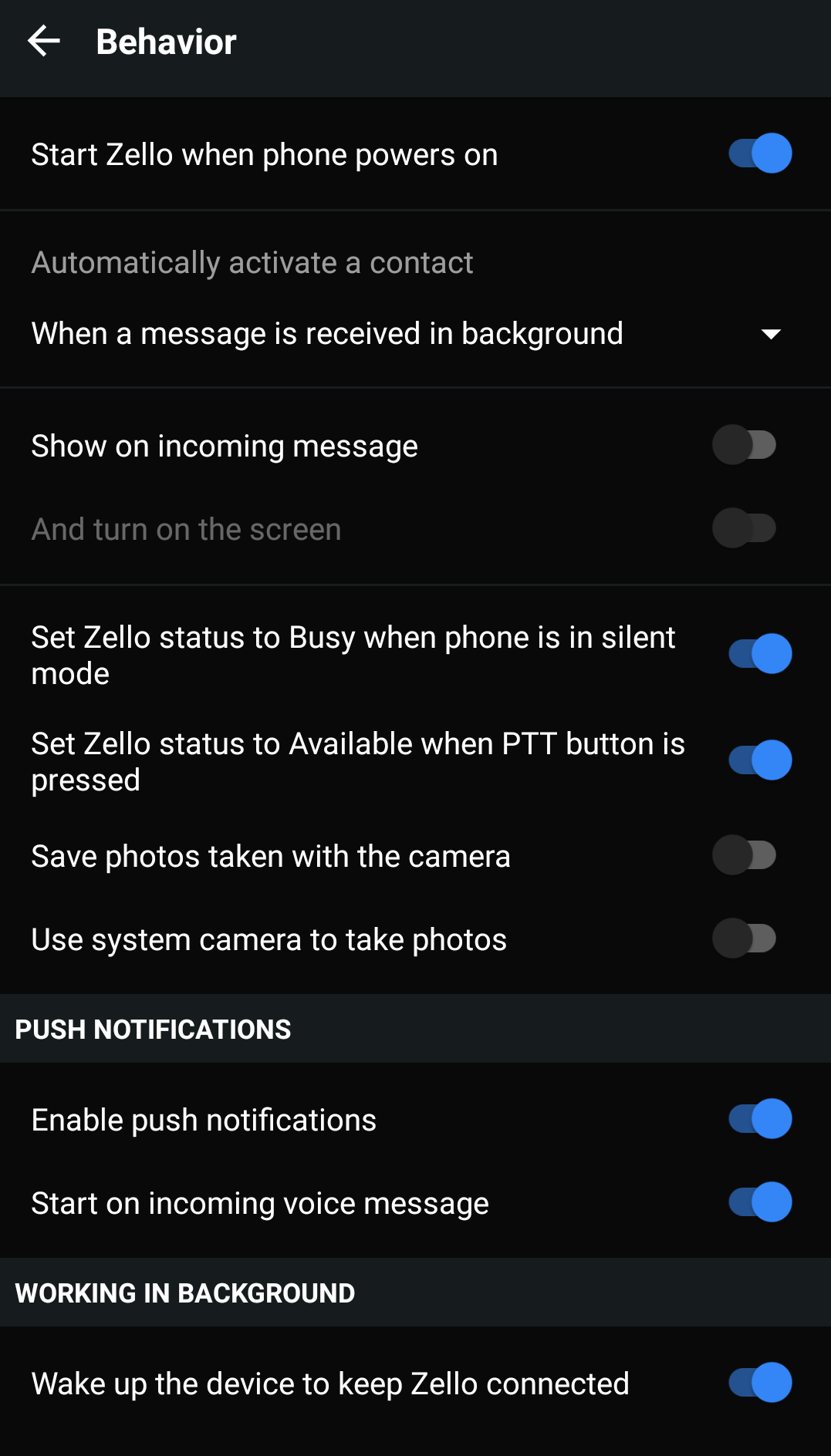
Tables can't be imported directly. Please insert an image of your table which can be found here.
Busy Recents Learn more. Busy Solo AvailableSave photos taken with the camera
Tables can't be imported directly. Please insert an image of your table which can be found here.
PUSH NOTIFICATIONSTables can't be imported directly. Please insert an image of your table which can be found here.
WORKING IN BACKGROUNDNotifications
Users can customize when and how alerts are received, including the alert tone, vibration, and more.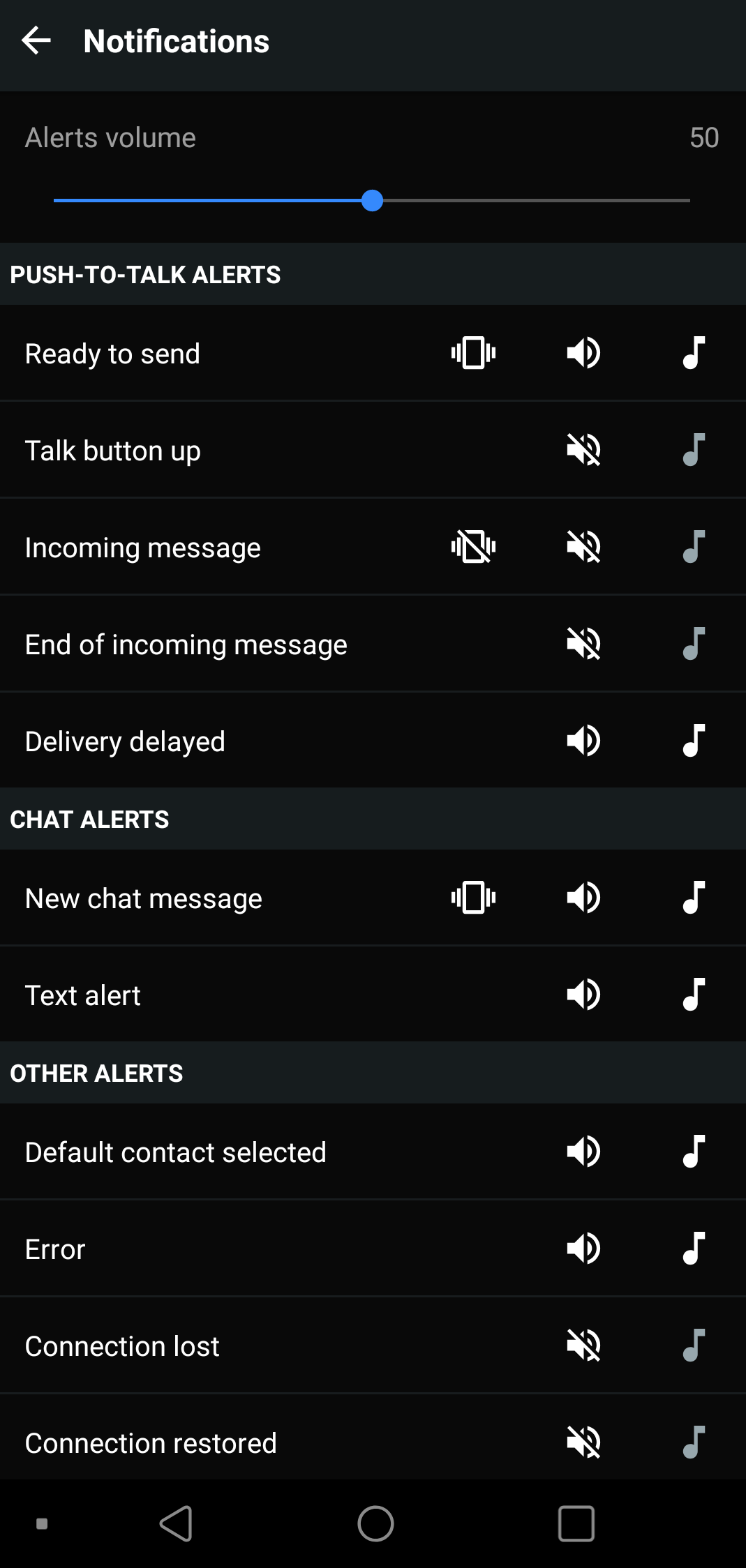
Tables can't be imported directly. Please insert an image of your table which can be found here.
Push-to-talk alerts
You’ve released the PTT button
Plays when delivery of your message is delayed. Learn more
Chat Alerts
Other Alerts
Learn more about default contacts.An error has occurred. These may include, but aren’t limited to, the following:
-
- Your microphone has been disabled
- You’re unable to connect with the contact you’re attempting to message
You’ve lost internet connection.
New Conversations
new conversation notificationsWhen enabled, you’ll be notified via a visual, audio, and vibrate alert when someone starts a new conversation with you. You can add additional configurations such as sound and vibration to the alert if desired.
New conversation notifications are defined as incoming messages sent after a configureable timeout period. For example, let's say I've been messaging Andrew for a while, but we stopped messaging each other for 5 minutes (the default timeout period). If he sent me a new message after that timeout period lapsed, I'd receive a new conversation notification.
Visual Notifications
History
Tables can't be imported directly. Please insert an image of your table which can be found here.
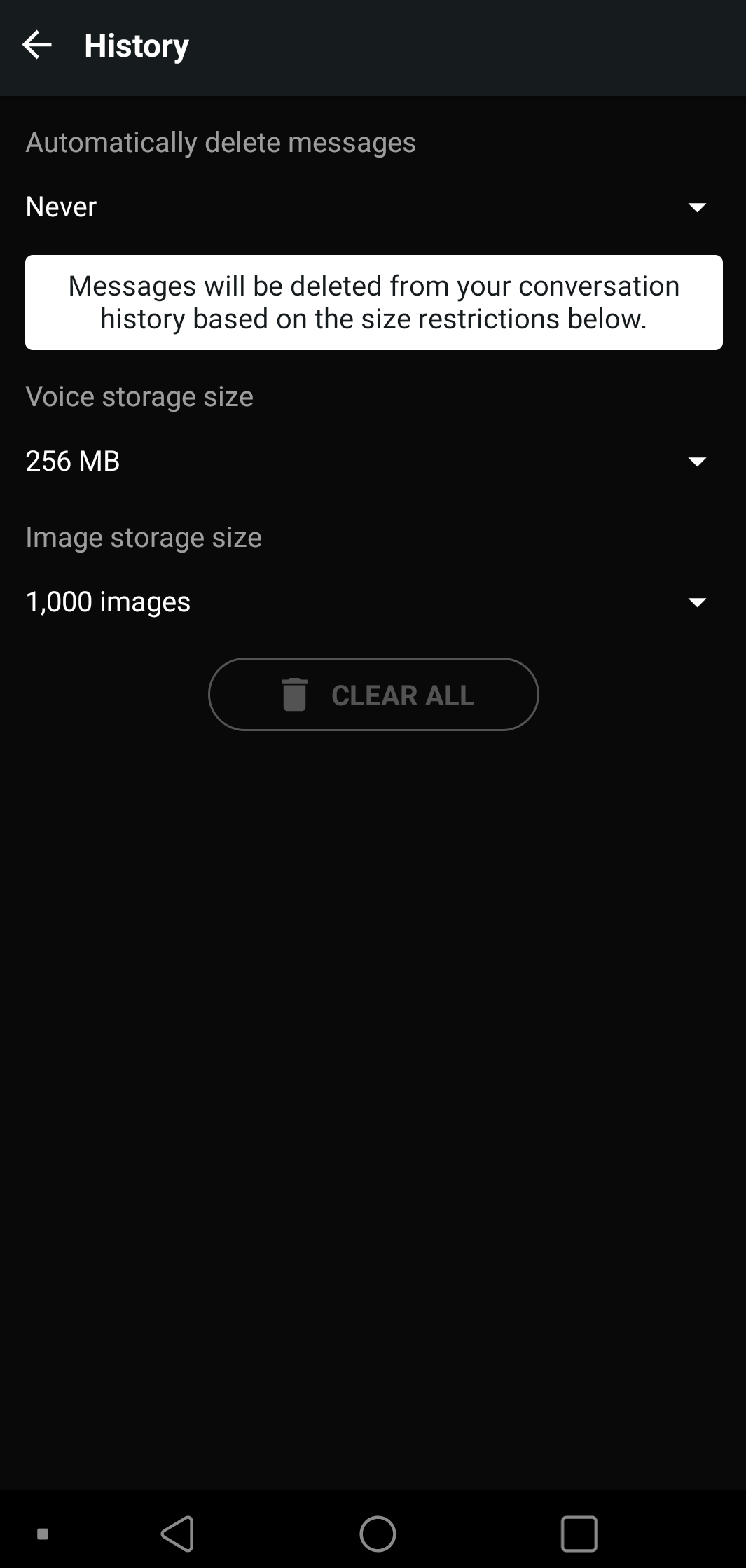
History is locally saved on user's device. The parameters for this—i.e. how long messages are saved and their available storage space—can be configured on a user-by-user basis from the app.
Please note: Admins may administer network-wide history settings from the management console. These will override device-specific settings.
Automatically delete messages
Use this dropdown if you’d like to set messages to automatically delete from your device after a particular time period. If you’d like all messages to be retained indefinitely—meaning a message will only be deleted if you manually do so—select Never.
Voice storage size
Amount of phone storage in Bytes available for voice message storage (16MB to 1GB). Once storage capacity is reached, the oldest messages will be deleted to make room for new messages.
Image Storage Size
Number of images sent via Zello that you’d like to be stored on your device (100-10,000 images). Once storage capacity is reached, the oldest messages are deleted first.
Clear all
Instantly deletes all message history currently stored on your device from the Zello app.
Support
Tables can't be imported directly. Please insert an image of your table which can be found here.
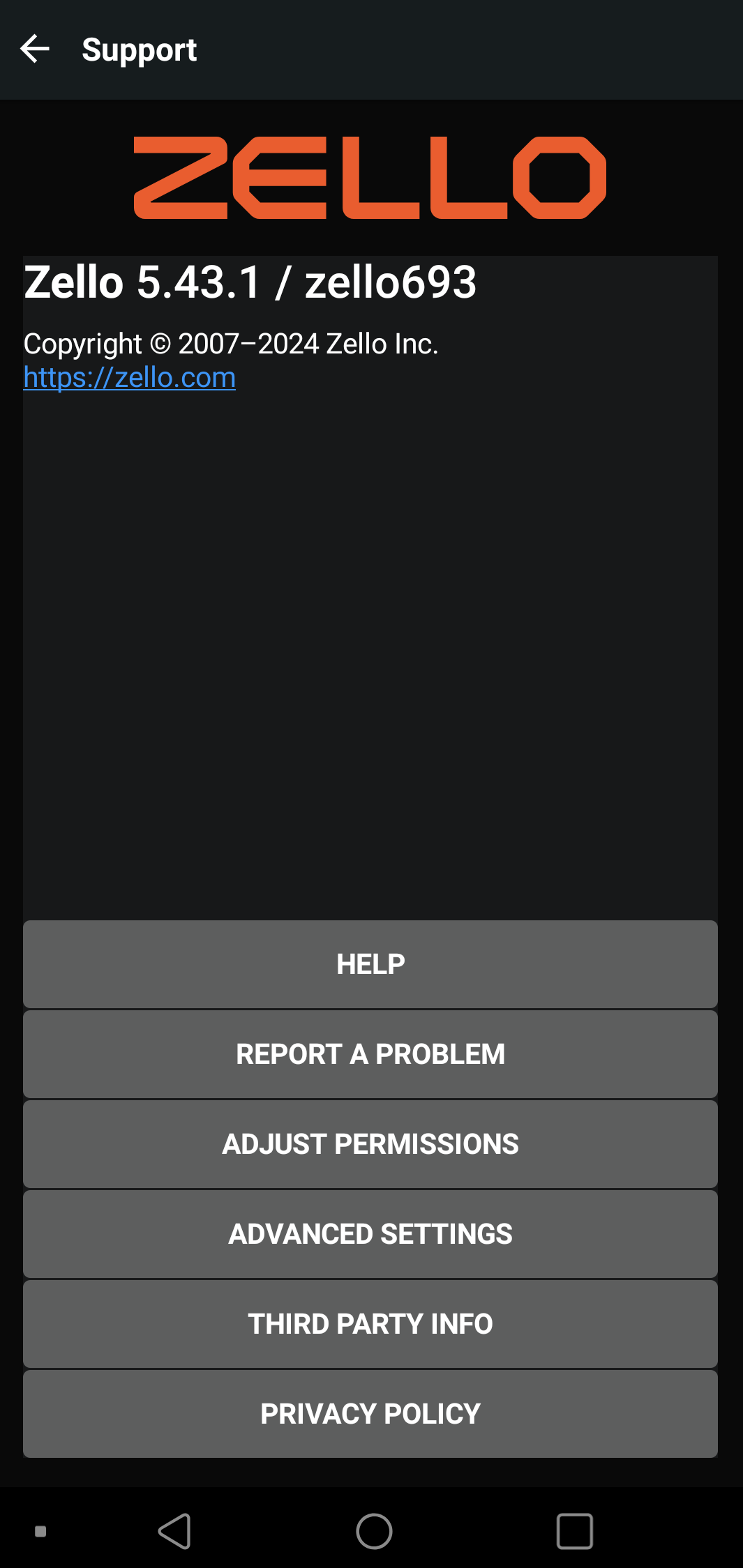
The Support section hosts links to Zello's support site, the ability to send Zello a log identifying any issues you're experiencing, and the ability to configure advanced settings.
Additionally, this page provides the following important information:
- Network name
- Version of Zello currently installed on your device
- Zello's privacy policy
- Third party information
Tables can't be imported directly. Please insert an image of your table which can be found here.
Help Help Report a Problem Report a Problem Adjust Permissions Advanced Settings- Enable Asynchronous message delivery: Queues messages missed while you're in Standby status, and autoplays messages once the Internet connection is restored and your status restored to Available.
- Enable Call pre-setup: Enabling this feature minimizes delay for repeat calls to the same contact by sending frequent keep-alive packets during one-on-one conversations. Disabling this setting may improve battery life at the expense of less predictable delays.
- Keep alive interval: A keep alive interval is the polling time between the app and the service. A longer polling time uses less bandwidth and improves battery life; a shorter polling time ensures the user status remains current and may improve connectivity. For most, the default value should work fine. Options are “s” for seconds and “m” for minutes. Learn More
- Use TCP only: Using TCP instead of UDP speeds up sign in and improves connection reliability, but it may cause a delay in real-time message receiving.
- Enable TLS: TLS is a security protocol. This is enabled by default and disabling is not recommended. Learn more
- Disable Analytics: Collected analytics typically include app usage and events.