
This article is written for: Zello Work Zello Friends & Family.
Zello’s Management Console serves as a centralized hub for admins to configure their network. It's where settings are established; channels, users, and gateways are added; and subscriptions are managed. Think of it as your network's mission control—empowering you to seamlessly manage your company's communications private communications workspace from a unified platform.
See our Management Console 101 video series for a demo of the management console.
A Note About the Management Console's Interface
In early 2025, Zello released a refresh to the Management Console's appearance. New networks created after this release will be automatically shown the updated interface; existing networks can choose if they'd like to enable this refresh from the Management Console's Settings page (Settings > Web Console > General). 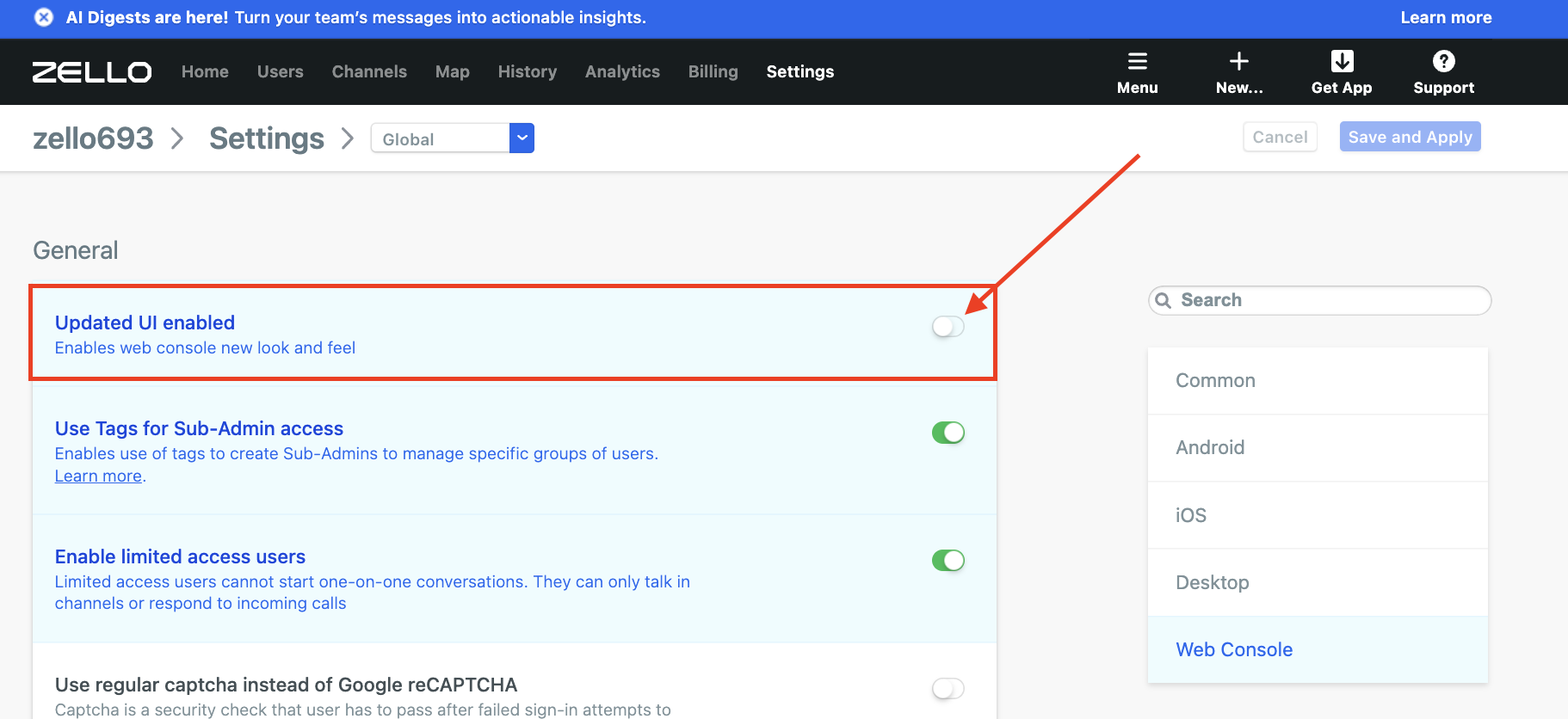
Note that this update is exclusively visual—functionality remains the same on both versions. In this article, we'll refer to the new version as the "updated interface" and the pre-existing version as the "legacy interface."
Accessing the Management Console
Who can access the Management Console?
Only network admins can access to the Management Console. Learn more about admin responsibilities, including adding sub-admins and secondary admins.
How can I access the management console?
Tables can't be imported directly. Please insert an image of your table which can be found here.
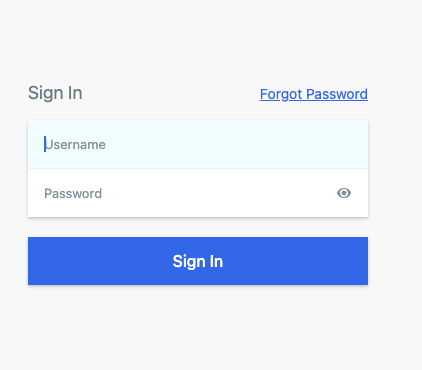
The management console can be accessed via the url [yournetworkname].zellowork.com. Enter your username and password to sign in.
Your network name is assigned at trial creation. If you have trouble remembering your sign in credentials, please contact us at paidsupport@zello.com .
If you’re a sub-admin and you’ve forgotten your password, reach out to your network’s main admin.
Home Tab
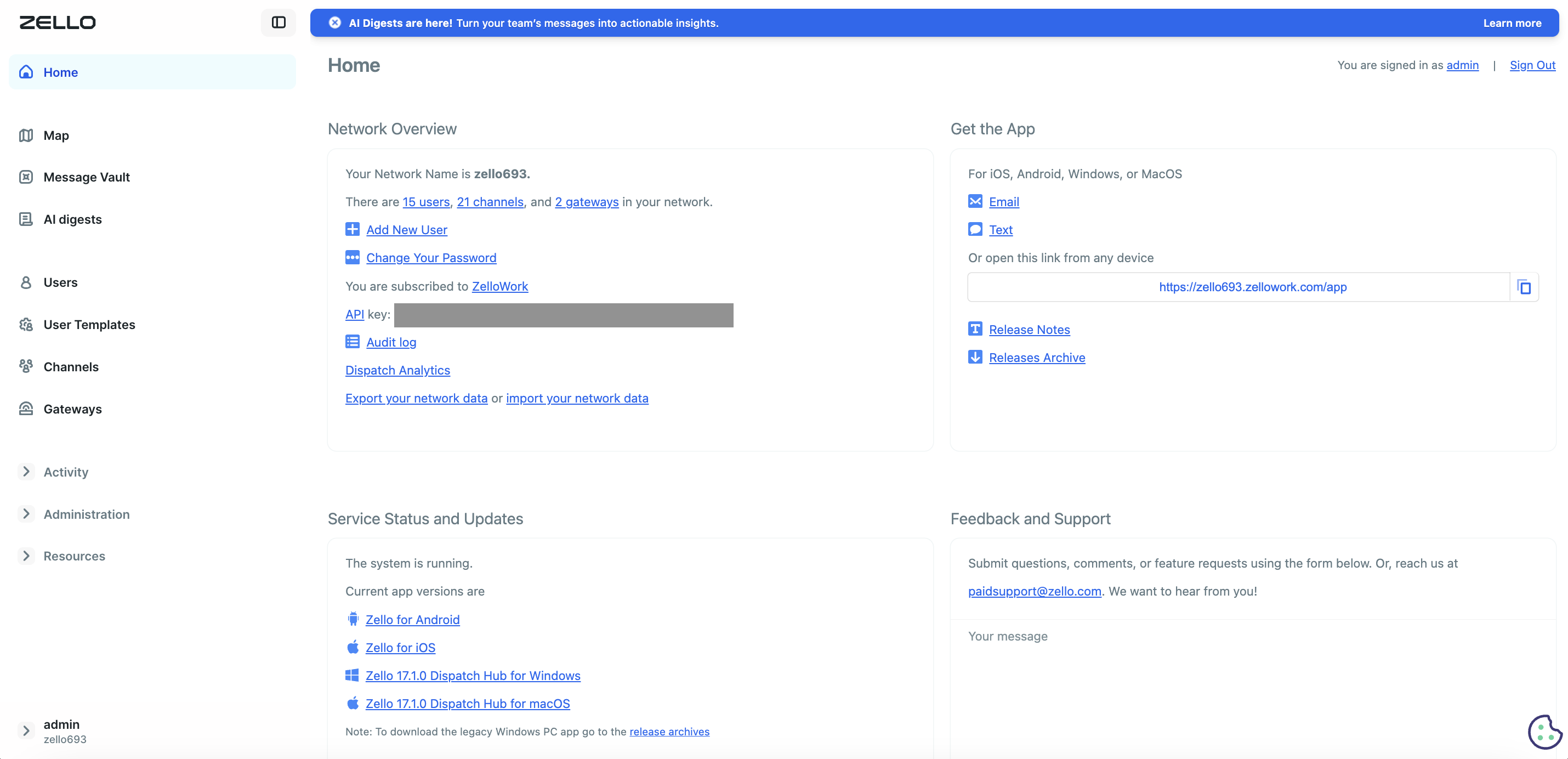
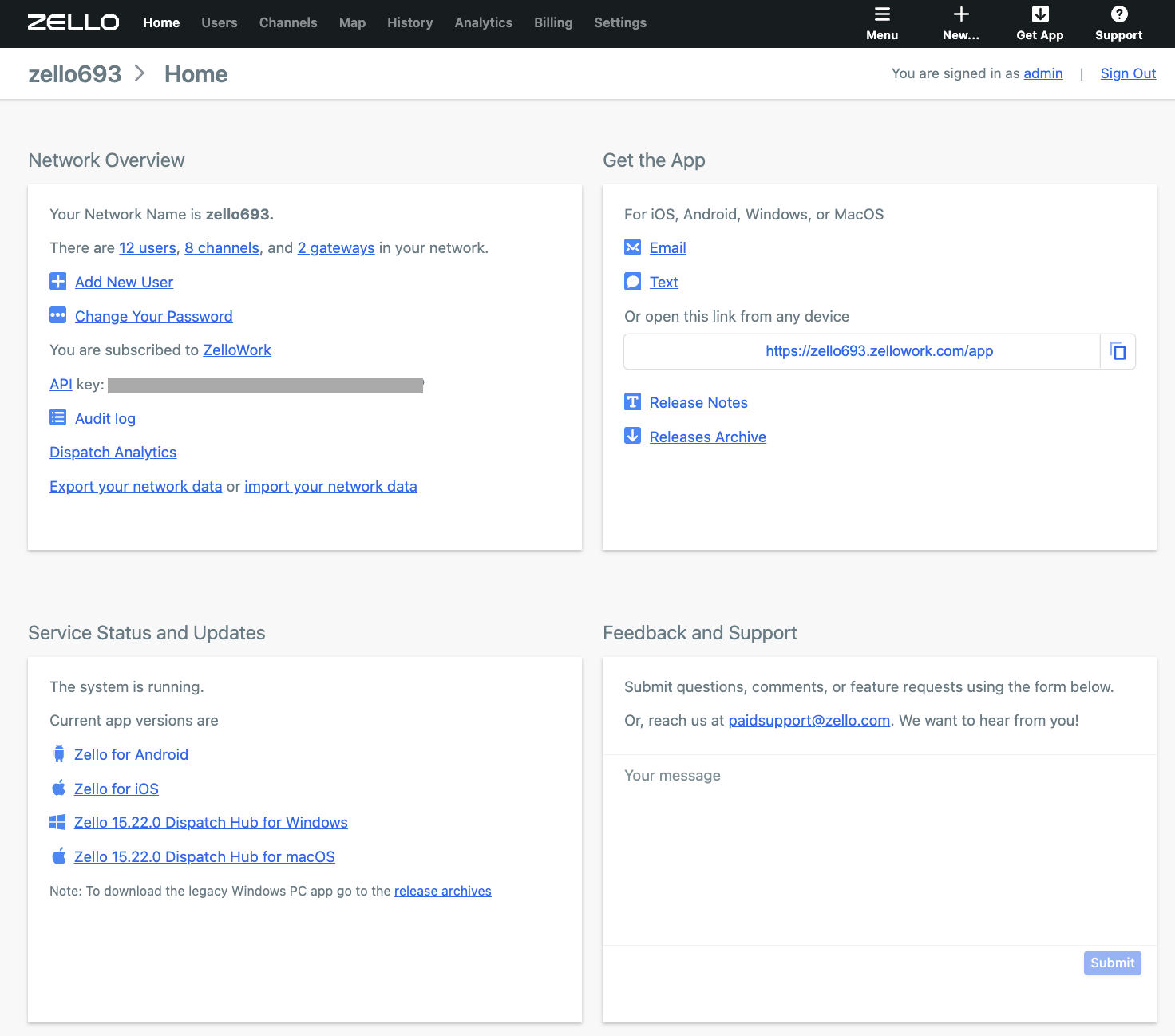
Once you’ve successfully signed in to the Management Console, you’ll be redirected to the console’s Home tab. This provides a high-level overview of your network's configurations, as well as access to shareable download links.
Network Overview
The Network Overview pane provides a quick, birds-eye view of your network and how it is used.
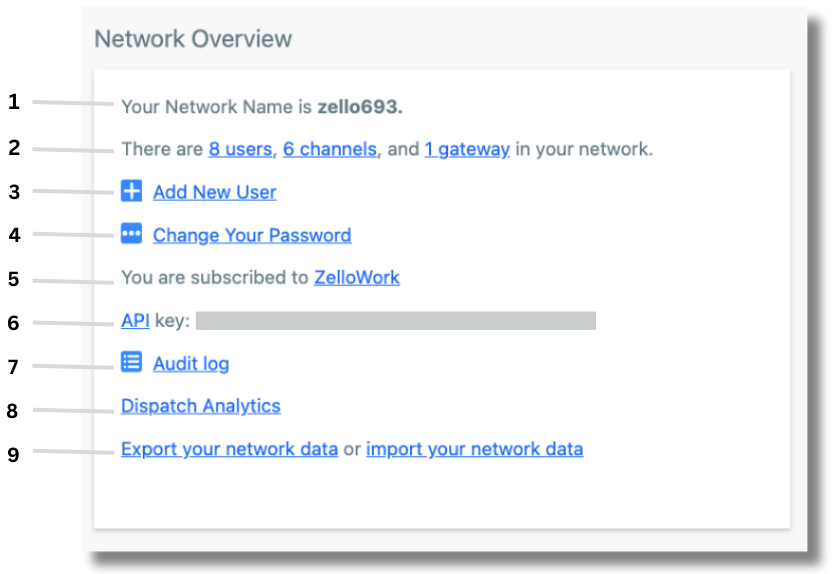
Tables can't be imported directly. Please insert an image of your table which can be found here.
Data import and export is most often used when cloning a network. Learn more.
A note of caution: Imported data may override your existing data.
Get the App
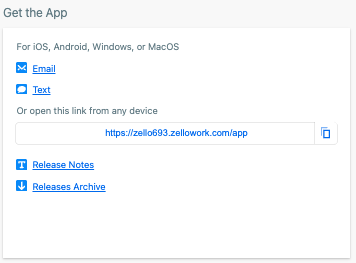
Tables can't be imported directly. Please insert an image of your table which can be found here.
Clicking on the Email and Text links will allow you to directly send others an app download link. This link will include sign in instructions, as well as the network name.
Release Notes contextualize important updates to the app.
The Release Archive includes downloadable links to the app’s current and previous releases.
Service Status and Updates
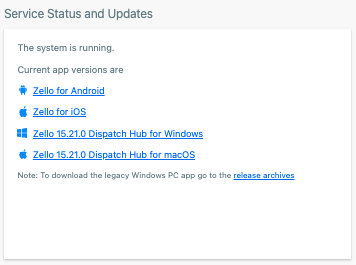
Tables can't be imported directly. Please insert an image of your table which can be found here.
The first line of this box provides insight into Zello's system status.
Additionally, you can download the current app versions for your operating system from this pane.
If you're a legacy PC app user, your download is accessible via the linked release archives. As a reminder, we strongly recommend legacy PC app users migrate to Dispatch Hub.
Feedback and Support
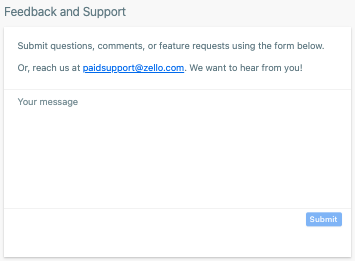
Tables can't be imported directly. Please insert an image of your table which can be found here.
Submit your feedback, questions, or feature requests using the Your message box.
Alternatively, emails us directly at paidsupport@zello.com .
Support is available 24 hours a day, 7 days a week. Submit a ticket.
Users Tab
The Users tab provides a list of all users configured in your Zello Work network.
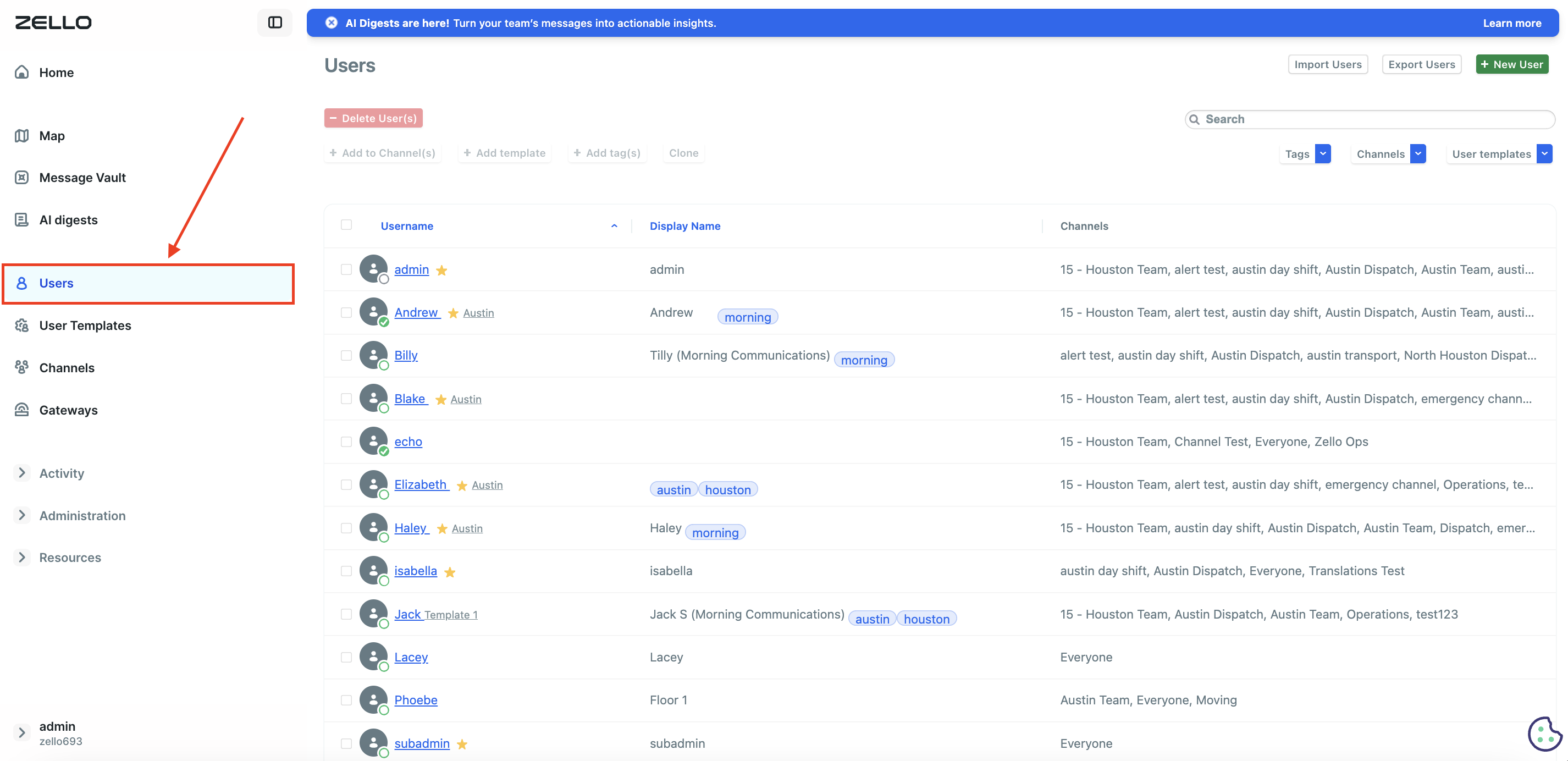
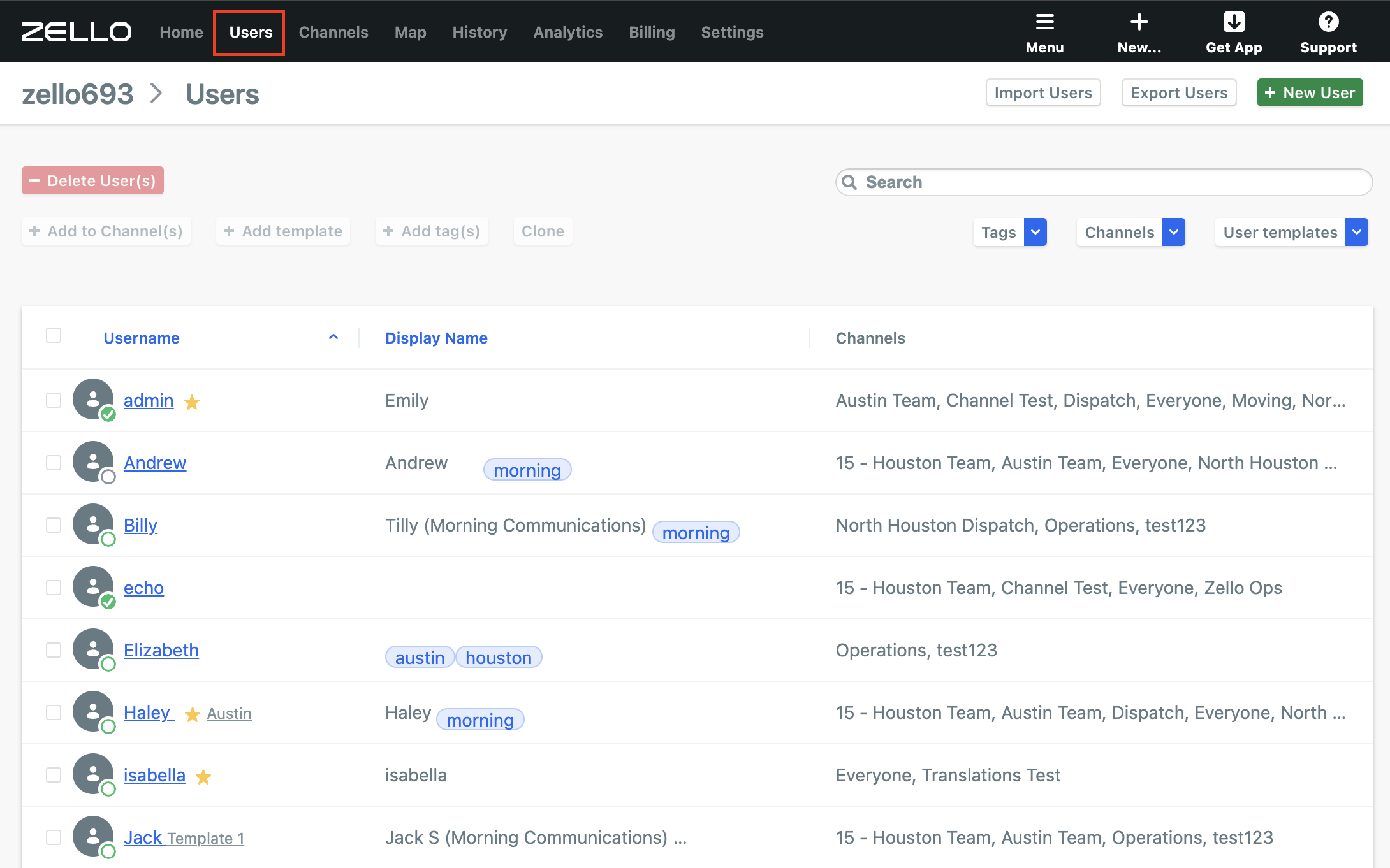
From the Users tab, admins can:
- Add New users to the network
- Delete users
- Import a CSV file of new users/ export existing user details
- Add users to channels
- Add and apply user templates
- Add tags
- Clone user details
Clicking on a user’s username will take you to their profile. From the user profile screen, admins will see four panes: User Details, Channels, Direct Contacts, and User Settings.
Additionally, a user can be cloned, sent a SignOn link, or deleted from this page. Admins can also delete the user, change their password, or request that they send a log.
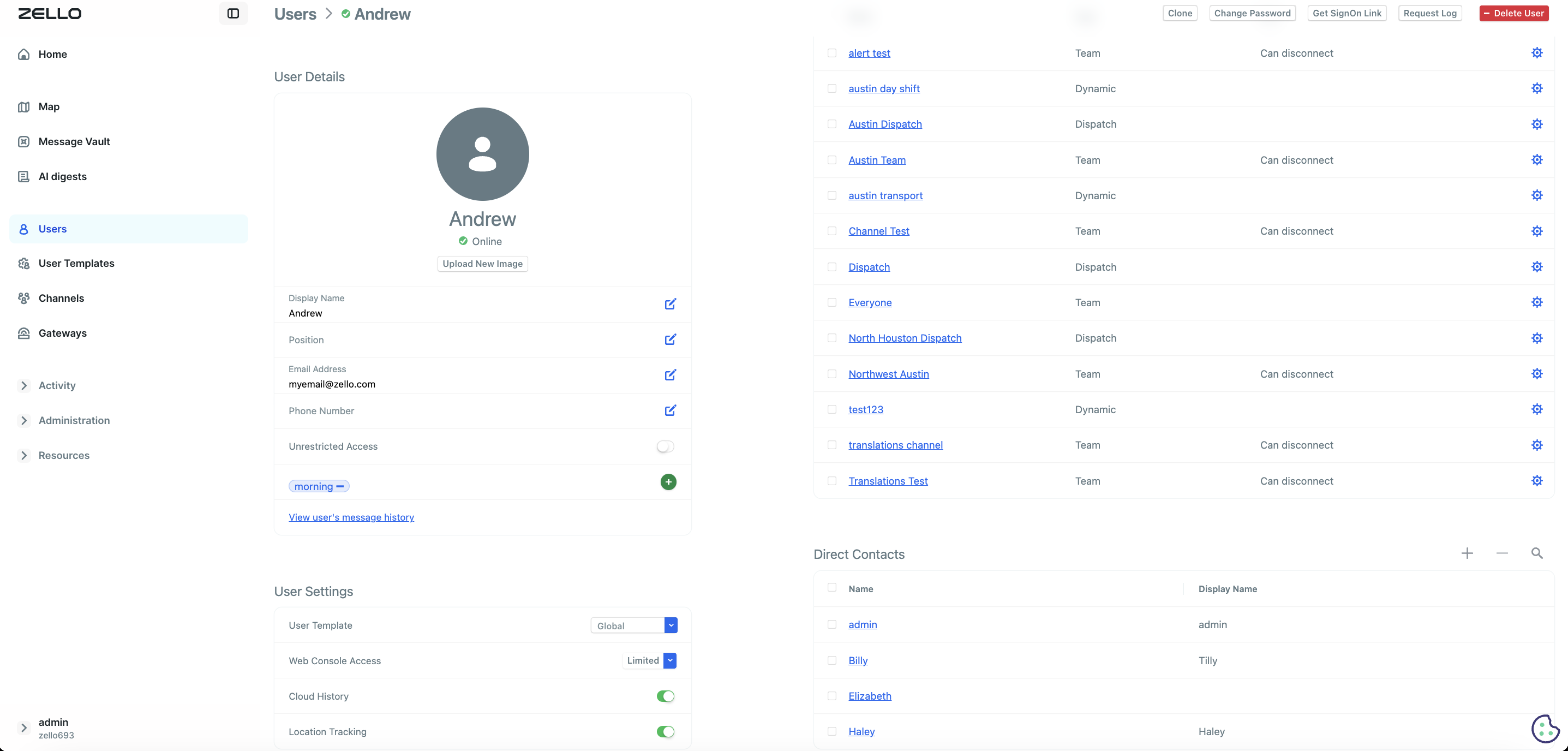
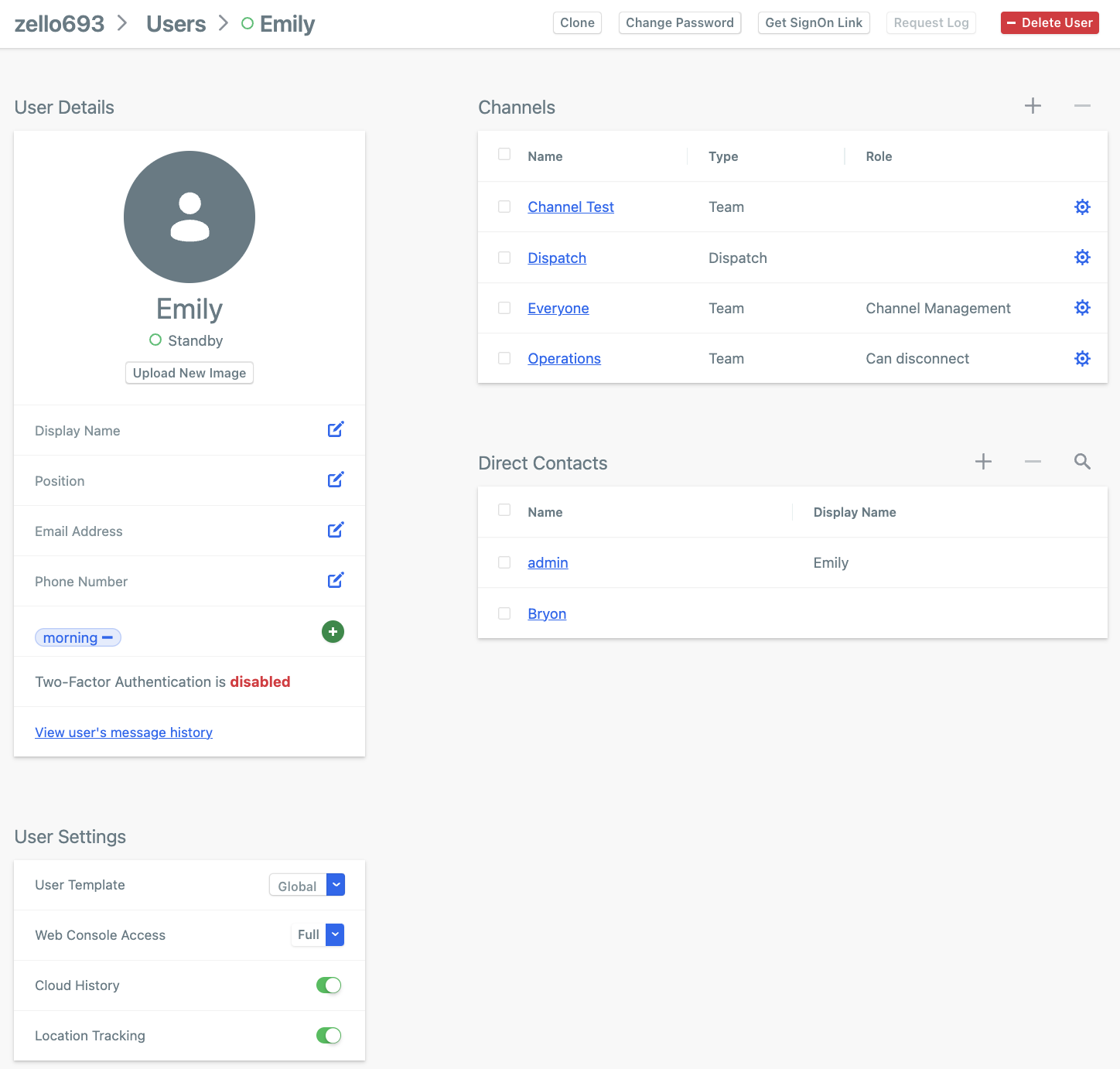
- User Details: From a user’s profile, admins can enter and/or confirm user details such as email, phone number, position, tags, and 2FA (note: admins must enable 2FA for their network. You. Additionally, if Message Vault is enabled for your network, you can view the user in question’s message history via this section.
- User Settings: Settings such as web console access (i.e. if the user is established as an admin with access to the management console), applied user template, cloud history, and location tracking can be configured from this section. Please note that web console access, cloud history, and location tracking are initially configured at user creation, but those settings can be edited at any point in time by the admin.
- Channels: A list of all channels the user is included in will be provided under the Channels section. You’ll see the name of the channel, the type of channel, and the user’s role (if assigned).
- Direct Contacts: Users can send private messages over their Zello Work network to direct contacts only. If two users are not direct contacts, they cannot privately message each other. Direct contacts can be added to a user’s profile by pressing the + button at the top of the Direct Contacts panel.
Please note: users that are included in the same team channel will be automatically established as direct contacts. Learn more about channel types.
Adding Users
Users can be added to the network in three ways:
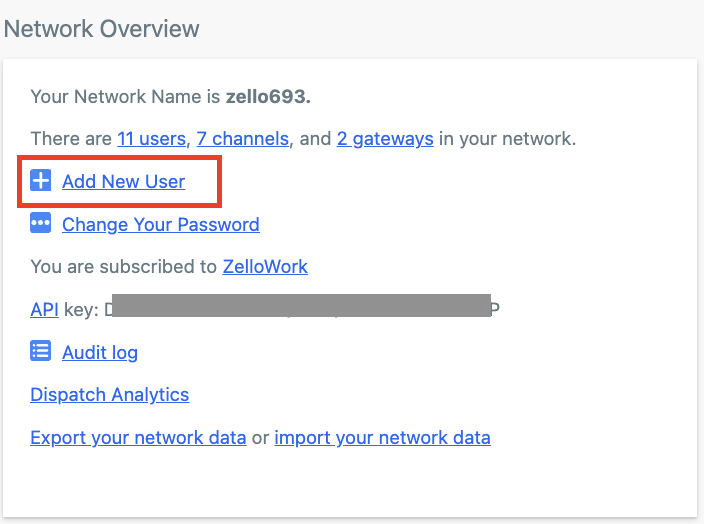
- From the Home page’s Network Overview section.
- From the Users tab.

- Or, if you're utilizing the legacy interface, from the top navigation bar’s +New button. (Note that the updated interface doesn't include this button.)
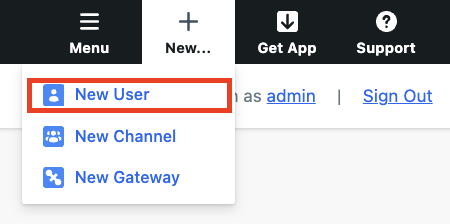
All above options will prompt you to establish the new user’s username, password, and initial network permissions.
Tables can't be imported directly. Please insert an image of your table which can be found here.
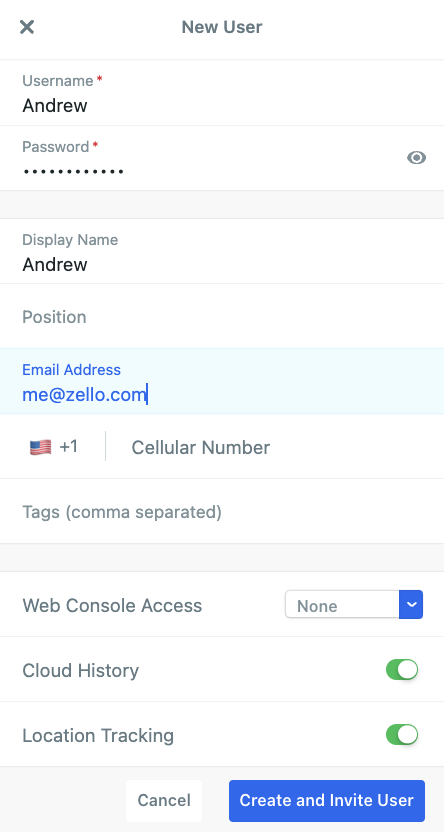
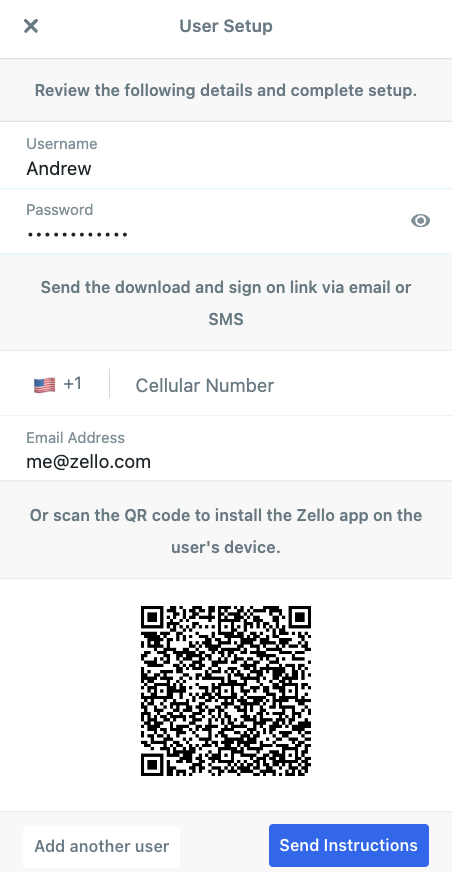
To finalize the user profile, click Create and Invite User > Send Instructions. Once complete, the user will receive an email with login instructions. The, once a new user has been successfully added, they’ll appear on the Users page.
Helpful reading:
- Creating SignOn links for easy user onboarding
- SignOn links allow users to directly sign in to the console without entering a username, password, and network name. These links are (by default) only valid for 48 hours.
- Importing new users and exporting user data
- Need to import a large number of users to your network? This article walks you through uploading a CSV file to do so.
- Adding users by cloning an existing record
- Helpful if a large number of users require the same network permissions.
Channels
The Channels tab displays all channels in your network.
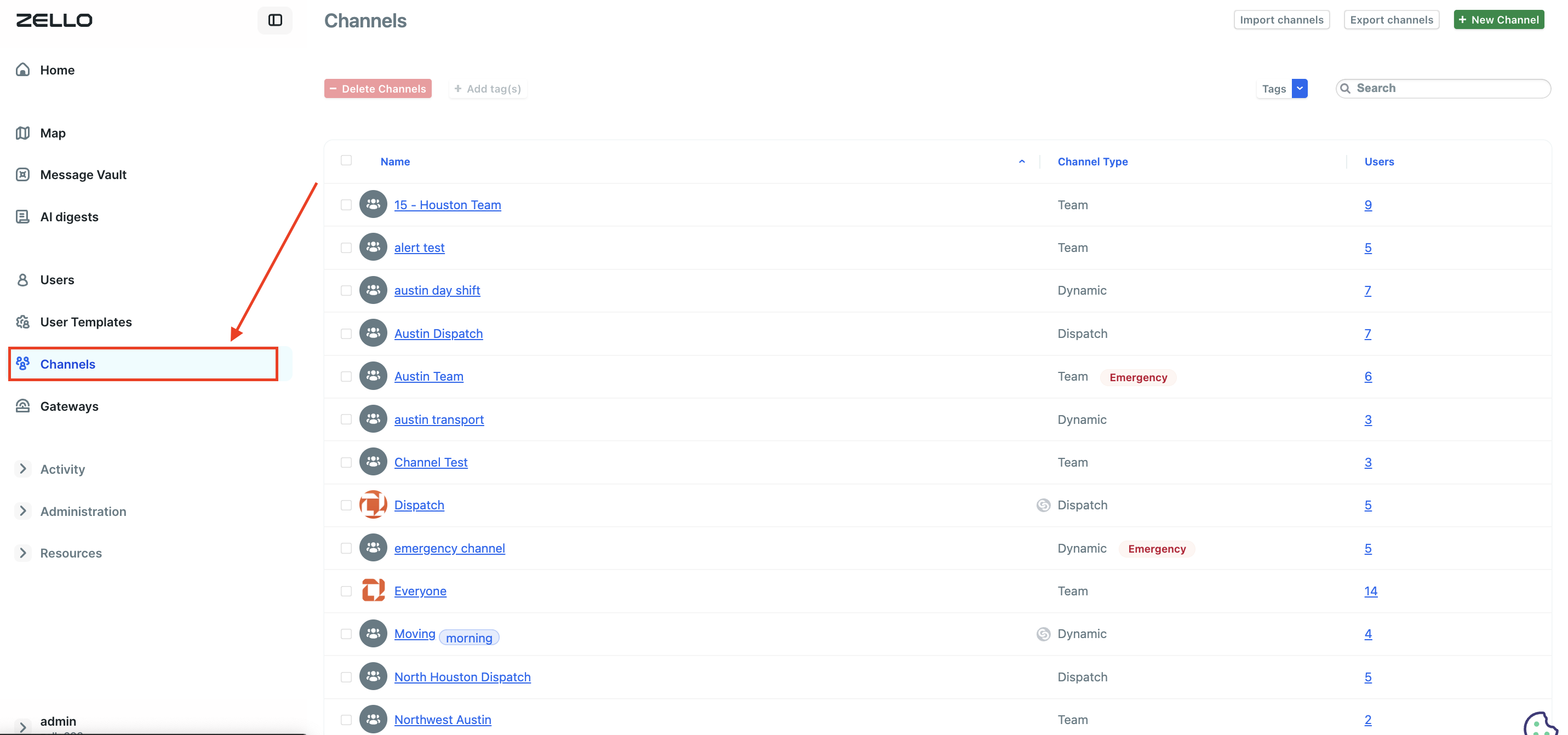
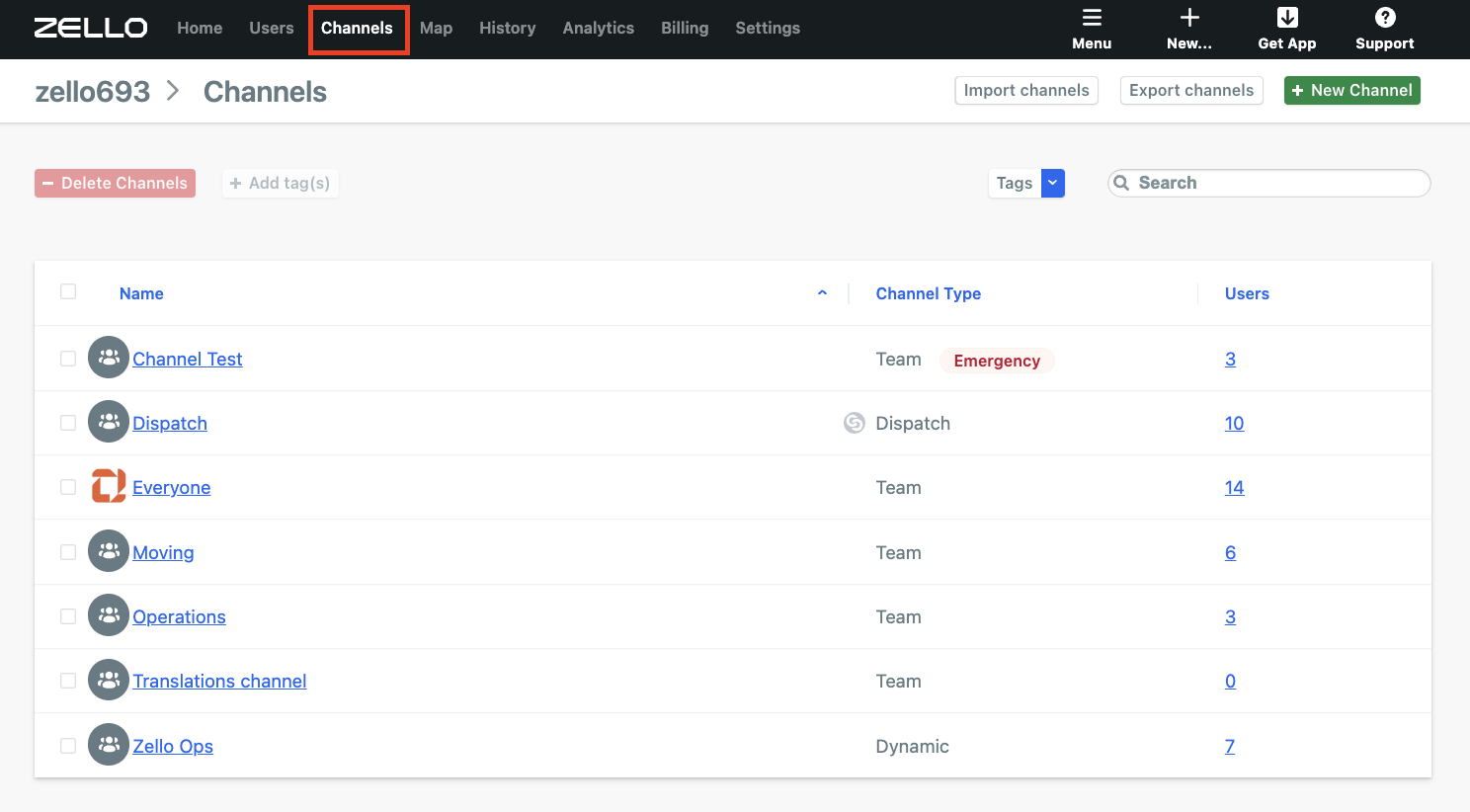
From this page, you can delete channels; add tags to a channel; export/import channels; and add a new channel. Click on a channel’s name to access its associated profile.
Channel Profile
Each channel’s page includes three sections: Channel Details, Users, and Roles.
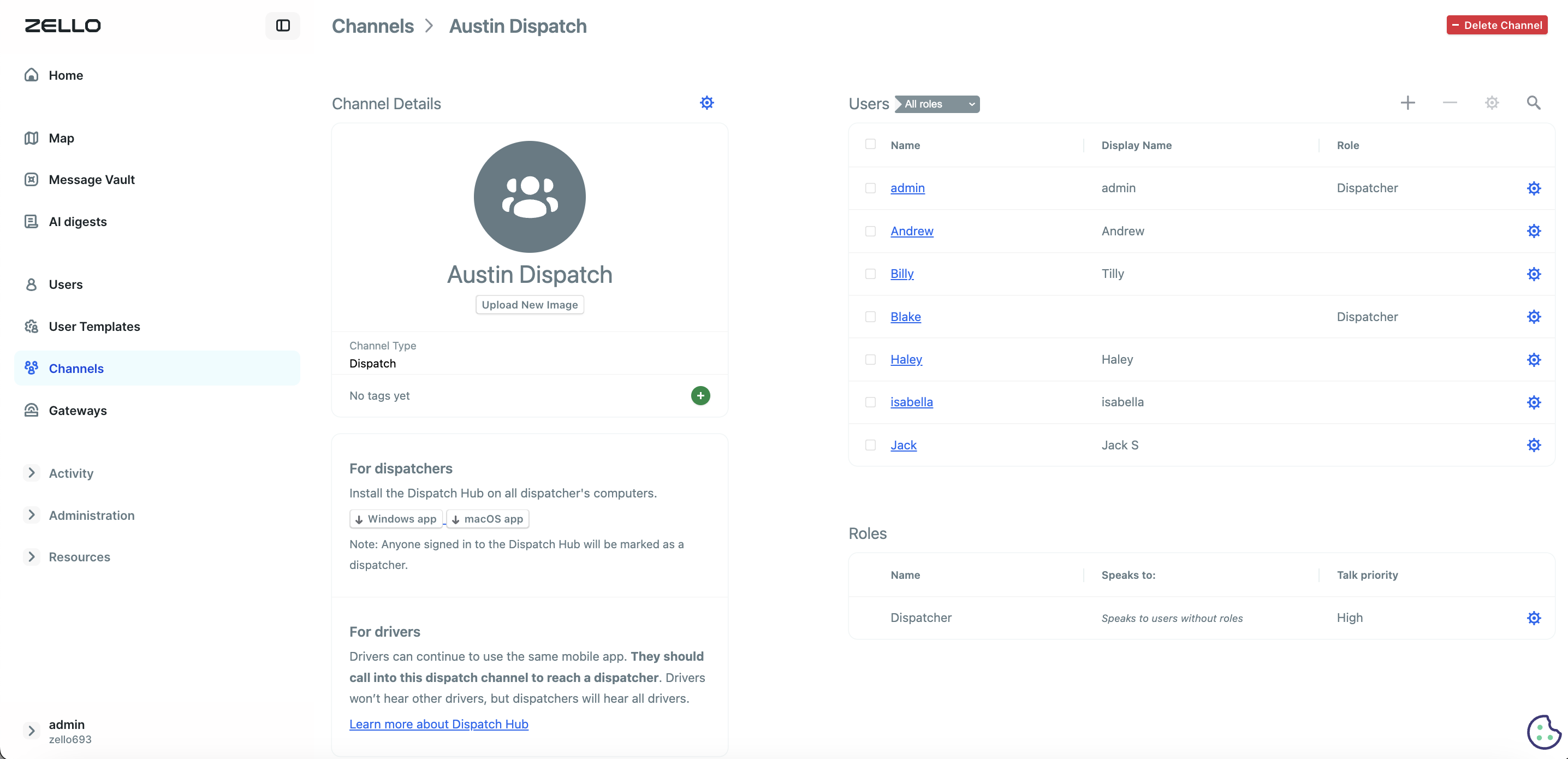
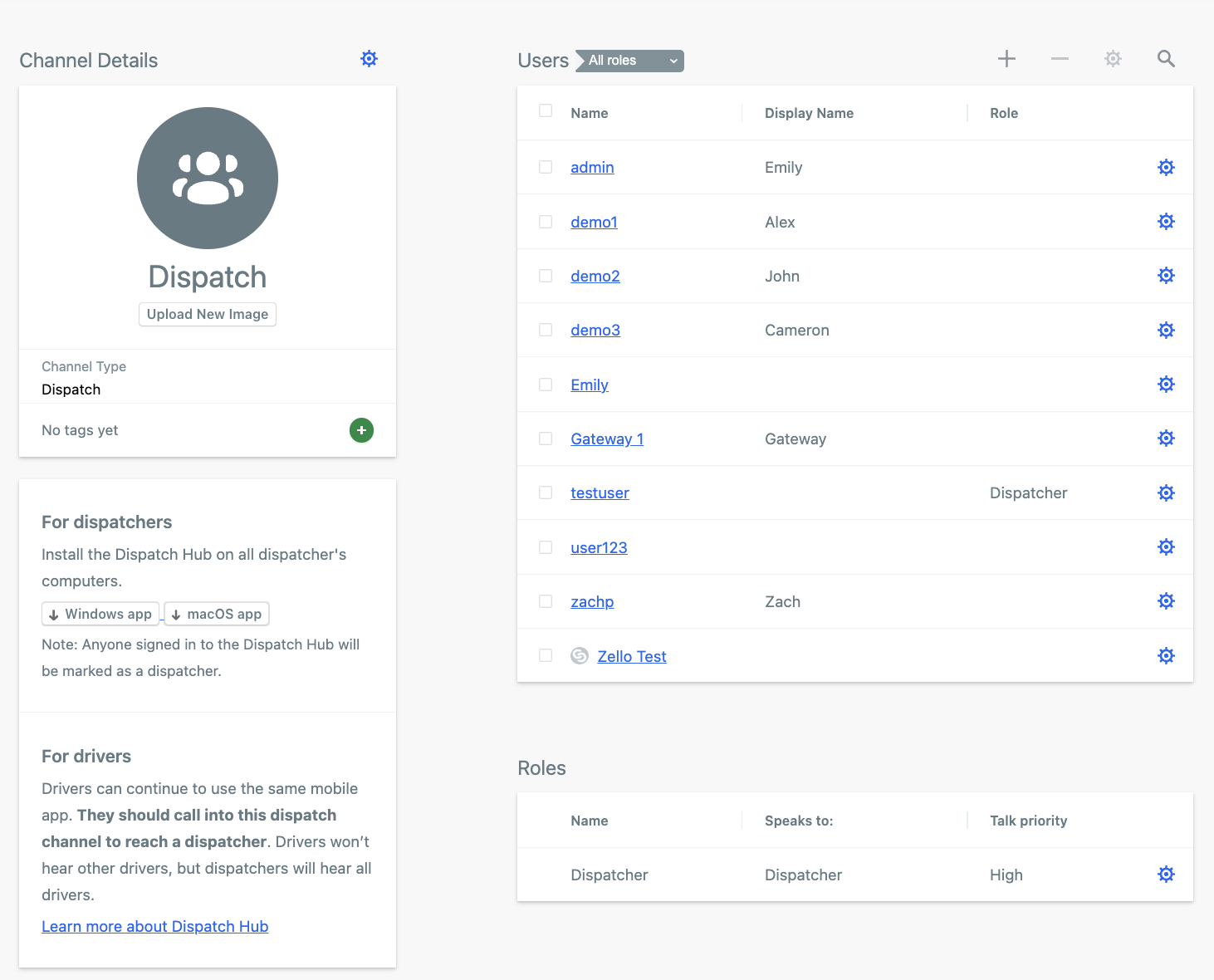
- Channel Details: The Channel Details section includes the channel type, any associated tags, and advanced channel settings. Advanced settings include message length, interruption time, and more. Additionally, you can change your channel’s profile picture from this section.
- Users: The Users section includes all users hosted in the channel. Additionally, users can be added to the channel via this screen by pressing the + button
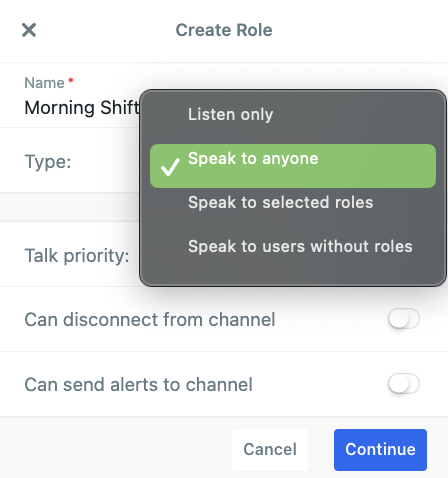
- Roles: Channel members can be assigned roles that give them special permissions including talk priority, the ability to send alerts to the channel, and the ability to disconnect from a channel, and communication capabilities.
Adding a New Channel
Channels can be added two ways:
- Channels tab > + New Channel

- If utilizing the legacy interface, using the top navigation bar’s +New button.
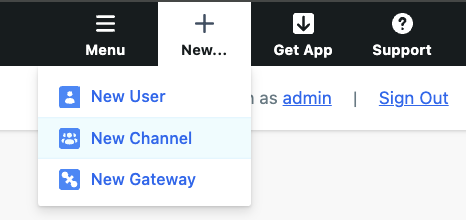
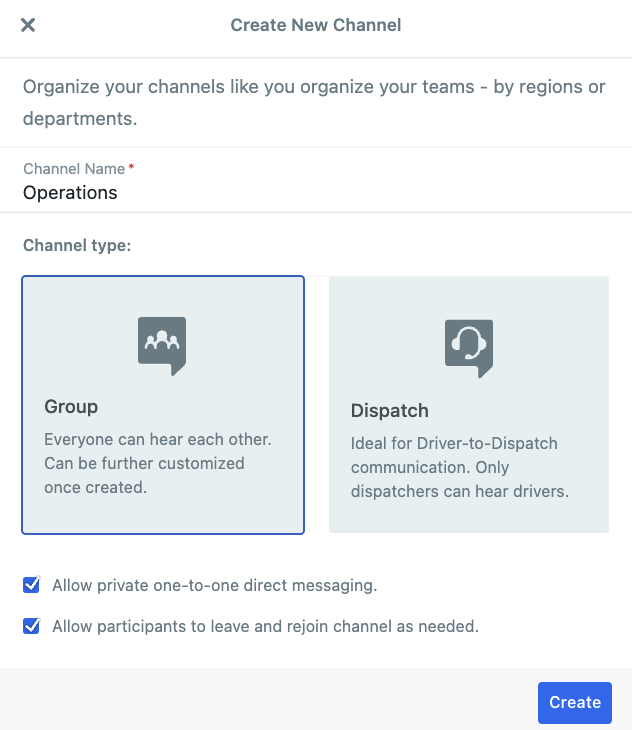
All above options will prompt you to name your new channel, assign it a type (Dispatch vs. Group), and add users. Please note you can retroactively change your Group channel type (Dynamic, Team, Hidden).
Tables can't be imported directly. Please insert an image of your table which can be found here.
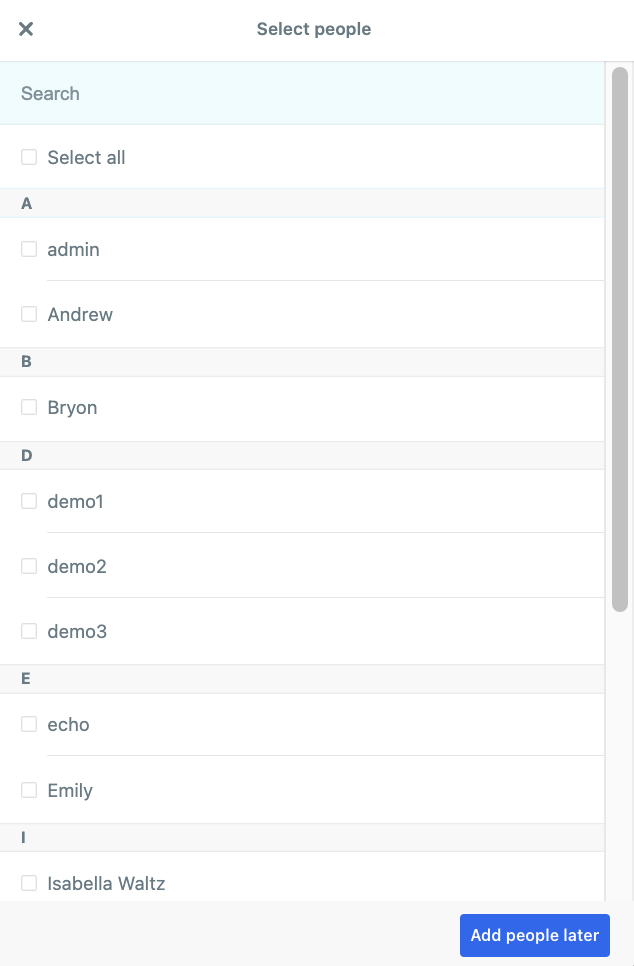
Channels cannot be renamed. You can, however, import channels if you need to establish and configure a large volume.
Maps
The Maps tab shows active users’ locations on a live map. In the example below, one user (Emily) is active:
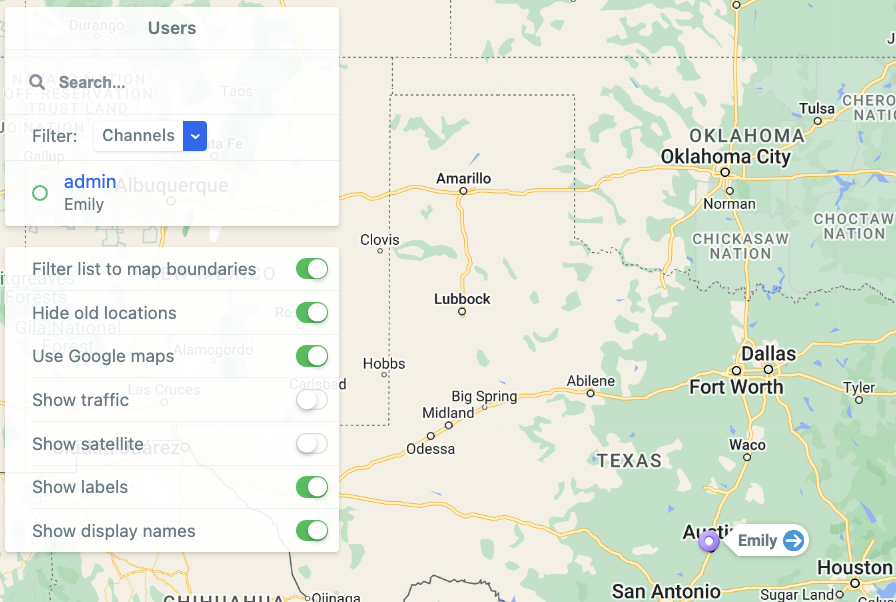
Please note that only 50 active users will be shown on the map at one time. You can find a particular user via the search function, or you can locate all users in a particular channel by filtering by channel using the dropdown. The following table explains the settings that can be toggled on/off from the map:
Tables can't be imported directly. Please insert an image of your table which can be found here.
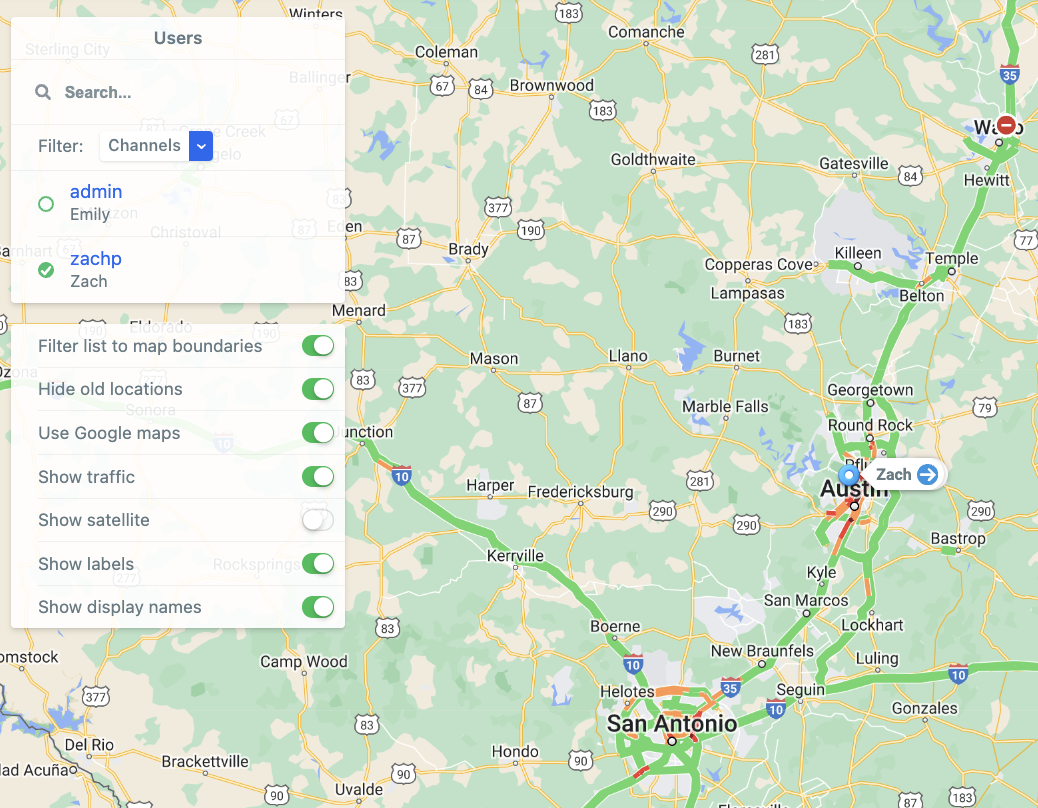
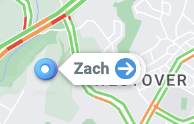
Turning labels on attaches a username or display name to dots on the map.
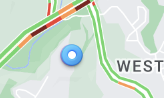
If not enabled, a user will be identified by a dot on the map, but their username will not automatically appear. Admins can click on the dot for information about the associated user profile.
Clicking on a connected profile’s name will showcase their user information, which includes their exact location, time, battery life, speed (if driving/moving), and location breadcrumb history (Plus + Enterprise subscriptions ).
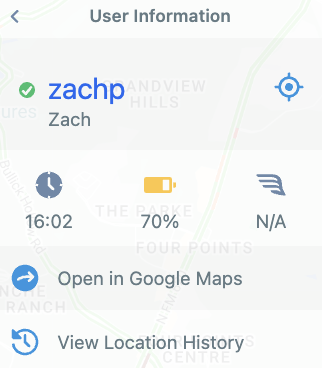
Learn more about Zello's map capabilities.
Message Vault (History)
Message Vault allows network admins to maintain a comprehensive archive of all messages sent and received across the network. Users can find the following information in the History tab (if utilizing the legacy interface) or the Message Vault tab (if utilizing the updated interface):
- message date
- message sender
- message receiver
- channel the message was sent to
- message content
- message id number
Please note Message Vault is only available to customers on the Plus and Enterprise pricing tiers. Learn more about pricing.
Messages can be replayed, downloaded (voice/image), and their metadata exported; additionally, admins can set search parameters if they’re seeking messages sent during a certain time period, on a certain channel channel, using a particular media type, on a specific date(s), or to/from set users.
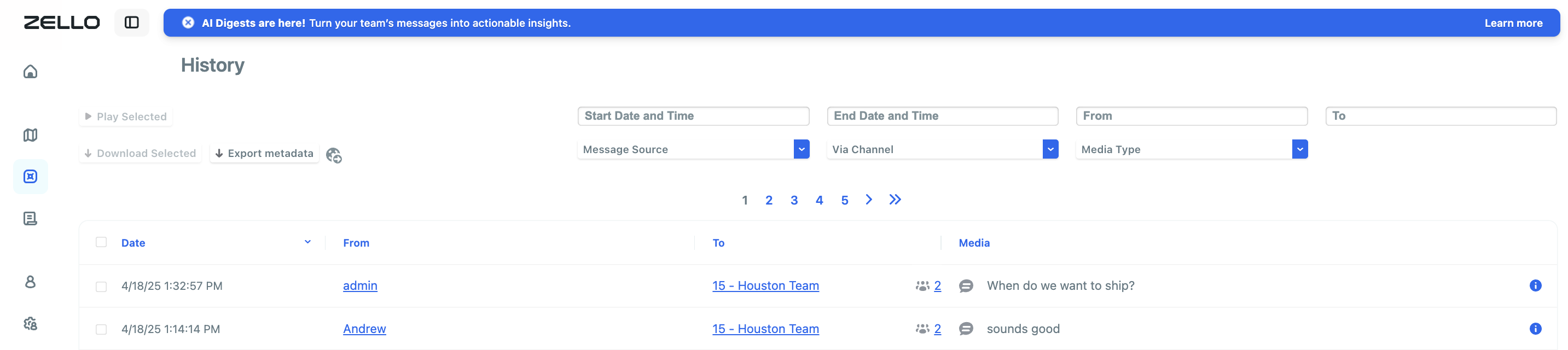
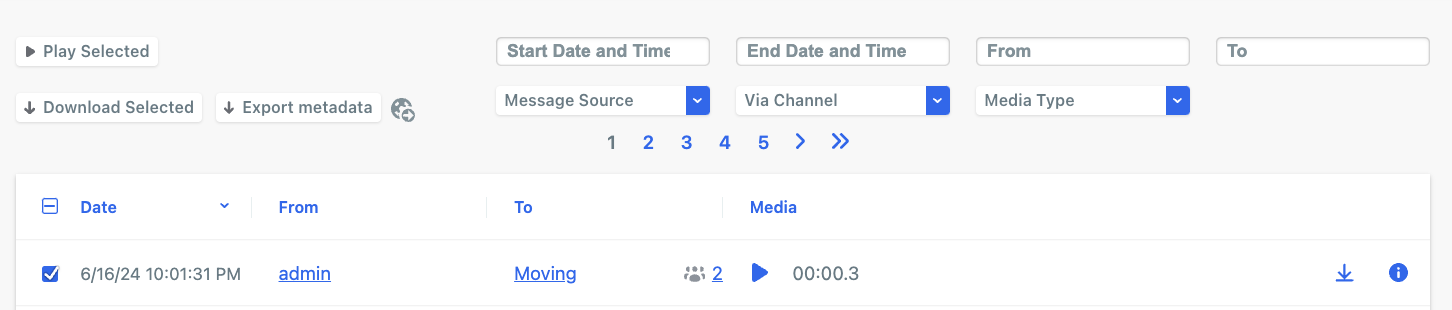
Messages will be stored for two years in Zello’s Message Vault, and they appear in the order of most recently sent. Channel messages, direct messages, and dispatch calls are accessible via Message Vault.
Analytics
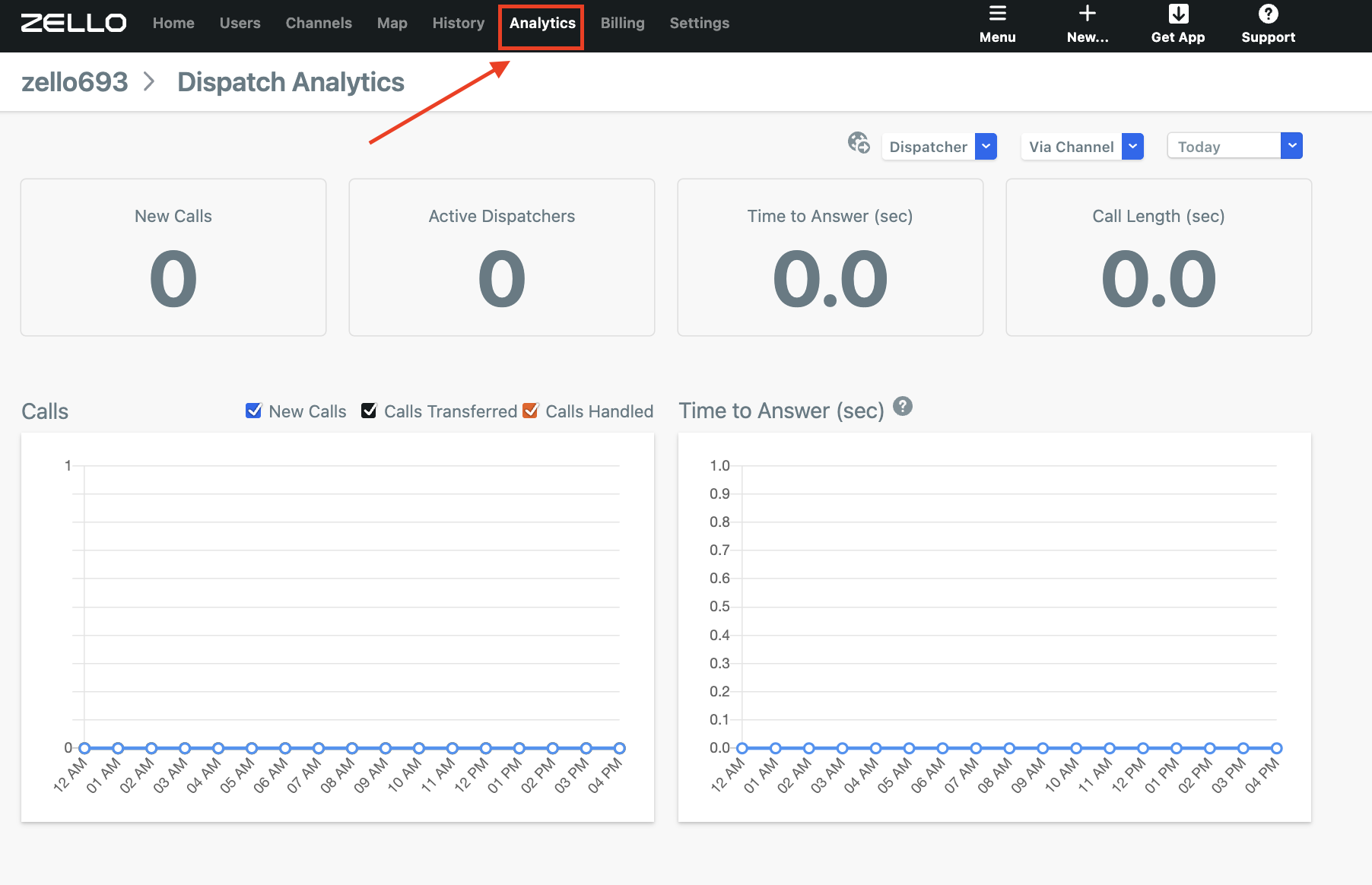
The Analytics tab provides data-driven insights into the productivity of your network’s dispatchers. Data gathered includes the number of new calls; number of dispatchers active at that moment; the average time it takes for dispatchers to answer calls; and the average call length. This data can be filtered by date, channel, or dispatcher.
Additionally, admins can view user-specific dispatcher stats for greater insight into individual performance. Learn more about creating dispatch channels.
To access the Analytics tab:
- Admins utilizing the updated UI should go to Activity > Dispatch Analytics.
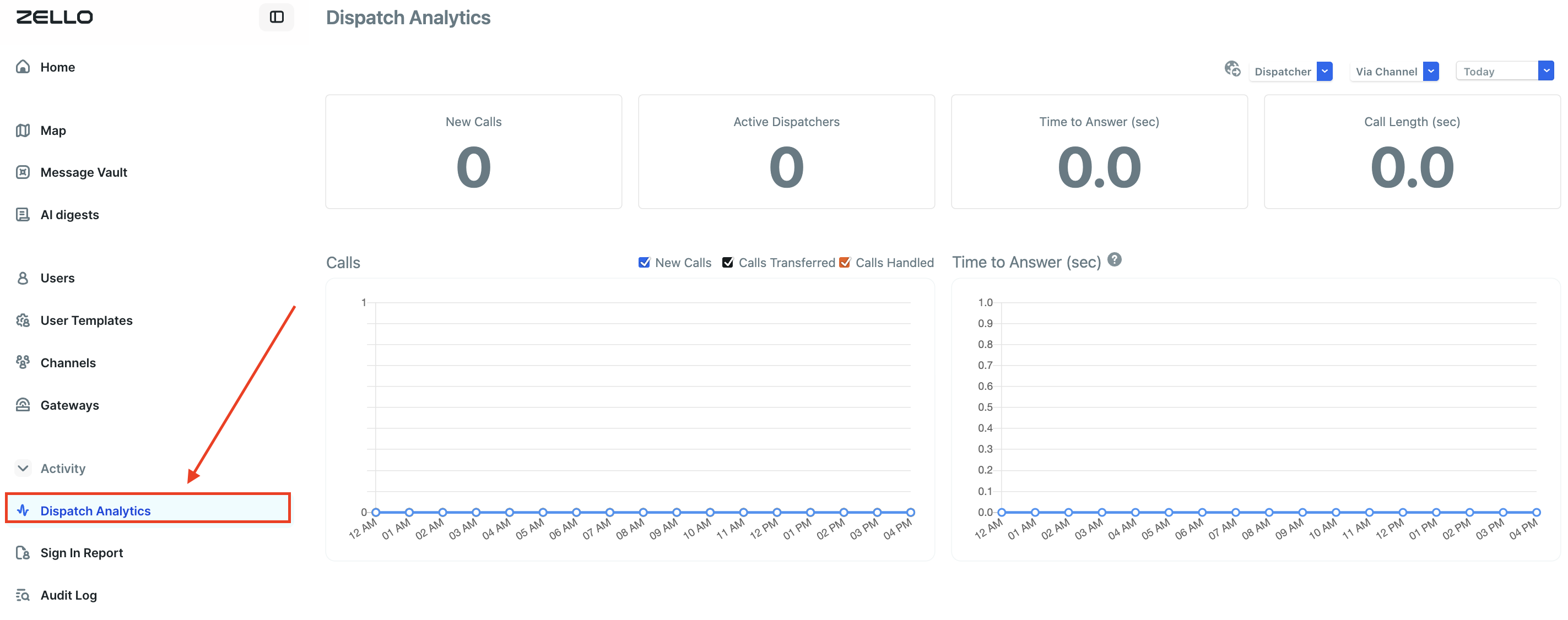
- Legacy interface admins can open the Analytics tab located in the taskbar.
Billing
Primary admins can use the Billing tab to alter their subscription and payment methods.
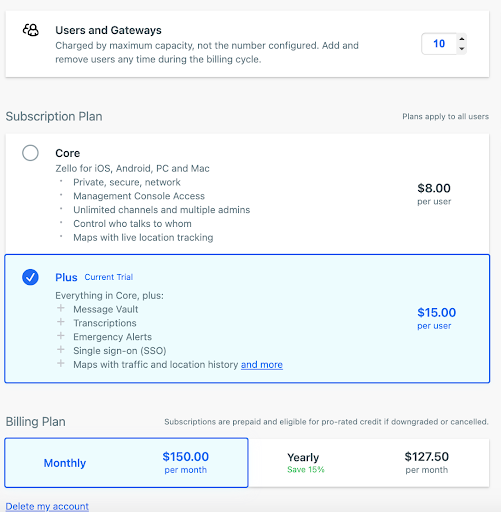
From this tab, you can alter network details such as:
- The number of users on the subscription
- Payment frequency (monthly or annual)
- Payment method, billing contact, and company profile information
- Subscription tiers/features (see our pricing page for more information)
- Pause or cancel your subscription
To access the Billing tab, legacy interface users simply select Billing from the taskbar. Updated interface users should click the down-pointing arrow to expand the Management Console's sidebar, then select the credit card icon.
Settings
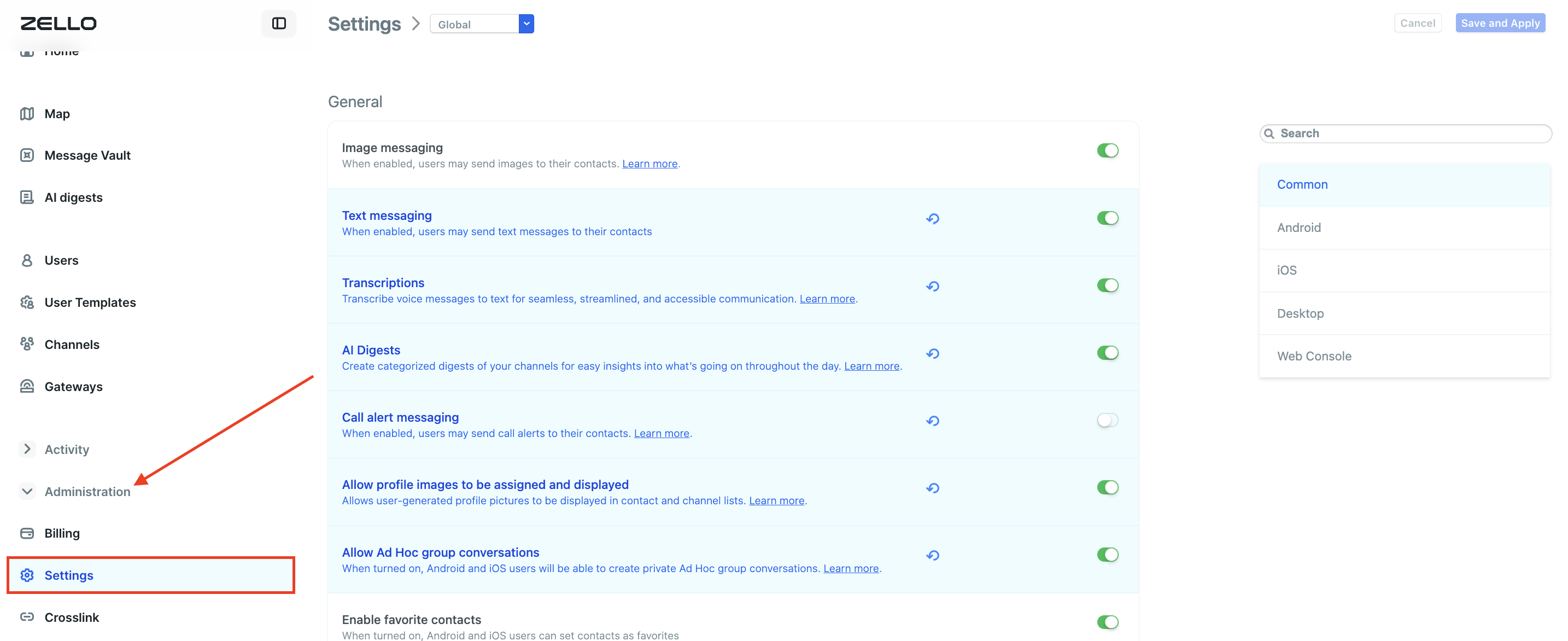
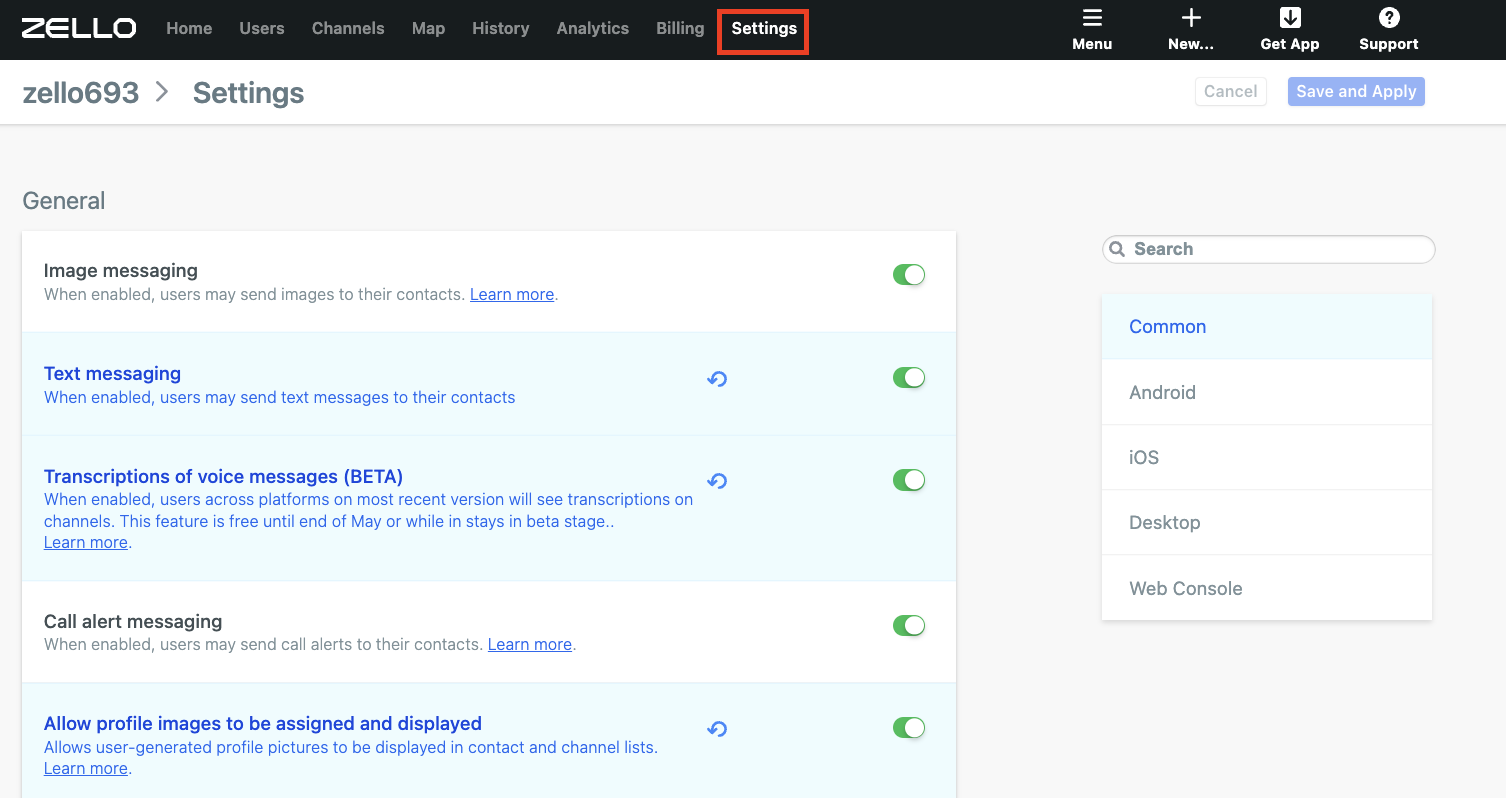
Admins carry the power to establish global network settings for each platform through the management console.
- Admins utilizing the updated interface can find network settings by going to Administration > Settings.
- Admins utilizing the legacy interface can find network settings by selecting Settings from the taskbar.
What do these settings do?
Settings configured in the management console establish standardization across the network. You'll notice some of these settings are blue, indicating they've been changed from their default state and are accordingly locked on user devices. These settings cannot be changed by end-users on their devices. For more information, see this support article.
Why administer settings through the management console
The administration of global settings via the management console allows IT administrators or system owners to select predefined settings for their network. This is particularly beneficial in cases where everyday users may not fully understand the niche network needs or the intended effect of the settings, as well as in use cases that carry unique environmental requirements (for example, a construction site may have different needs than a retail store).
Helpful reading: