
This article is written for: Zello Work Zello Friends & Family.
With Apple’s PTT Framework, you’re able to send messages through Zello directly from your phone’s lock screen or while using other apps. This article further explains this feature’s functionality and provides some recommendations for using it.
If you only take away one thing about the PTT Framework from this article, it should be this: The red X button labeled “Leave” (located on the lock screen) is powerful and care should be taken when using it. Tapping this button will put you on standby, preventing you from receiving and sending messages until you reopen Zello. Thus, you should avoid using it in order to ensure that you do not miss any important messages.
Note: To use the PTT Framework, make sure your device is running iOS 16+ and you’re using Zello 5.20.1+ (older versions may behave unexpectedly. See this article for how to check your Zello version). The PTT Framework must also be enabled for your network; if it isn’t, see Enabling the PTT Framework.
Using the PTT Framework from the lock screen
When you receive a Zello message while your iPhone is locked, a screen will pop up that looks like a phone call. However, the functionality of this screen is different from a traditional phone call screen.
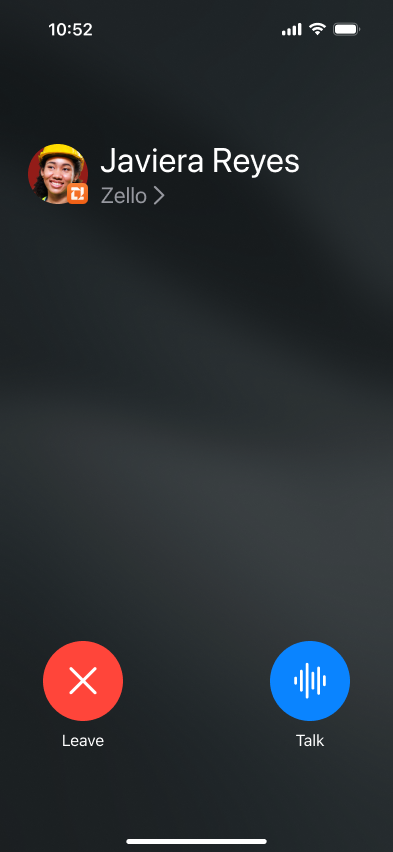
In short, you have four options while on this screen:
- You can send a message by tapping and holding the blue button labeled “Talk”.
- You can dismiss the screen by swiping upwards.
- You can return to where you were in Zello by tapping Zello>.
- You can put yourself on standby by tapping the red X button labeled “Leave”, muting all incoming messages and preventing you from sending outgoing messages until you reopen Zello.
|
The blue button labeled “Talk” allows you to send a message. To do so, tap and hold the button while speaking. When you’ve finished your message, simply release the button. |
|
|
Swipe up to dismiss this screen. This is the recommended way to leave it. |
|
|
|
If you tap this button, you will need to confirm that you are sure you want to leave the channel and no longer be able to send nor receive messages until you reopen Zello. In order to avoid missing out on important messages, we recommend against using this button. To dismiss the lock screen, you can swipe upwards instead. |
|
Tapping Zello> will open Zello to where you were the last time you were in the app.
Note: Navigating to Zello in this way will not automatically open the conversation that you saw on the lock screen. |
Note: We cannot reiterate enough that you should not use the red X button to dismiss the lock screen. Swipe up instead to dismiss it; otherwise, you risk the chance of missing important messages.
Using the PTT Framework while using other apps
The PTT Framework allows you to send messages through Zello even when you have other apps open. When the PTT Framework is enabled, you will see a small waveform button at the top of your screen. Where the button appears on your iPhone will depend on whether your particular iPhone has a dynamic island or not.
|
iPhone without a dynamic island |
iPhone with a dynamic island |
Tapping the waveform button will open a small HUD (heads-up display).
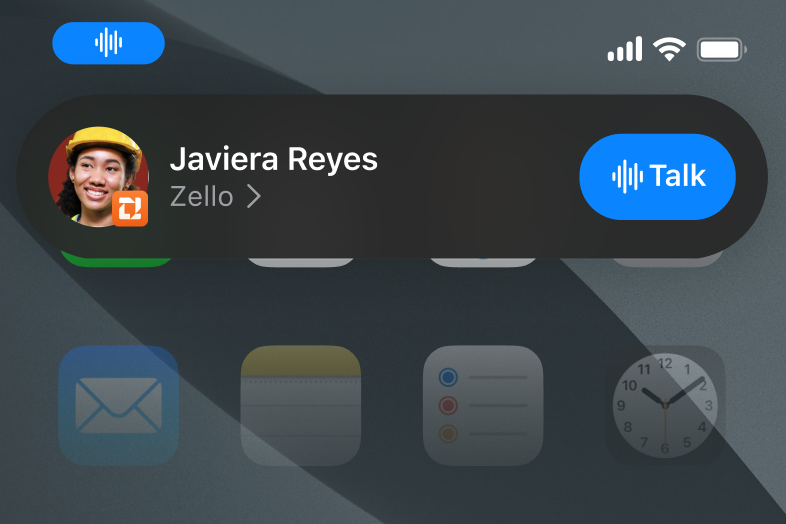
The HUD allows you to send a message without needing to open Zello. To do so, tap and hold the blue talk button labeled “Talk” while you are speaking. Release when you’re done talking.
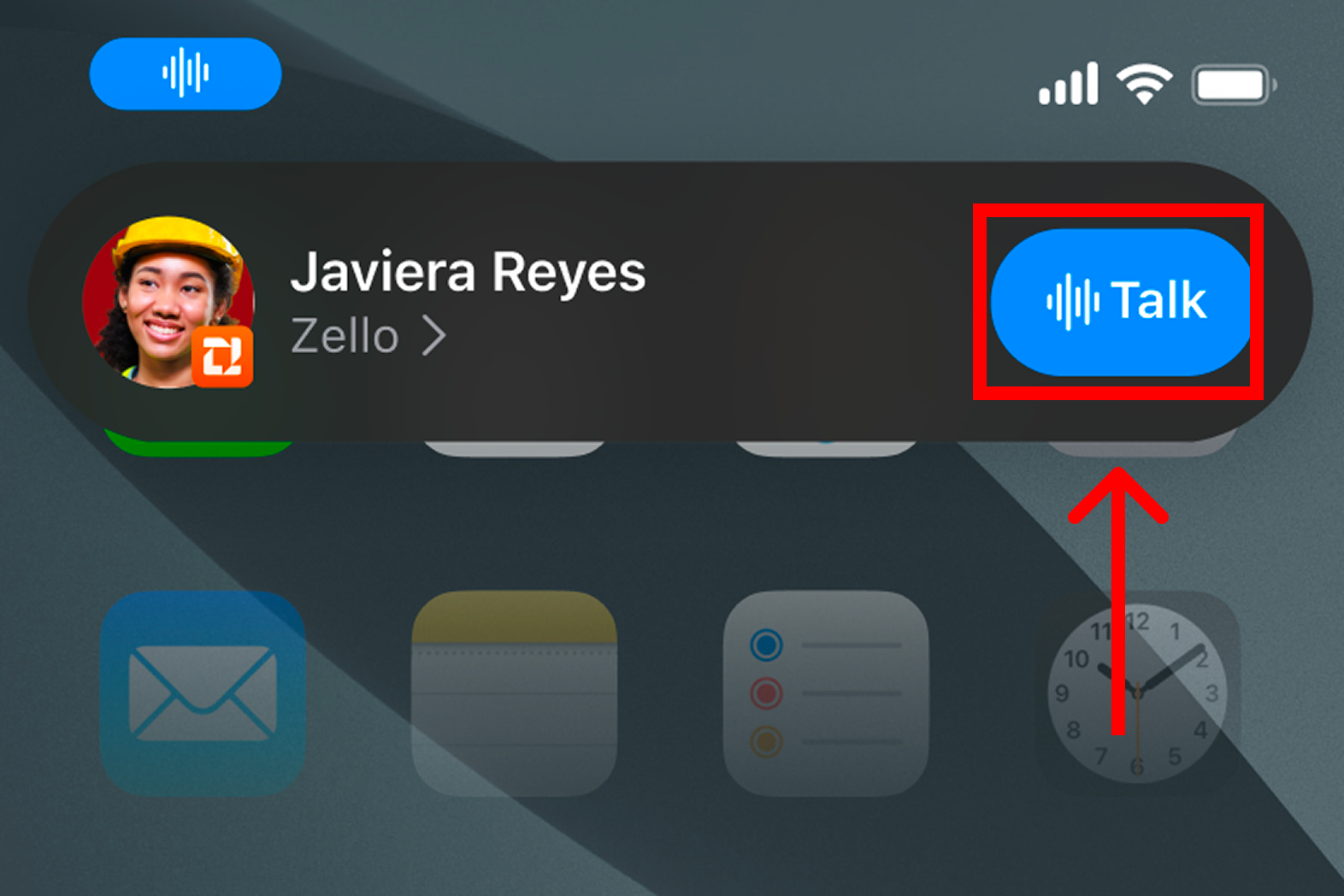
To dismiss the hud, you can either tap anywhere else on the screen.
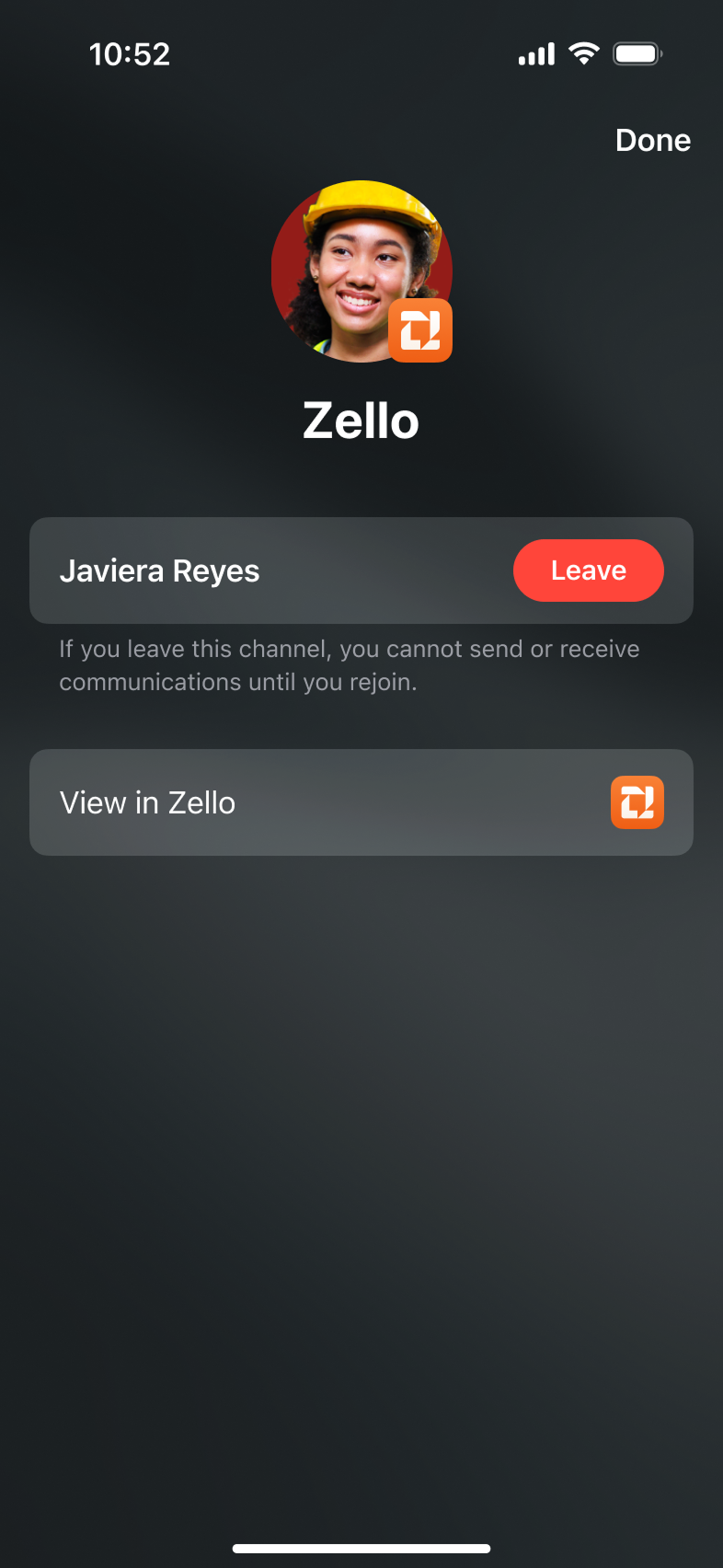
Tapping on the HUD anywhere but the blue talk button labeled “Talk” will open a new screen. To dismiss this screen, tap Done.
|
Tapping Leave will put you on standby. This means that you will no longer be able to send nor receive messages until you reopen Zello. If you tap this button, you will need to confirm that you are sure you want to leave the channel and no longer be able to send nor receive messages until you reopen Zello. In order to avoid missing out on important messages, we recommend against using this button. |
|
|
Tapping the View in Zello button will open Zello. |
Note: If you navigate to Zello using the “View in Zello” button, you might see the PTT Framework lock screen if you lock your phone. You can dismiss that screen by swiping upwards. To prevent the PTT lockscreen appearing again, you can tap the waveform button and then tap anywhere else on the screen to dismiss the HUD.
Enabling the PTT Framework
In order to use the PTT Framework, it must be enabled. If it's not, you can enable this feature in two ways: either by the network admin through the management console, or by an end-user through their in-app settings. Please click the tab that applies to your use case for enablement instructions.
-
The instructions below provide guidance for enabling this feature for all network users. If you'd like to enable it for a specific subset of users, we recommend utilizing Zello's user template feature.
1. Sign in to your management console at [yournetworkname].zellowork.com.
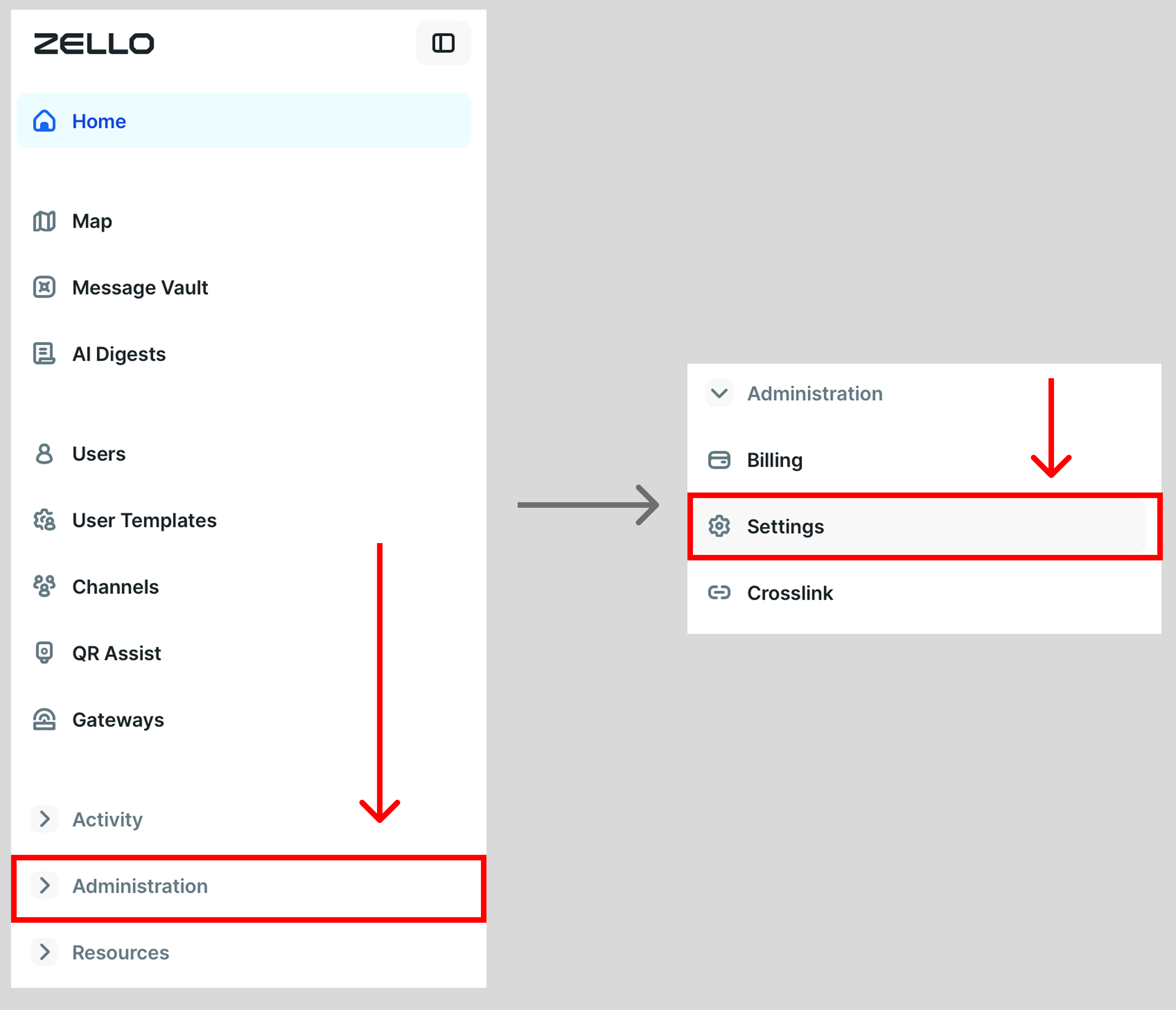
2. Select Administration and then select Settings.
3. Select iOS and locate the Enable PTT Framework setting or use the search bar to search for "PTT Framework".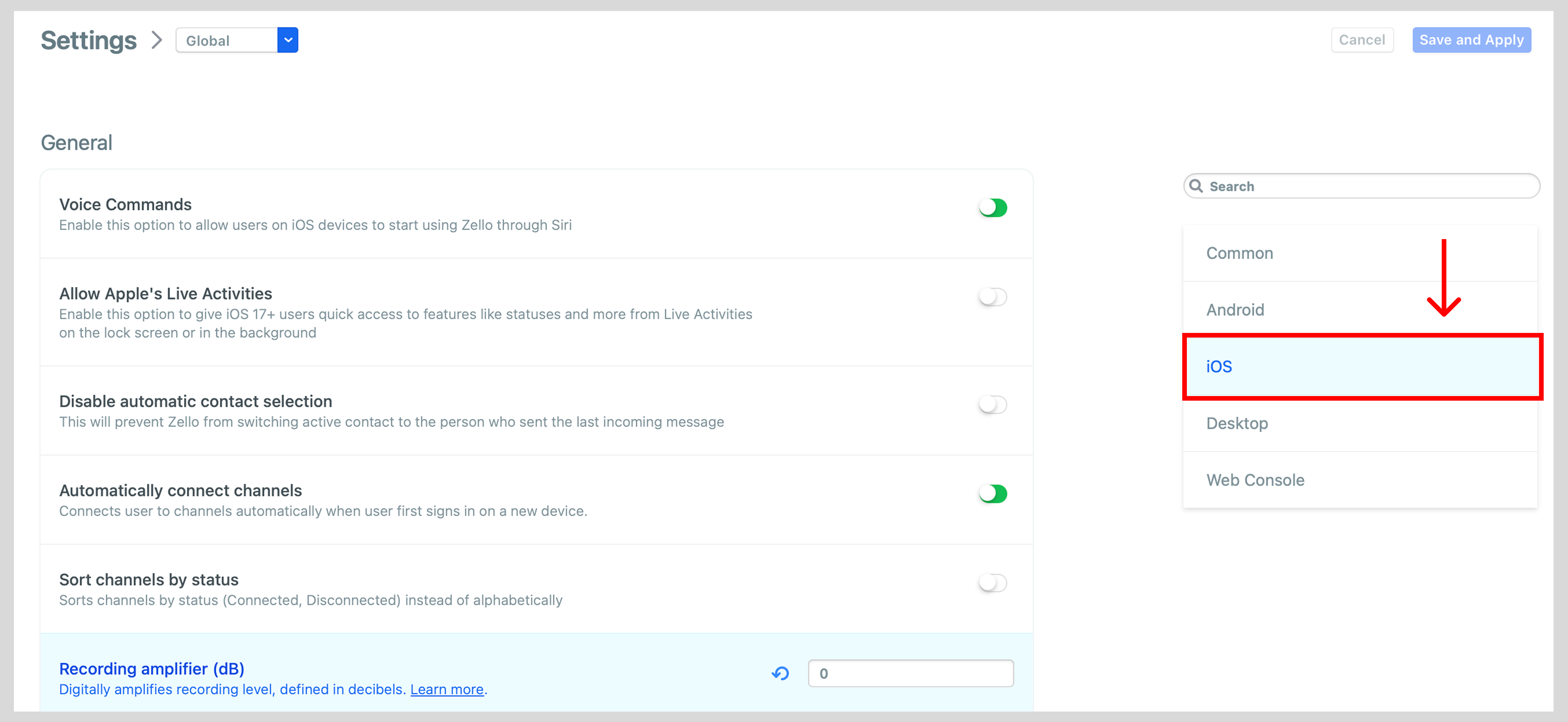
4. Use the toggle on the Enable PTT Framework setting in order to enable the feature.
Note: Green means that the feature is enabled.
5. Click Save and Apply.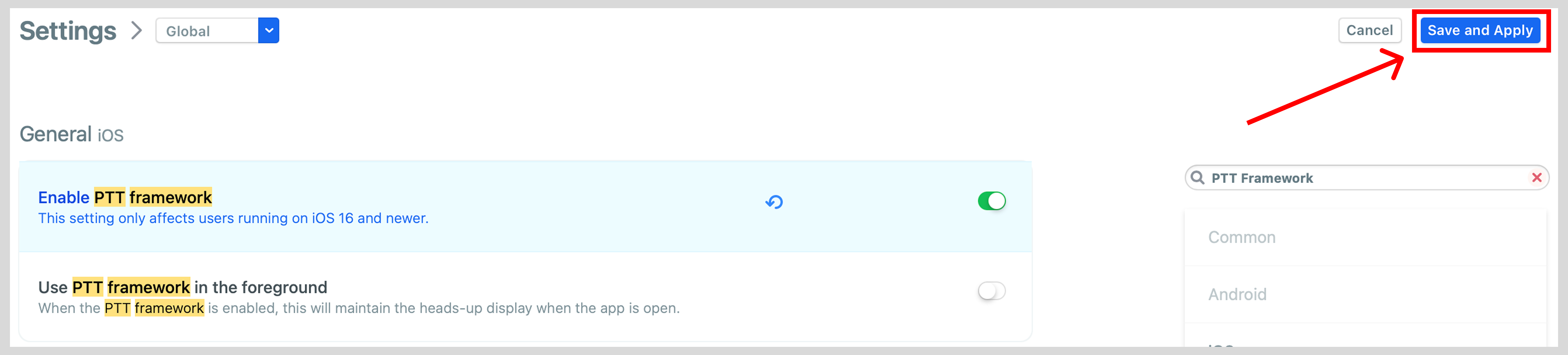
Note: Changing this setting from the management console will override the in-app settings available for the end-user. If you enable the PTT framework from the console, end users will not be able to disable it from their device (and vice versa).
- The following instructions how to enable the PTT Framework on an individual device. Please note that if the PTT Framework is enabled through the management console, you will be unable to change this setting through the app.
1. In the Zello app, tap your user icon and then select Settings.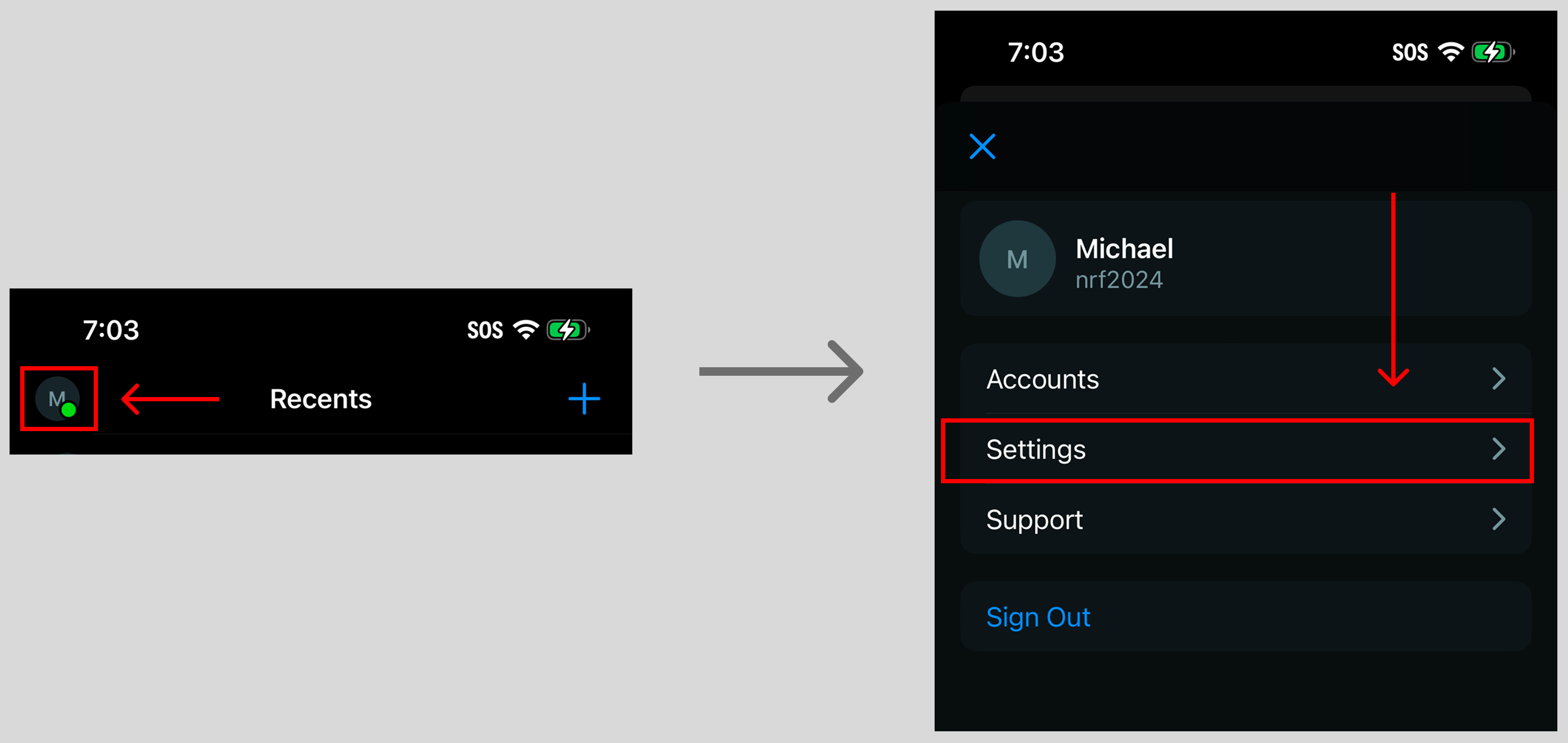
2. Select Background access and then use the toggle to enable the PTT Framework.
. Note: If the toggle is green, the feature is enabled.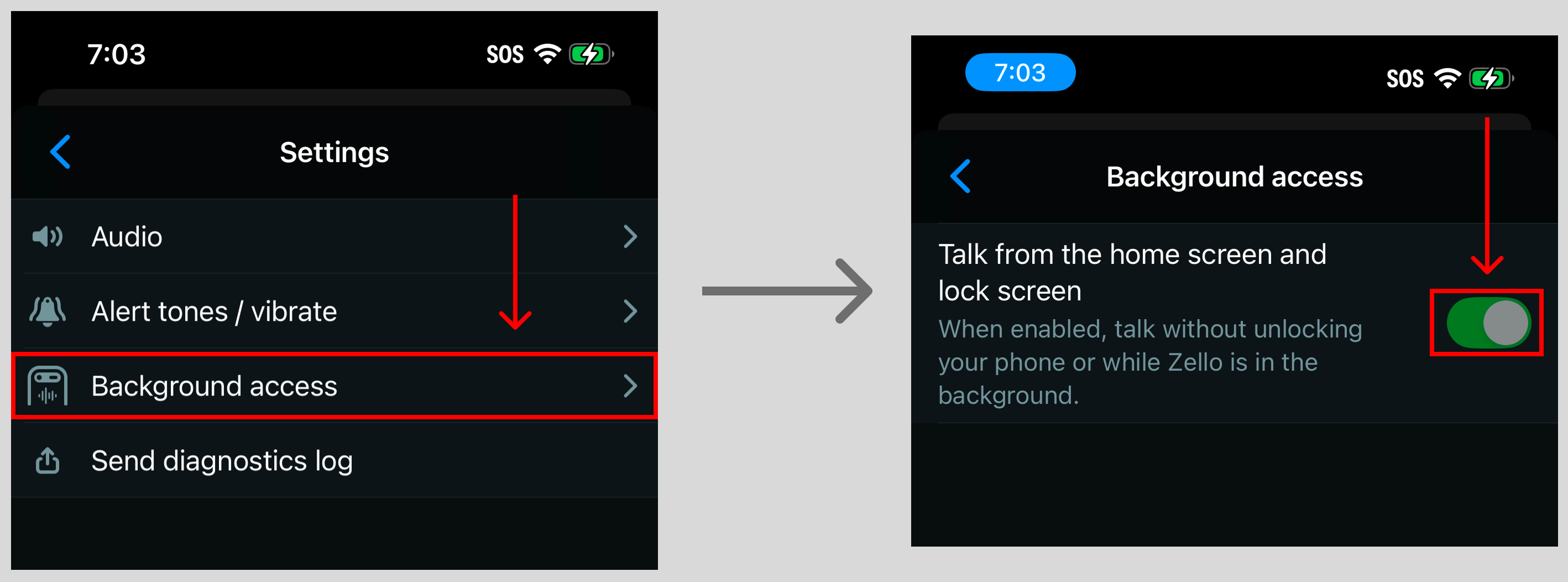
Have feedback on this features? Please share your thoughts and experiences here!