This article is written for: Zello Work Zello Friends & Family.
Installing MSI at different user interface levels
MSI packages can be installed using different user interface levels.
msiexec /q /i ZelloWorkClient.msi /l* Install.log ZELLO_SERVER=" "
If the ZELLO_SERVER parameter is omitted, the installation will be successful; however, the app will run the configuration wizard (shown in step 9 below) at first launch to complete the installation.
- Initially, the Welcome Screen is displayed.
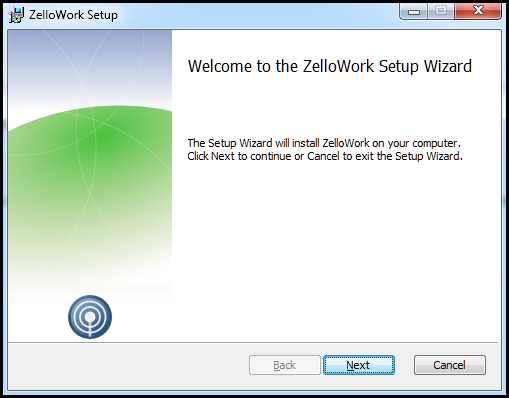
- Click on Next to continue
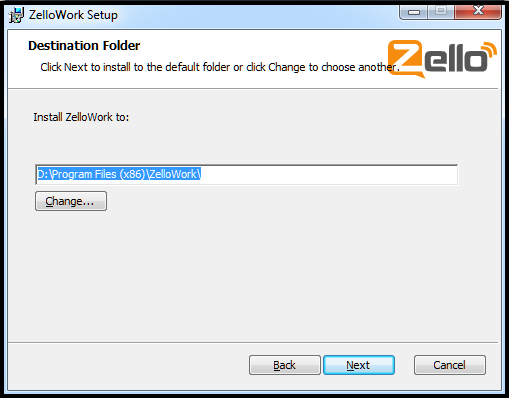
- Type in the destination folder name
- If you didn't pass the ZELLO_SERVER parameter already, type in the network server address or the location of your On-premise Server. Network server addresses would have the format "networkname " while an On-premise Server would have an address such as "http://10.0.0.33"
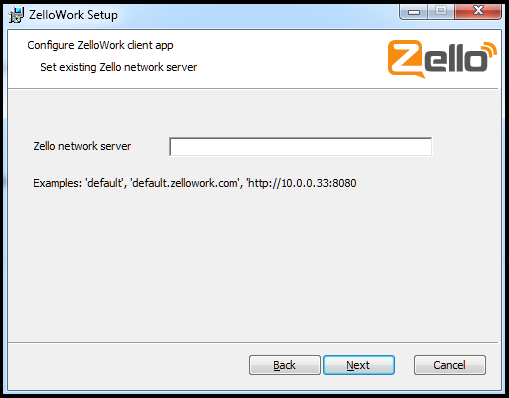
- If you leave the field blank, the configuration wizard will display a second screen, again asking for the network server address or the On-premise Server address
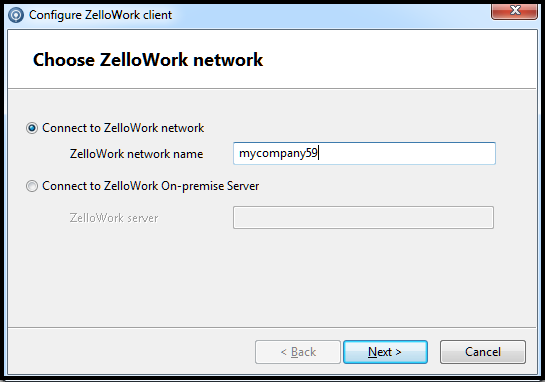
- Type in the appropriate address and finish the wizard to return back to MSI installation
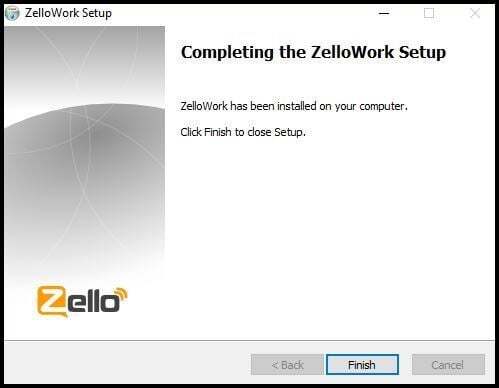
- The Finish screen will display after the installation has completed successfully.