
This article is written for: Zello Work Zello Friends & Family.
6) When you sign in for the first time, Zello may request permission to read your authentication profile. Tap Accept to complete the log in process.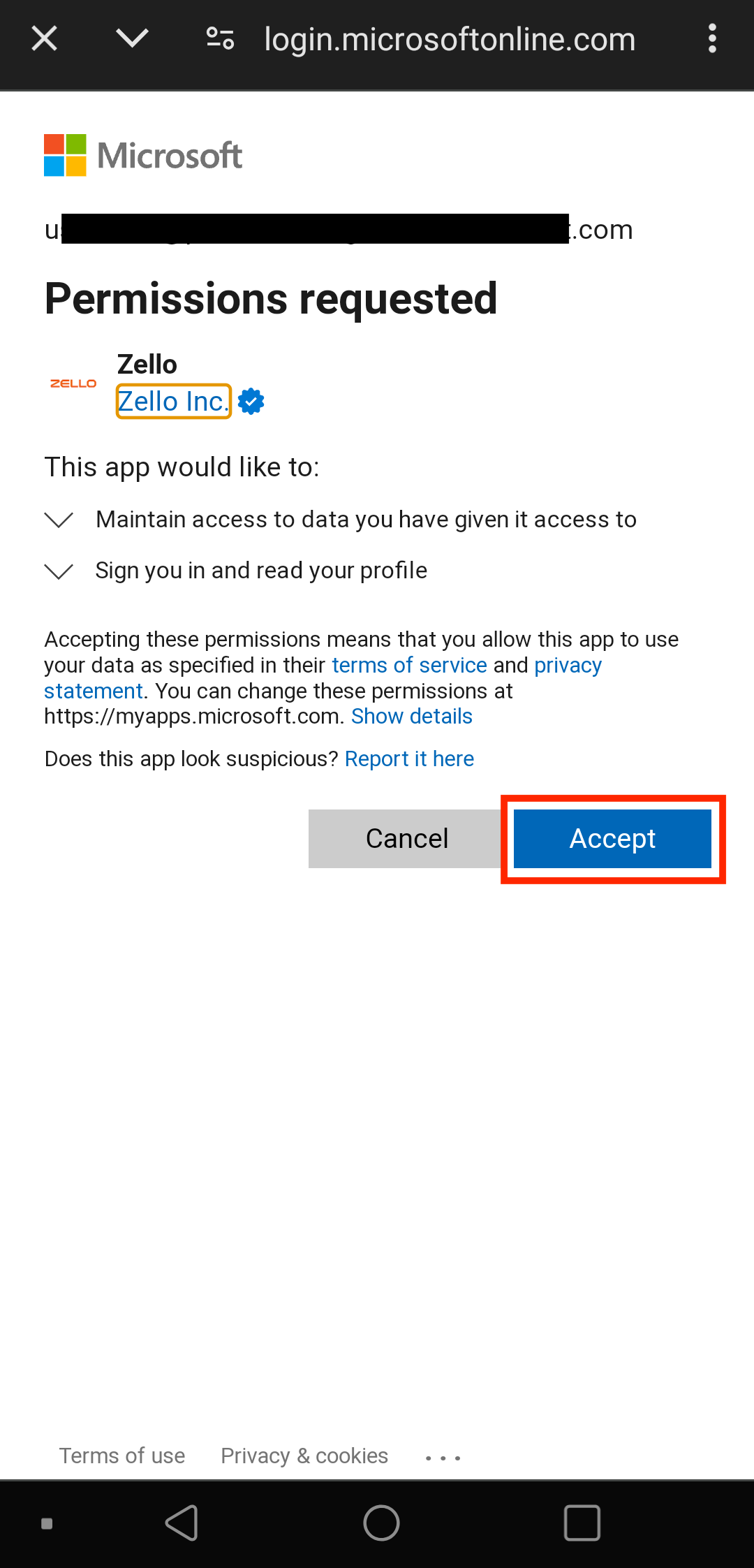
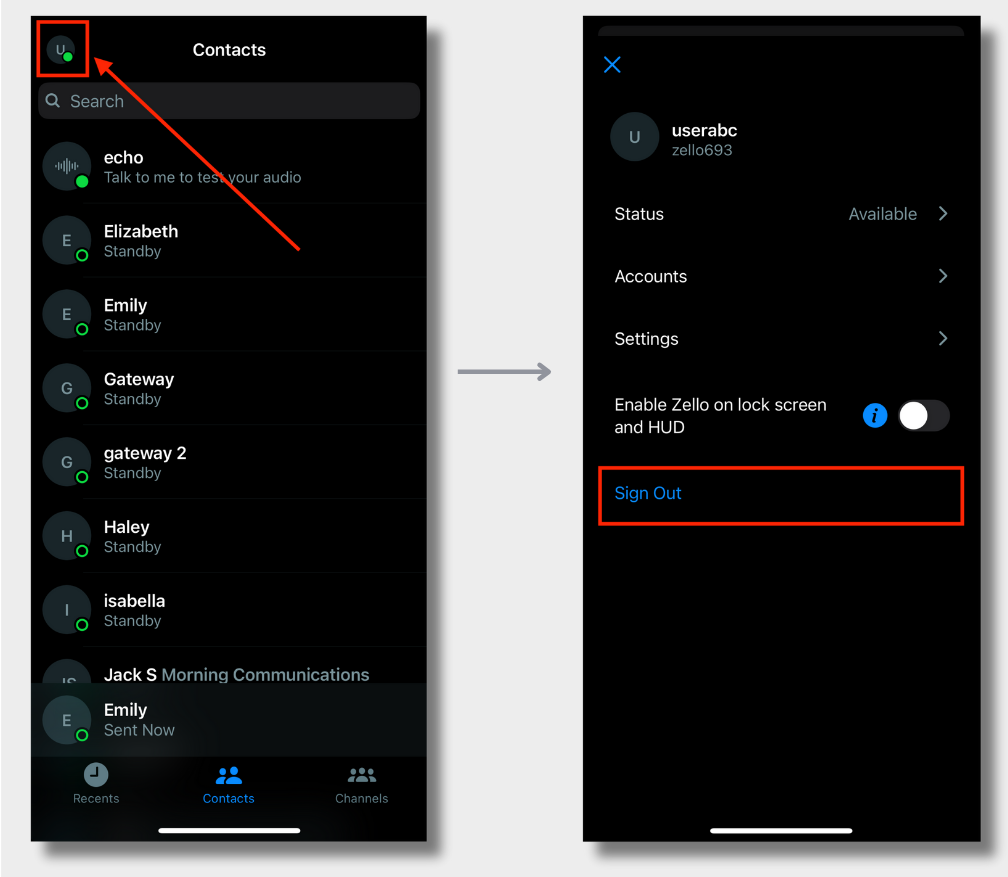
1) Open your user menu (top-left corner of the screen), then select Sign Out.
Please note: As part of the network-wide transition from manual sign-in to SSO, you may lose access to the account associated with manual sign-in. For more information on if and when that happens, contact your network admin.
2) Tap the blue + icon at the top-right corner of your screen. Select Add an existing account.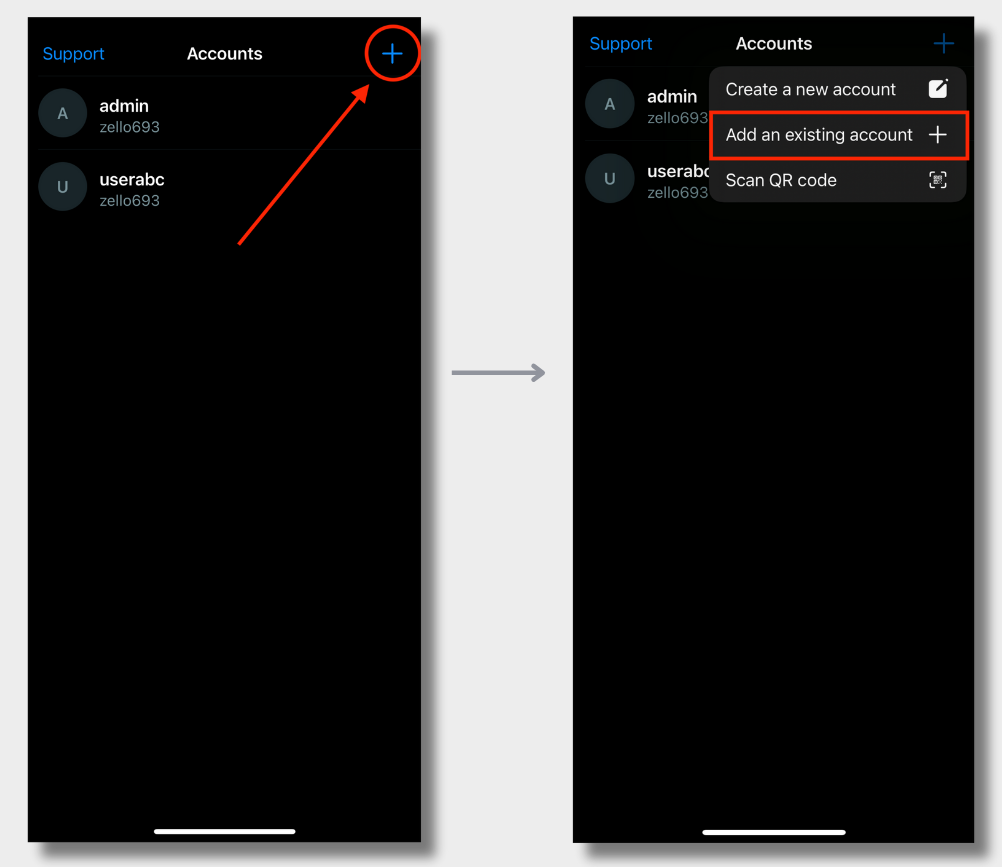
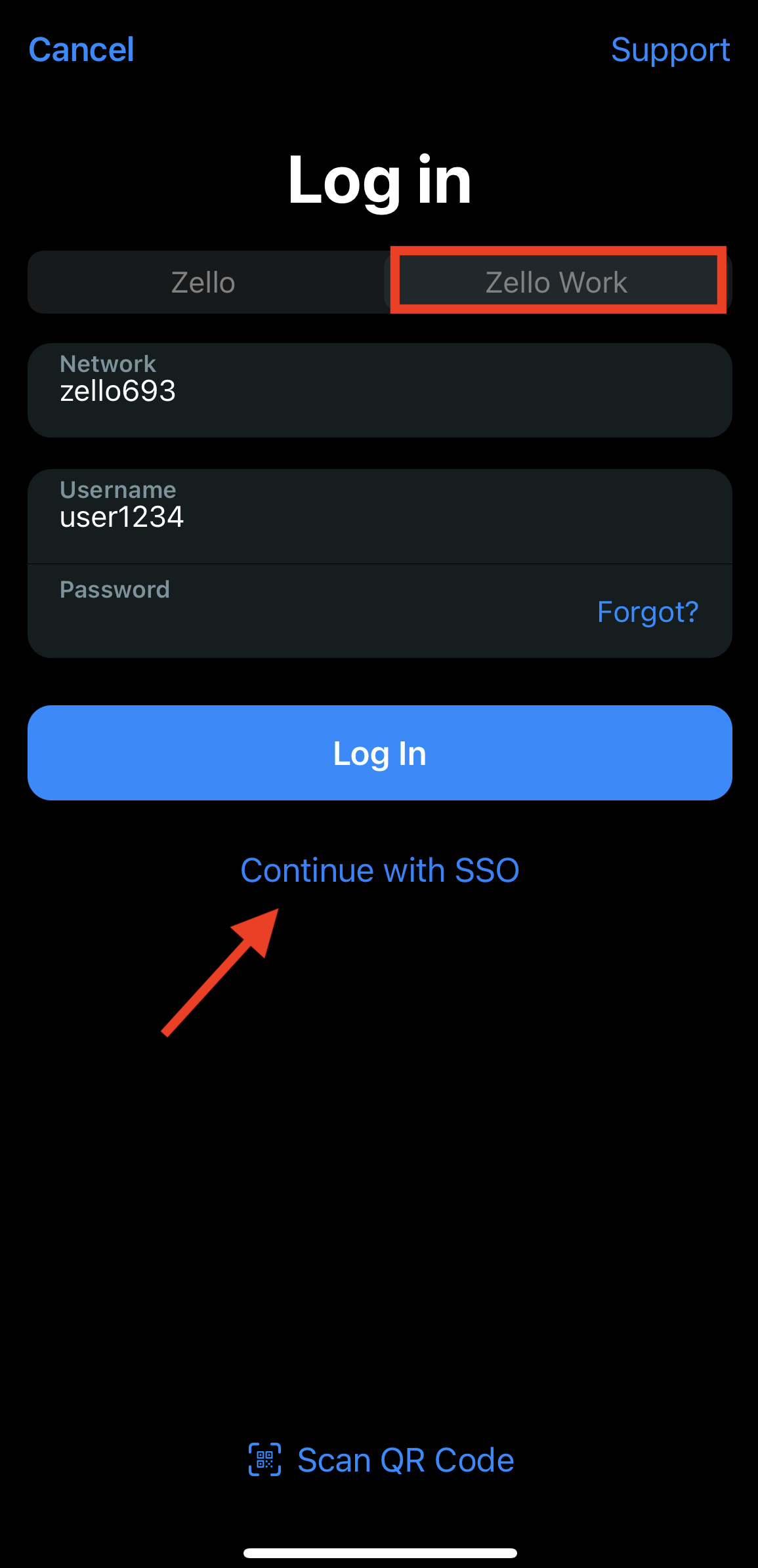
3) Open the Zello Work tab and select Continue with SSO.
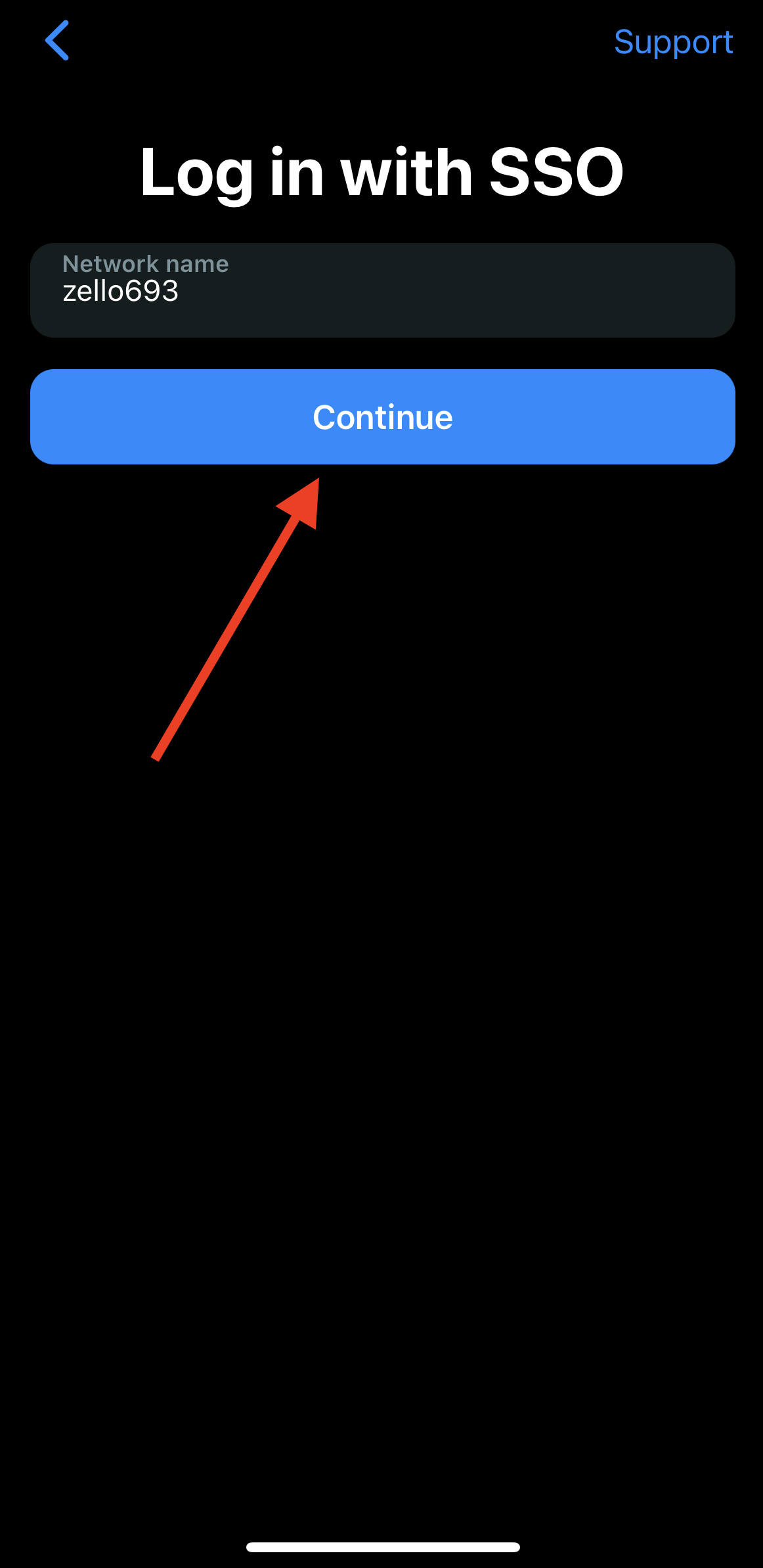
4) Enter your network name, then tap Continue.
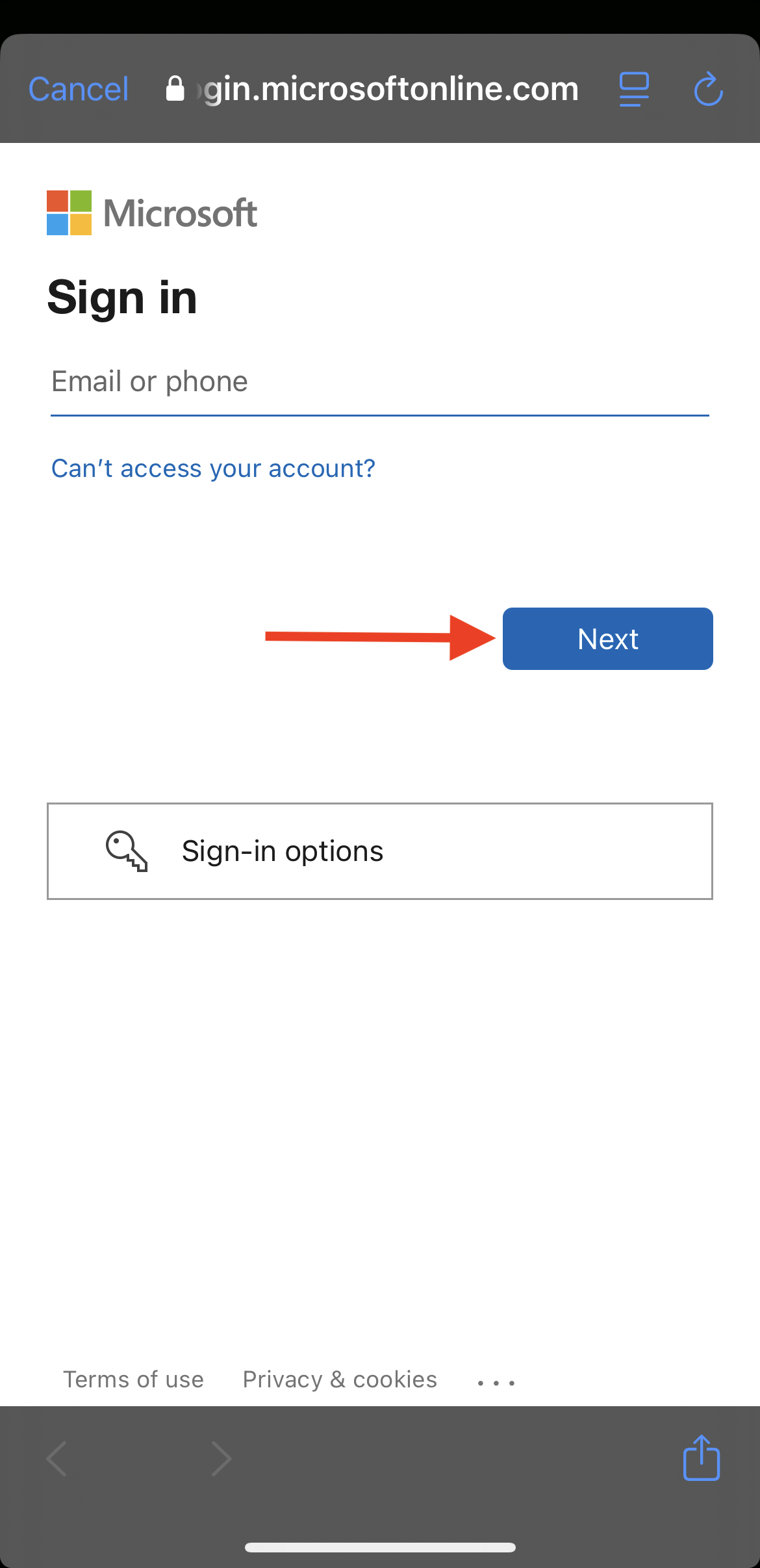
5) Enter your organization-provided email, then tap Next.
6) Enter your password. Select Sign In.
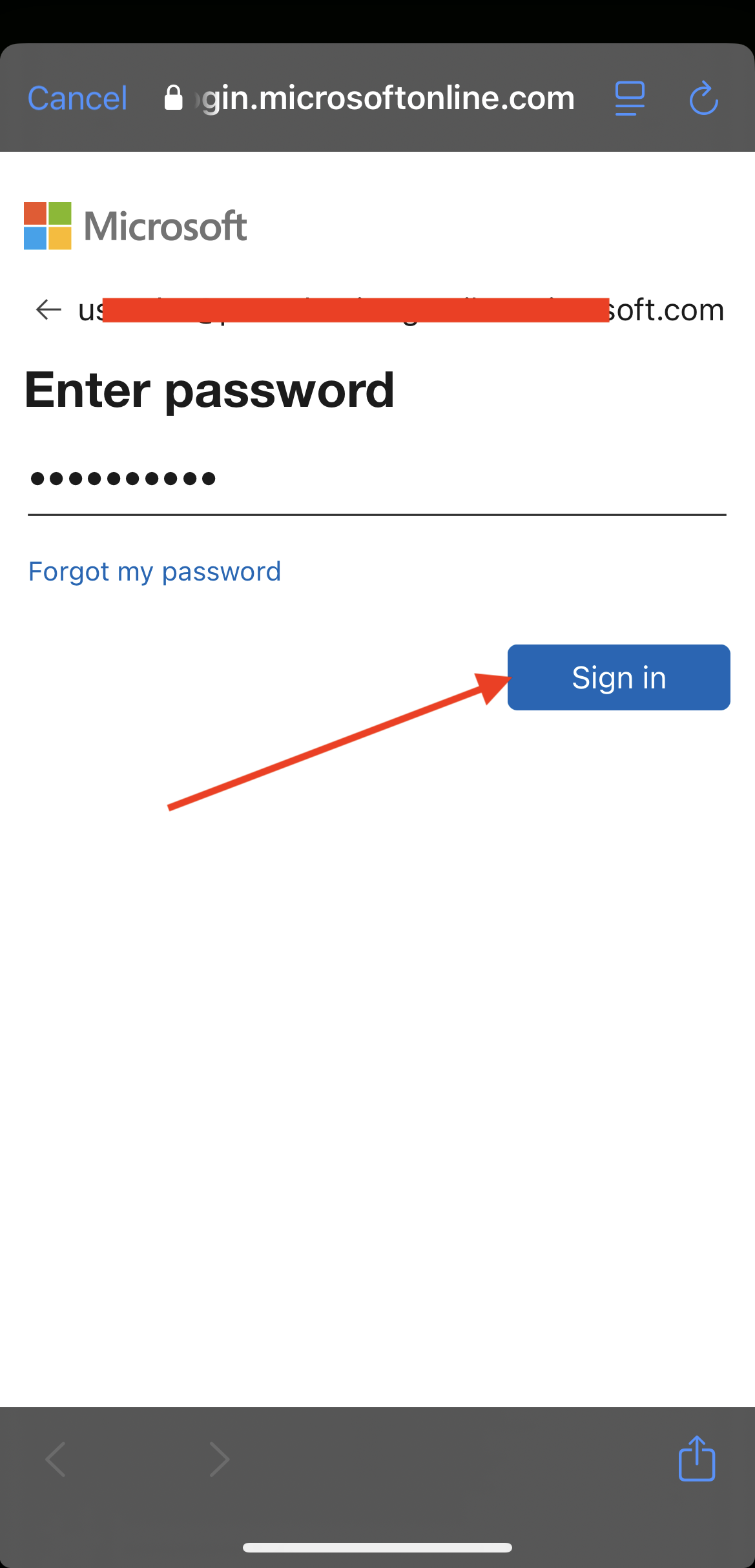
Reminder: Your email’s password likely differs from your previously-used Zello Work password. If sign in fails, ensure you’re entering the correct password.
7) When you sign in for the first time, Zello may request permission to read your authentication profile. Tap Accept to complete the log in process.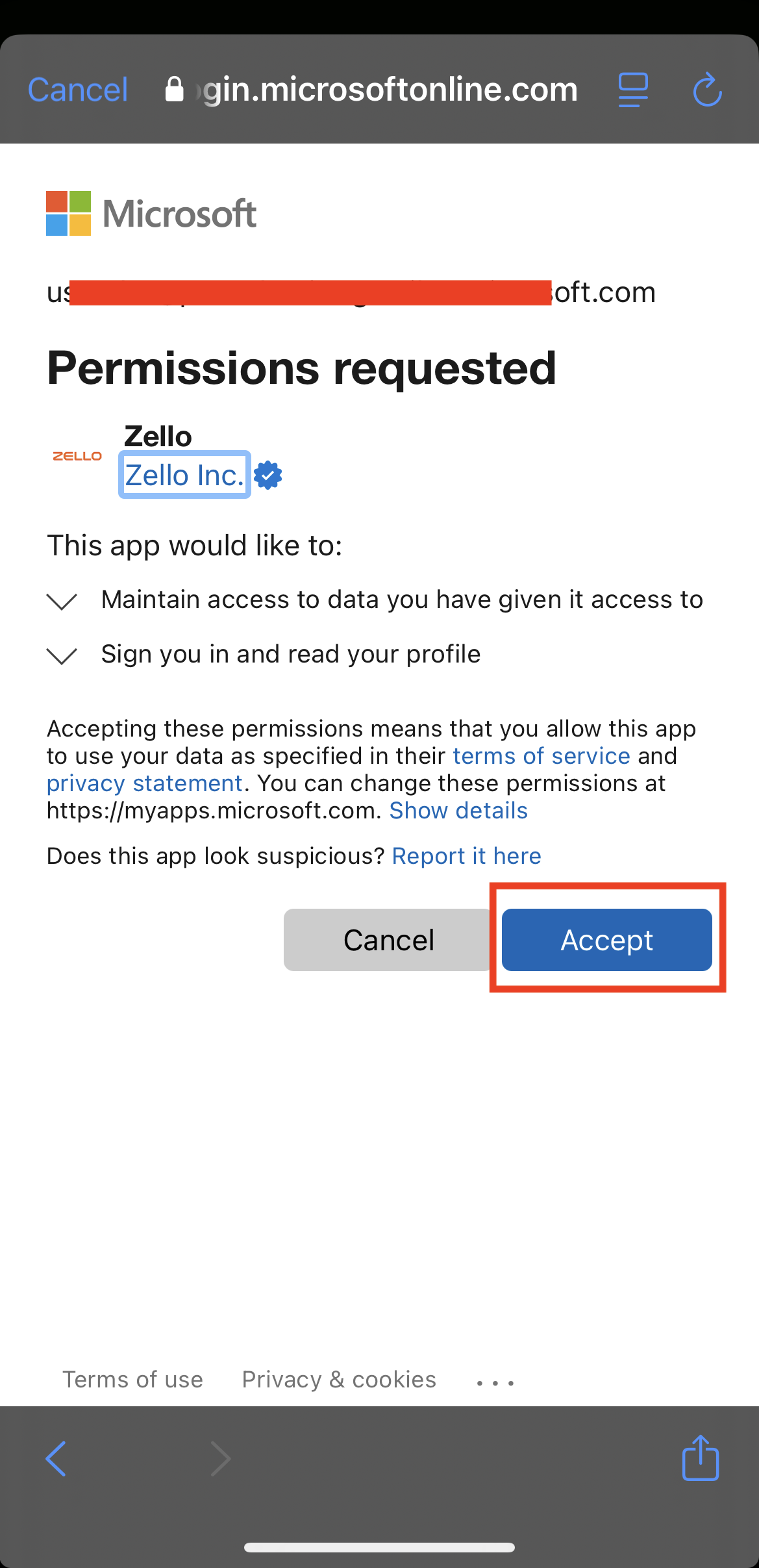
To Note
- While the screenshots provided in this article showcase sign-in via Microsoft, the steps will generally apply to any SSO provider supported by Zello.
- Your network admin can provide additional details about the timing of your network's transition to SSO.
- Your network's admin will likely delete the Zello Work account previously accessed via manual sign in (i.e. username and password). The timeline for doing so is at their discretion.