
This article is written for: ✅ Zello Work ❌ Zello Friends & Family.
Multiple users can sign in to the same device with the same Zello Work app. Below are the steps to add a user account.
Android
1) Open Zello. Tap the Zello menu (three vertical dots at the top-right corner of your screen) and select Options.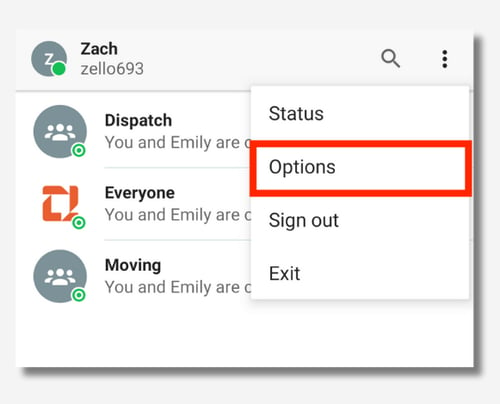
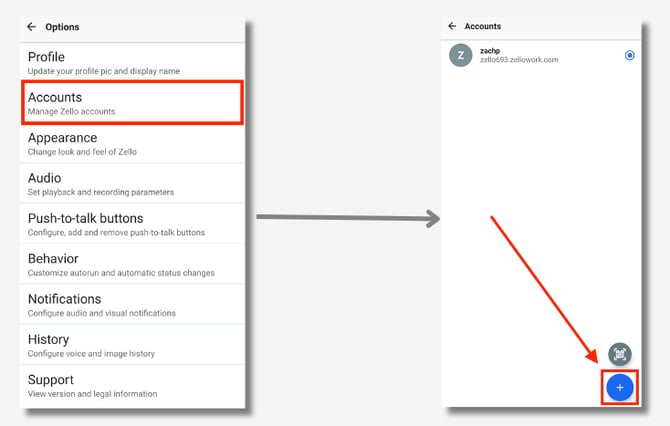
2) Select Accounts, then tap the blue + icon in the bottom-right corner of your screen.
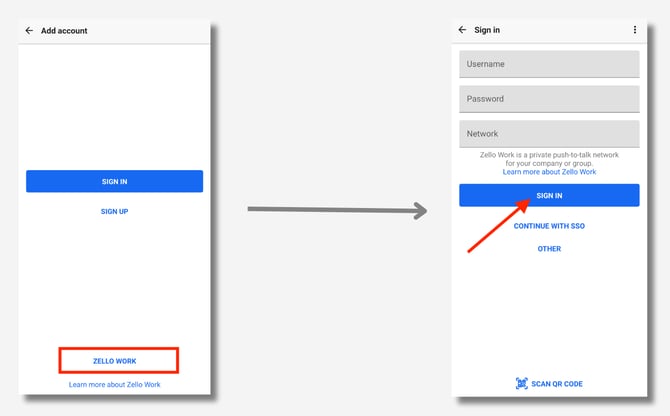
3) Tap ZELLO WORK at the bottom of your screen. Enter your account username, password, and network name, then tap Sign In.
iOS
1) Open Zello. Then, tap your user icon (located in the top-left corner of the screen) and select Accounts.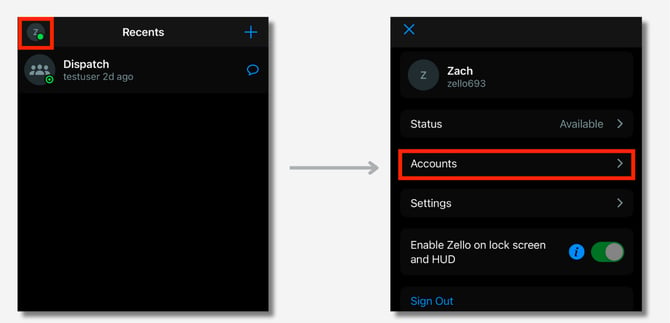
2) Tap the + button at the top-right corner of your screen, and select either Add an existing account if you're logging in to an existing account; Create a new account if you'd like to create a new Zello Friends & Family account; or Scan QR code if you've received a QR code from a network admin. Enter your account information and tab Log In.
.png?width=670&height=336&name=5%20add%20new%20account%20(1).png)