
This article is written for: Zello Work Zello Friends & Family.
If this setting is enabled and a user attempts to sign in with just a first name, they'll receive the following error message: 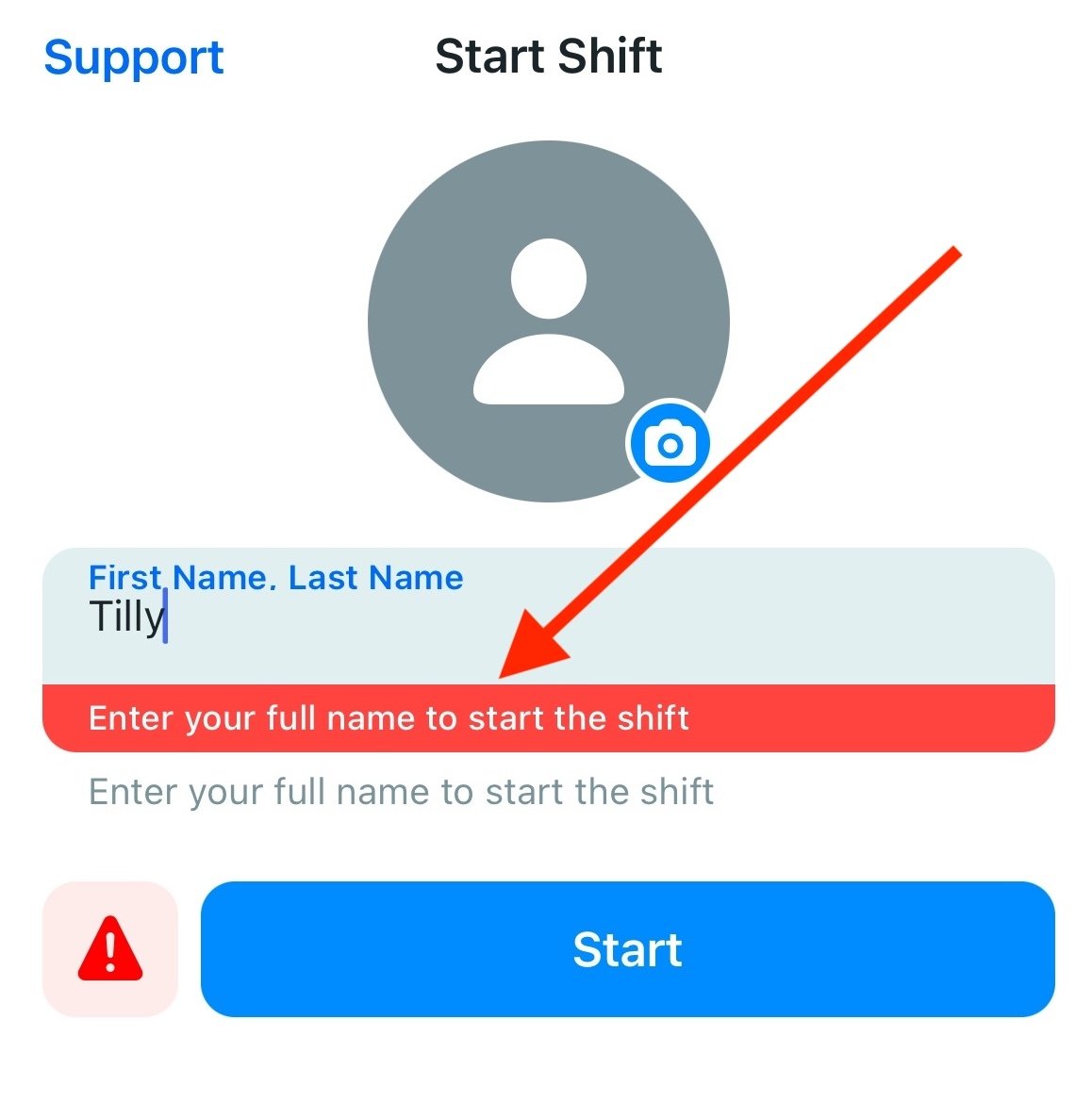
If this setting is not enabled, only a first name will be required at sign-in.
Automatically end shift when device is connected to a charger
*This setting is available exclusively for Android devices
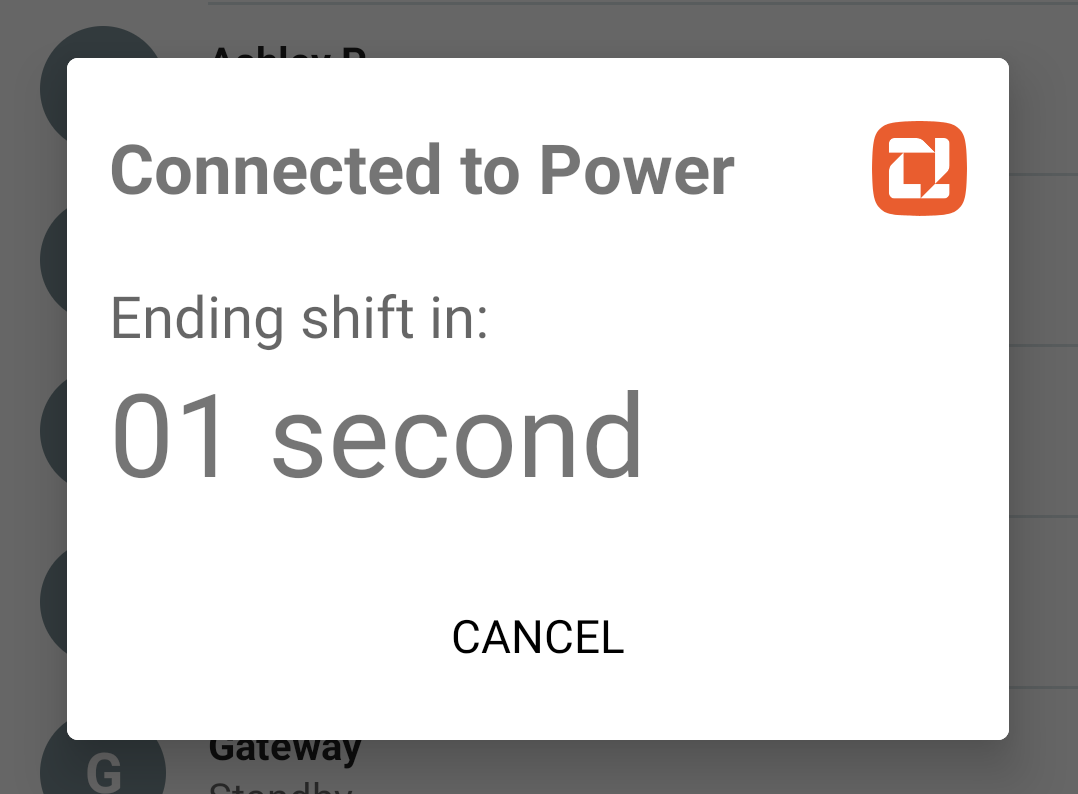
This setting automatically ends a user's shift when their device is connected to a charger.
Users will retain the ability to manually end their shift if this setting is enabled. When they connect their device to a power source, a 10-second countdown will begin; the user can tap Cancel to prevent their shift from ending, if desired.
Step 2: Assign Users as Shared Device Accounts
After the shared devices setting has been enabled for the network, an admin then decides which users should be designated as shared device accounts. Please note this is a required step in the enablement process; if a user's account isn't specifically designated as a shared device account, their Zello Work sign-in process will remain the same.
These assignments can be made in three ways: on a user-by-user basis, via user templates, or utilizing the user import tool. When assigning accounts as shared device accounts, ensure the field for display name is left blank in the console—this ensures that the name each individual signs in with is used as their in-app display name.
- 1. From the taskbar, select Users.

2. Select the user you'd like to assign as a shared device account.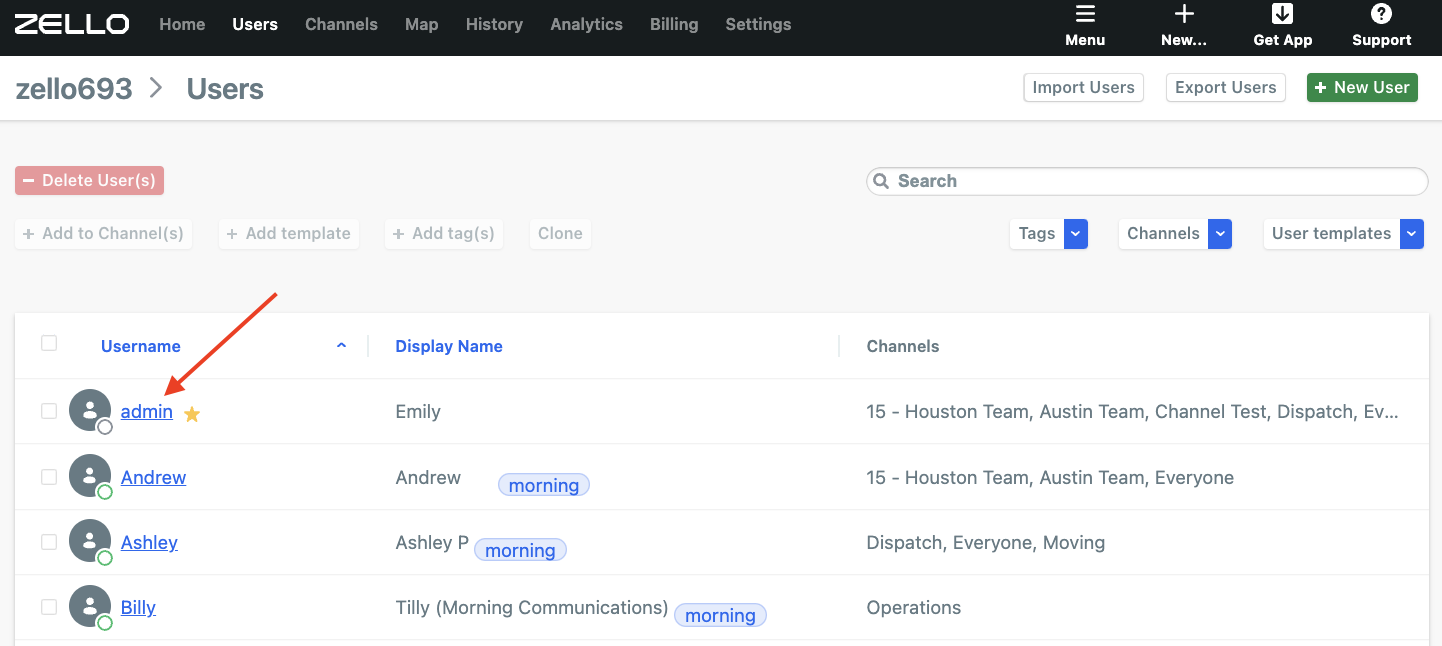
3. Under User Settings, toggle ON ""Shared device account."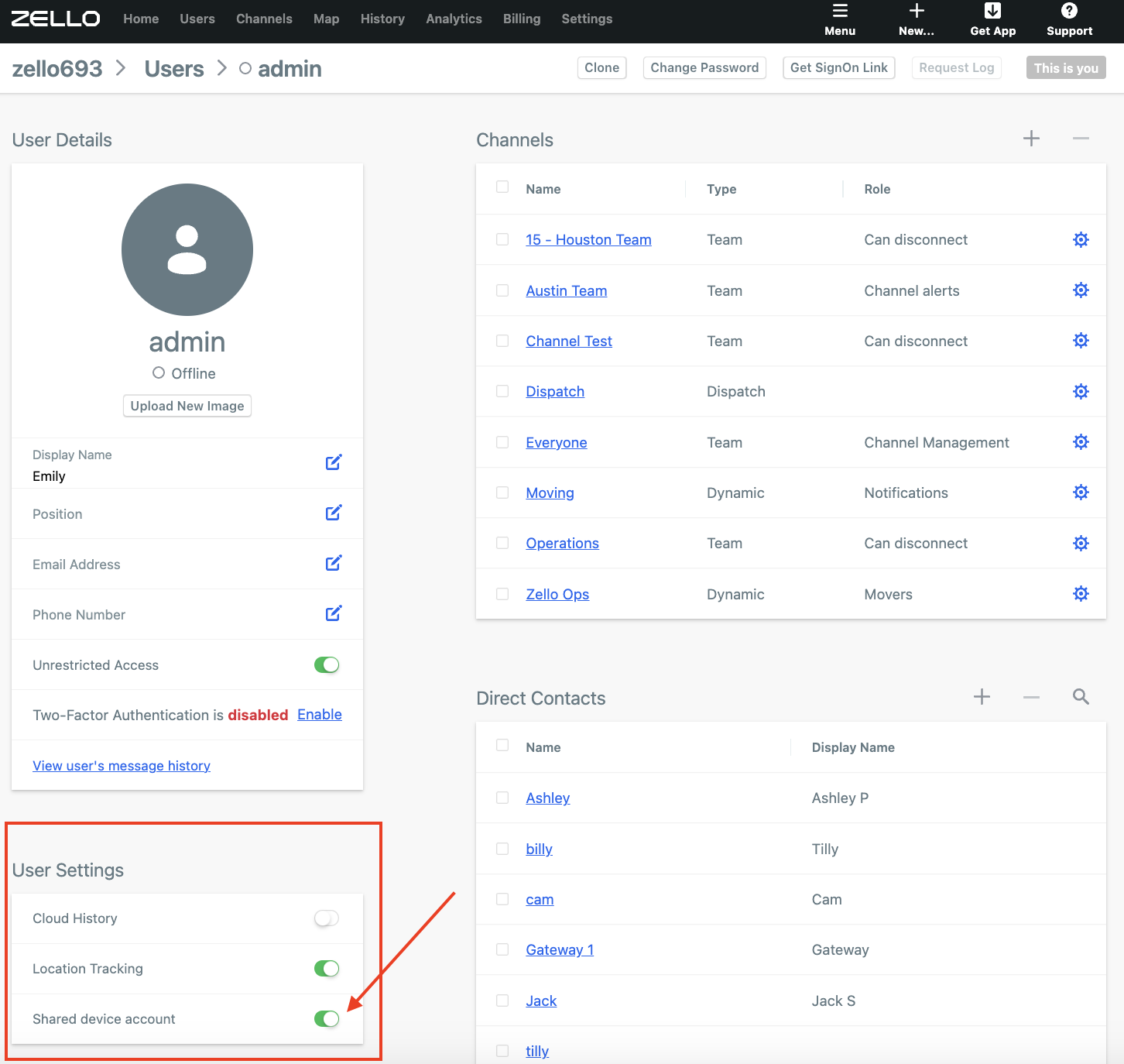
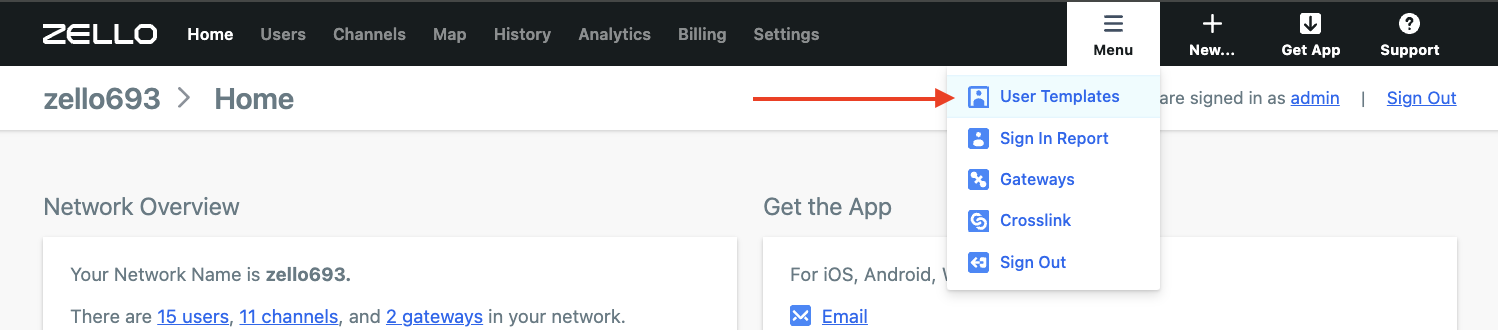
- 1. From the management console, open the Zello menu (three horizontal lines on the right side of the taskbar). Select User Templates.
2. From the list, select the template you'd like to enable shared devices for.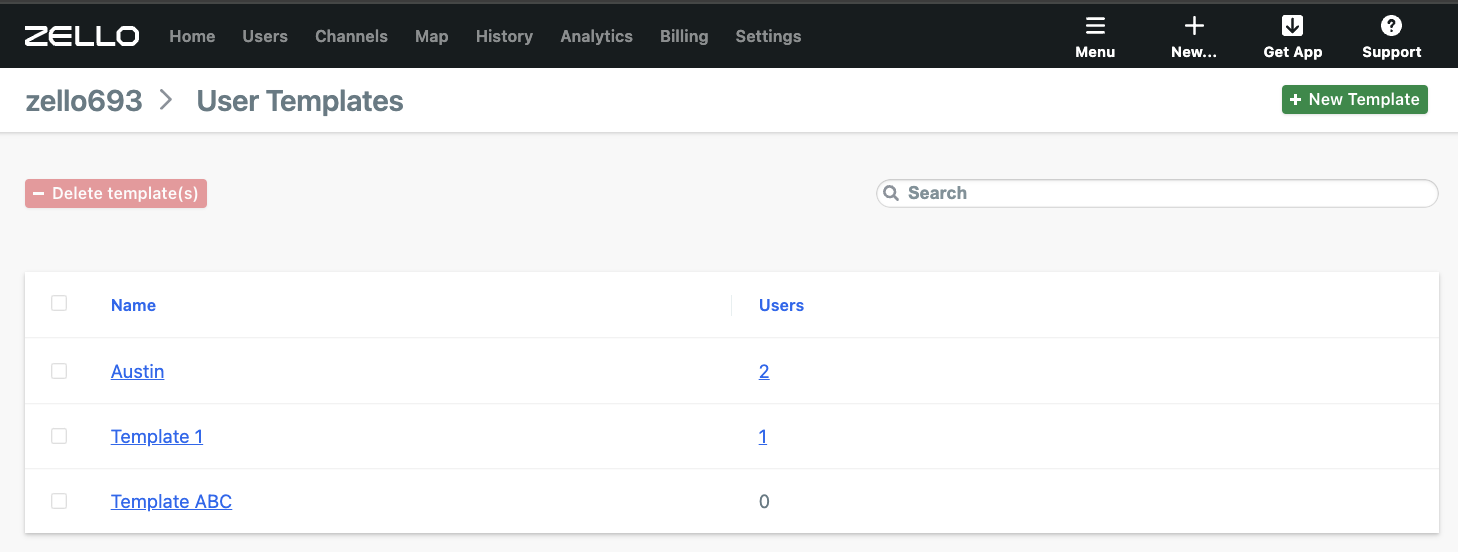
3. Under User Settings, toggle ON "Shared device account."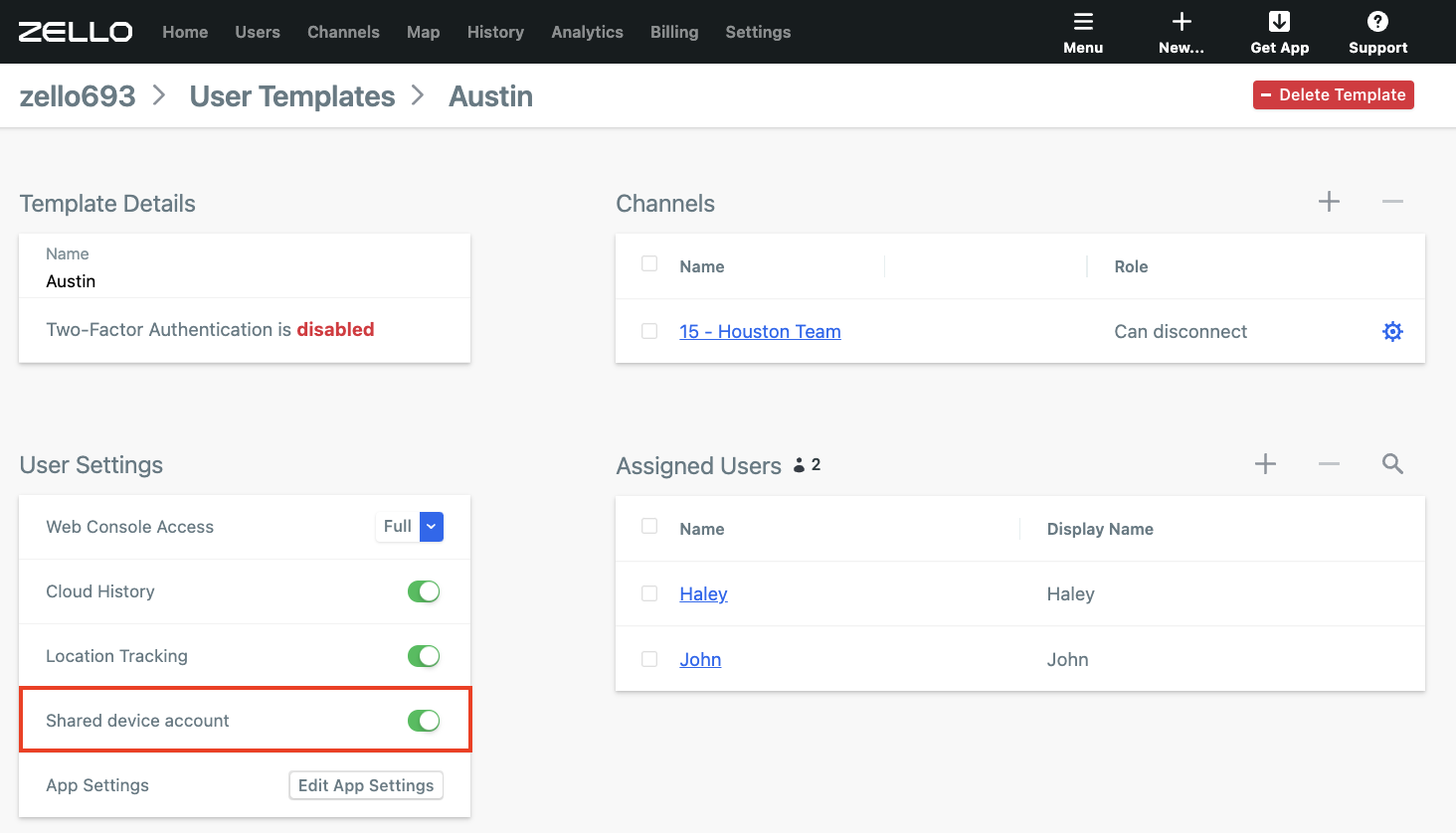
Please note: Admins will only see the "Shared device account" configuration if shared devices have been enabled from the console's settings. It will not appear under a template's User Settings section unless it's already been turned on from the Settings page.
- Zello's user import tool allows admins to make bulk changes to user configurations. It's accessible from the Management Console's Users page.
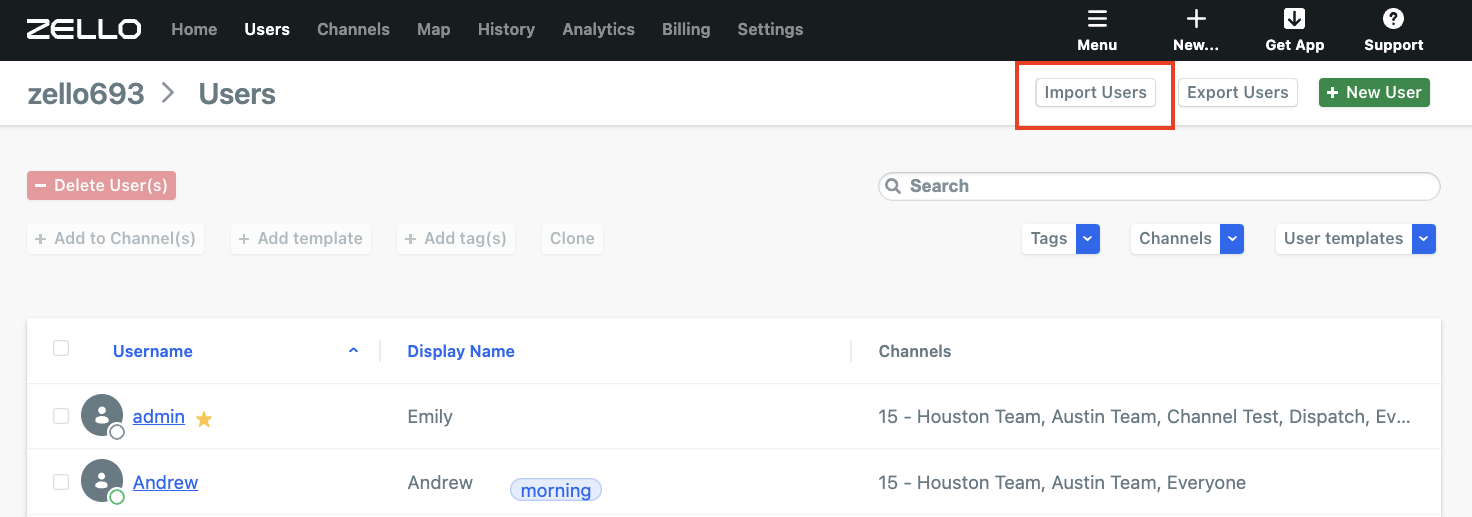
To configure many users as shared device accounts on your network, follow the instructions (both Step 1: Create the CSV File and Step 2: Upload the CSV File) outlined in this article. Ensure you've left the full_name column blank.