
This article is written for: Zello Work Zello Friends & Family.
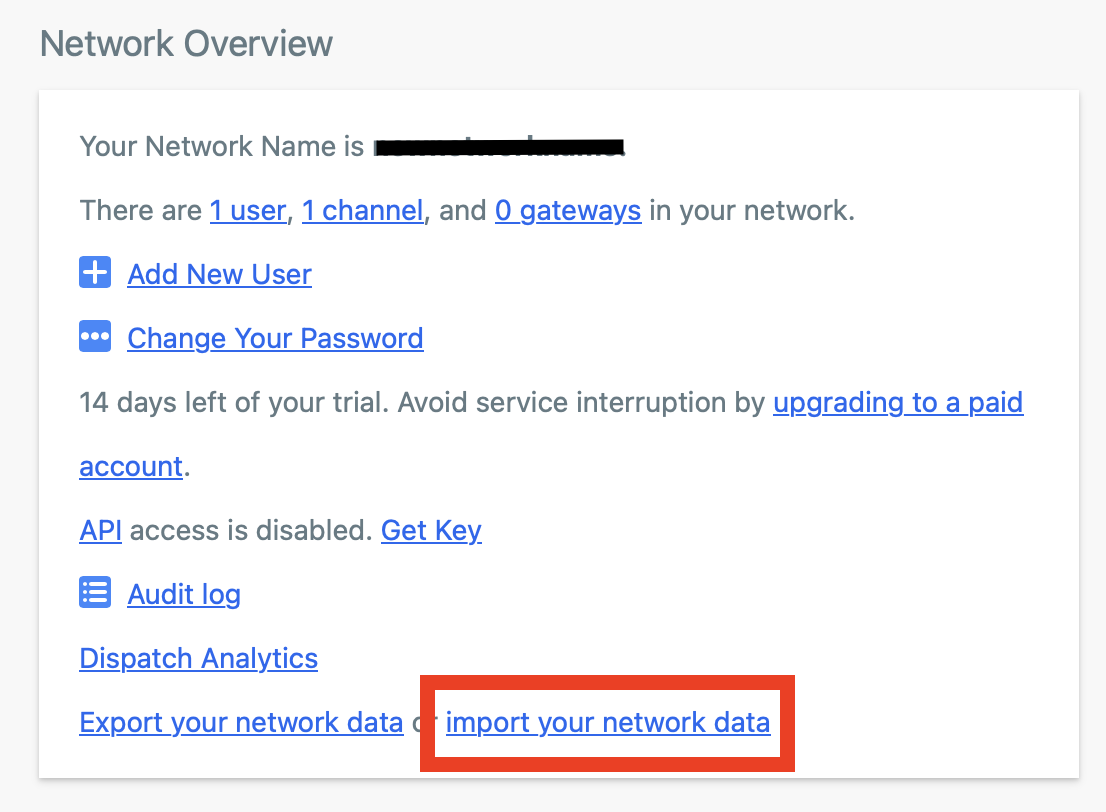
3. Click Choose a file to select the .zip file downloaded in Part 1. Then, enter the file's associated archive password, and click Import network.
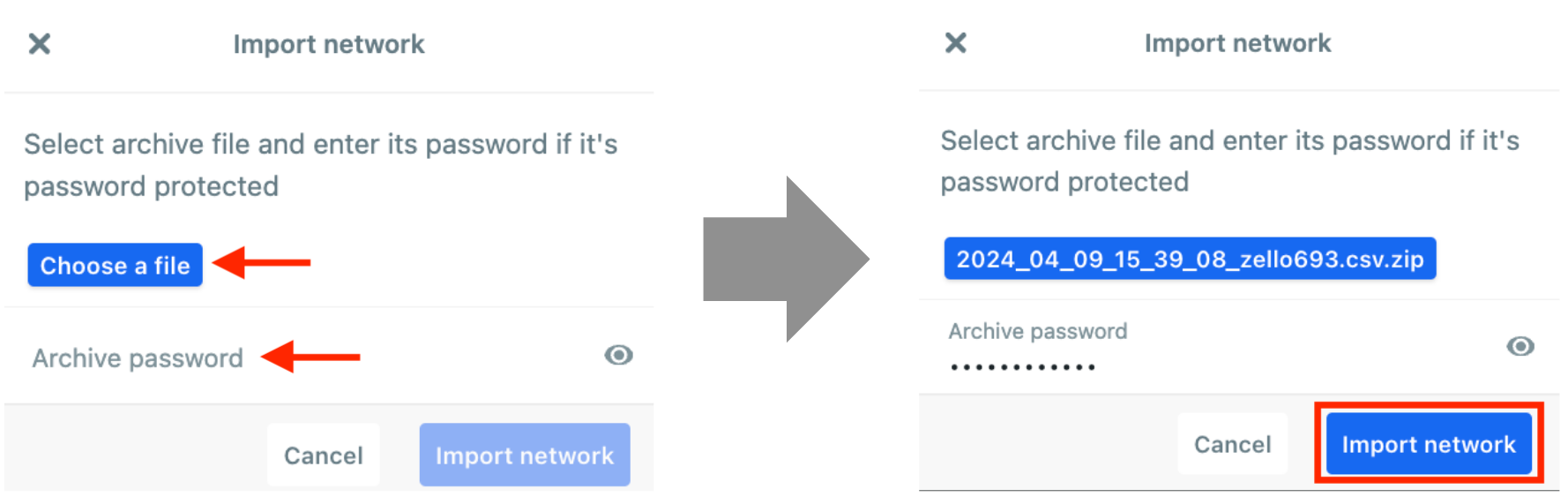
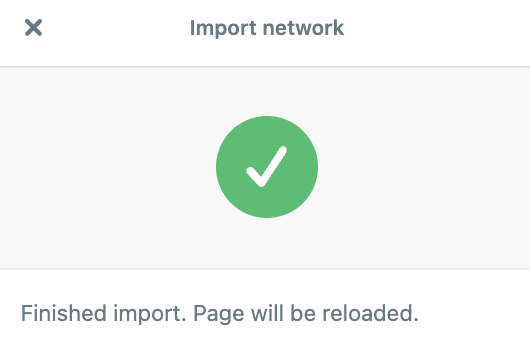
Please note: The entire .zip file must be uploaded at this point. If you attempt to upload the extracted .csv file, an error message reading "Failed to parse archive" will appear.
Part Three: Update your Billing Information
First responders — please email paidsupport@zello.com to transfer ZeFFR status to your new network.
-
1. Sign in to the old (incorrectly named) network as the admin user: originalnetworkname.zellowork.com
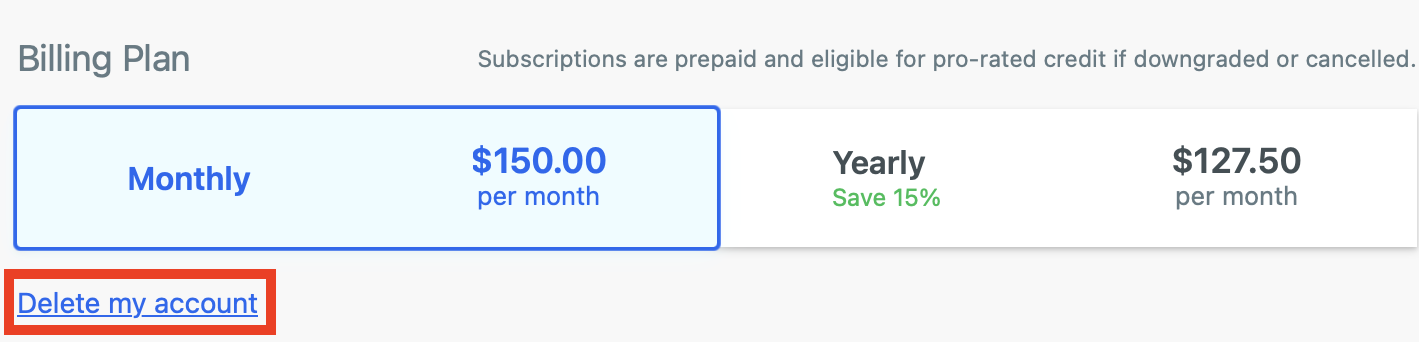
- 2. Select Billing from the console's top toolbar. Scroll to the Billing Plan section at the bottom of the page and select "Delete my account." You'll receive an email confirming the change.
-
3. Sign in to your new Zello Work network as an admin user: newnetworkname.zellowork.com
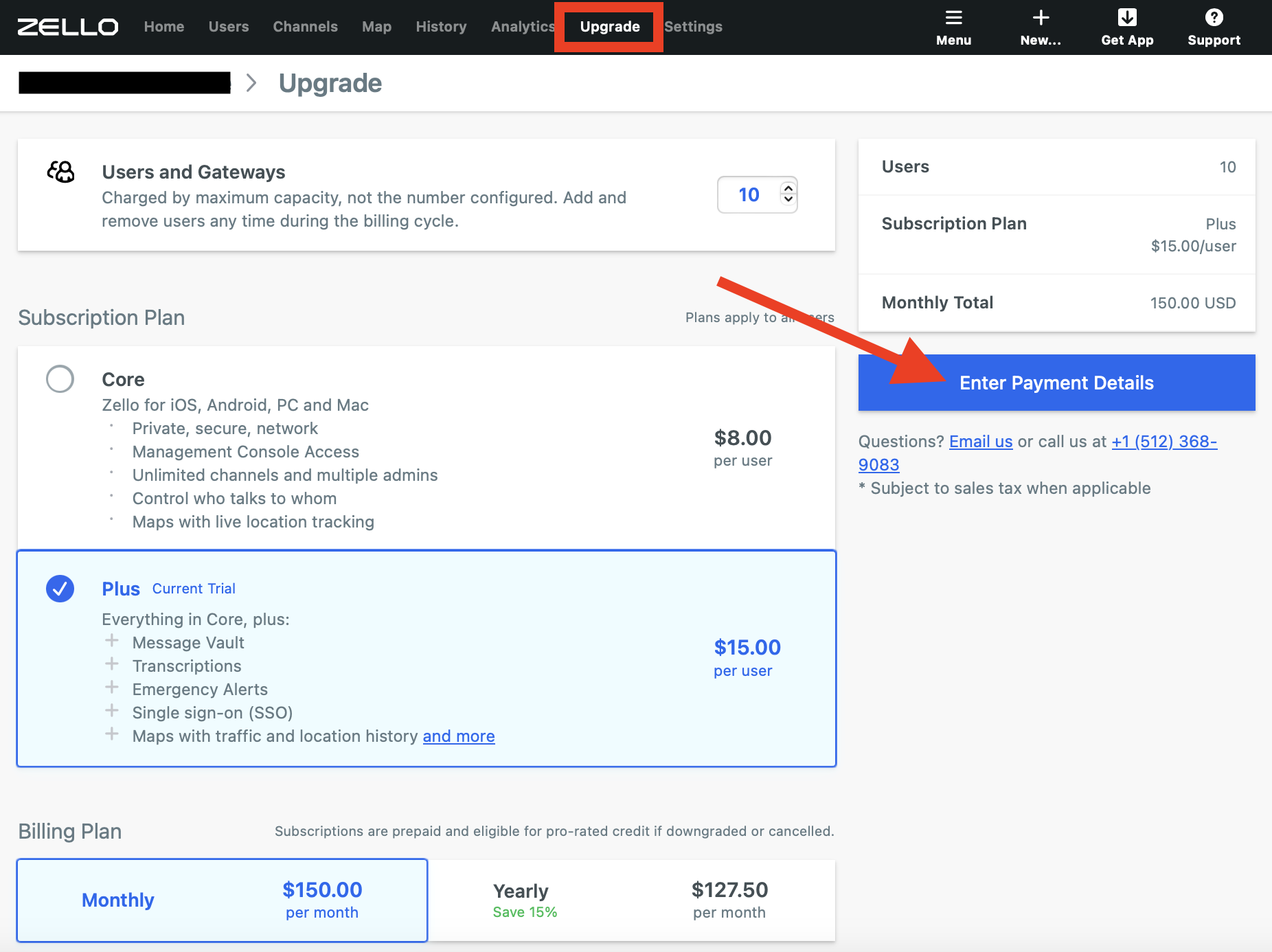
- 4. Select Upgrade from the console's top toolbar. Choose your intended Zello Work package, then select Enter Payment Details to complete your subscription.
Part Four: What is carried over?
Not every detail from your existing network is replicated when that data is imported into a new network.
What is carried over
-
- User list, including passwords, display names, and direct contact list.
- Channel list, including membership and channel roles.
- User Templates
- Certain settings, but not all. If you are concerned about a specific setting, please email paidsupport@zello.com for assistance.
What is not carried over
-
-
- Message Vault History
- Location History
- Sign-in report data
- Audit log data
-