
This article is written for: Zello Work Zello Friends & Family.
- By an admin through the admin management console
- Through certain channels. If users are in the same team or hidden channel, they'll automatically be added as direct contacts for each other and can communicate one-to-one.
Admins: Add direct contacts for users
If you'd like to establish users as direct contacts that aren't already—for example, users in a dynamic channel—follow the steps below:
- Sign in to the management console at [yournetworkname].zellowork.com.
- Select Users from the taskbar. Then select the user you'd like to add contacts for.
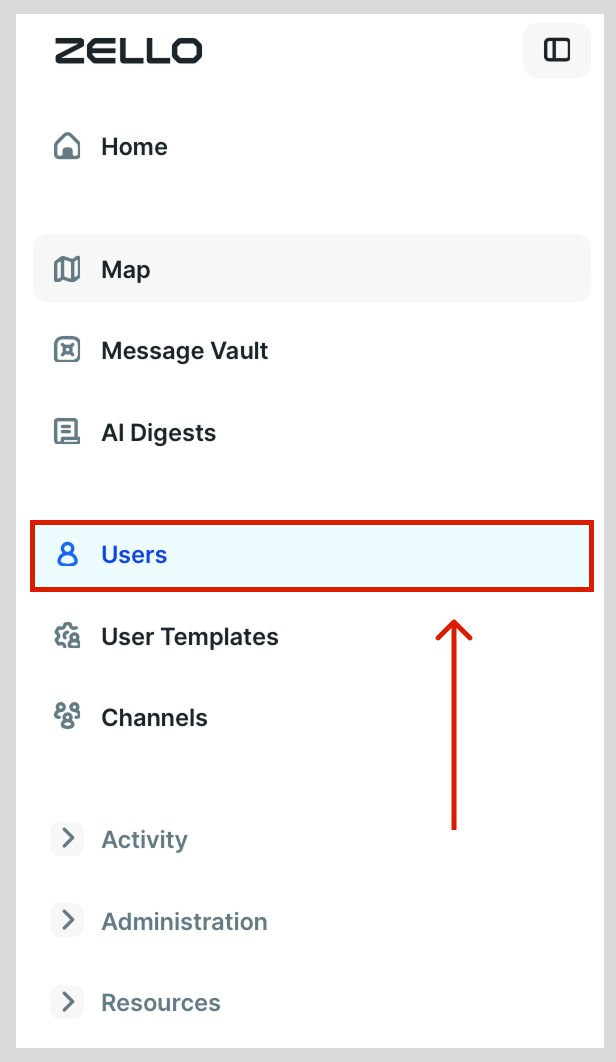
- Locate the user you want to add contacts for. Click their username.

-
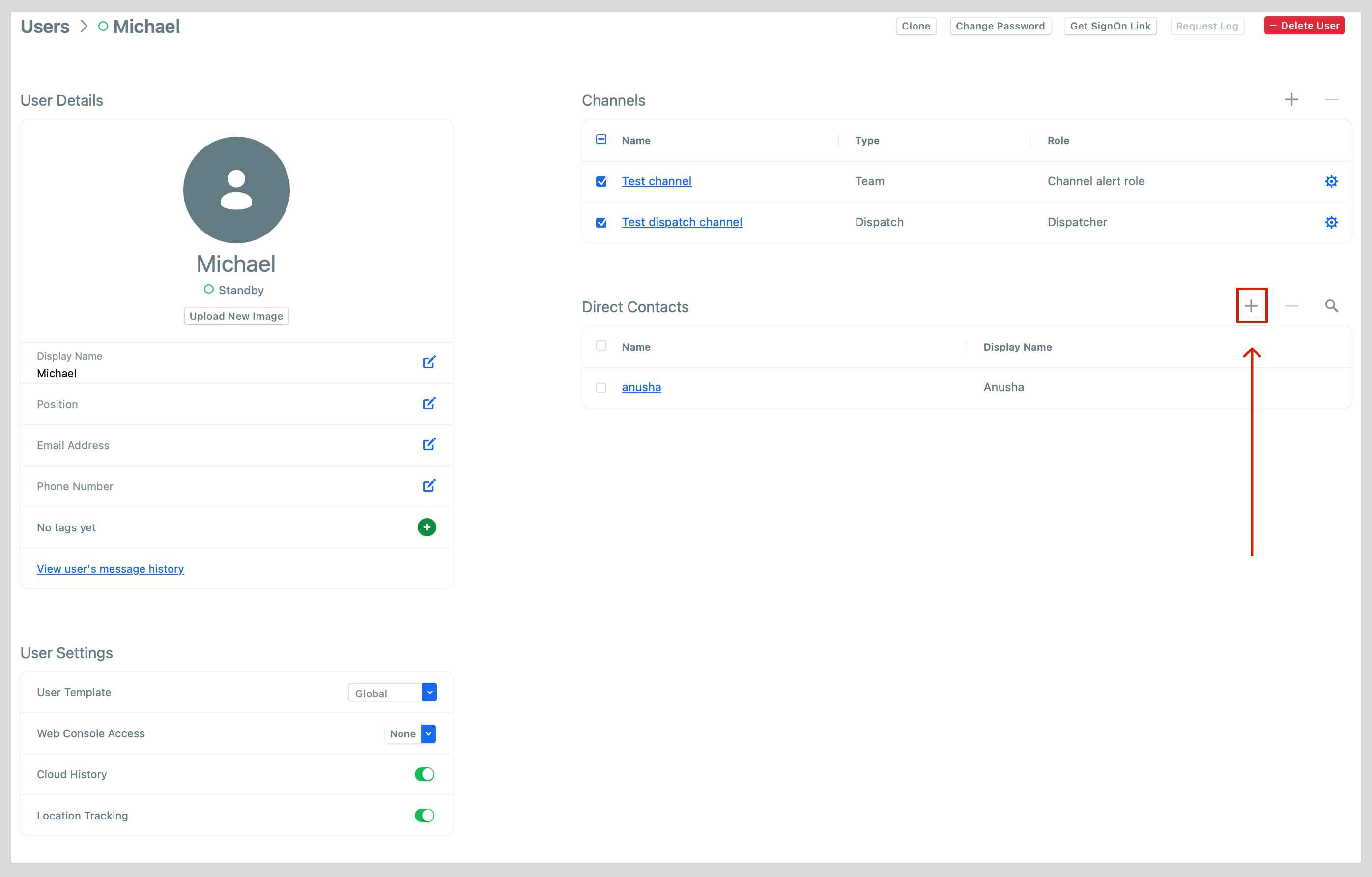
From the user's profile, click the + button at the top-right corner of the Direct Contacts section.
-
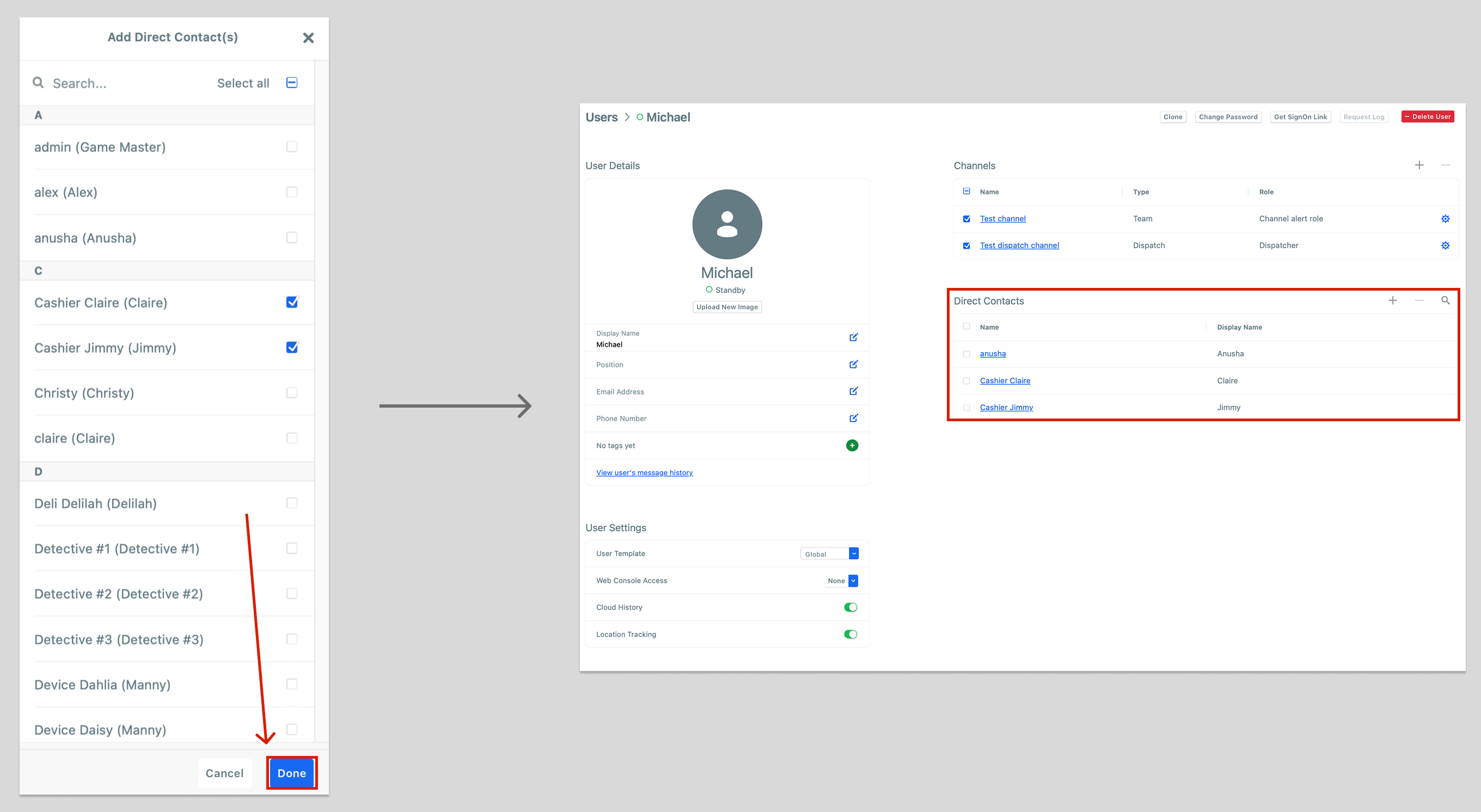
A list of all network users will appear. Select the users you'd like to add as direct contacts—or check the Select all box at the top-right corner if you'd like everyone to have 1:1 communication capabilities—then click Done. Once added, all direct contacts will be listed under the Direct Contacts section of the user's profile.
-
To delete direct contacts, use the search tool at the top-right corner of the box to find and select the intended deletions. (Alternatively, you can click the checkbox at the top-left corner of the box to select all users.) Once the correct users have been selected, click the - button. Then select Remove contacts.
